
Excel Solver can return fractions when Ignore Integer Constraints is selected, even with int or bin rules. Clear that option, then check the rules cover the cells Solver changes. Whole-number formatting doesn't change the actual value.
A tiny decimal difference also needs different treatment from a result such as 2.4 units. Check the underlying cell value before changing the model or rounding its output.
In this guide
1. Turn off Ignore Integer Constraints
Open the sheet holding your model, then choose Data > Solver. In Solver Parameters, select Options and open All Methods. Clear Ignore Integer Constraints, confirm with OK, then run Solve again.
That option ignores whole-number restrictions, including integer and binary rules. You can use it to compare a model without those rules, but clear it when you need a whole-number solution.
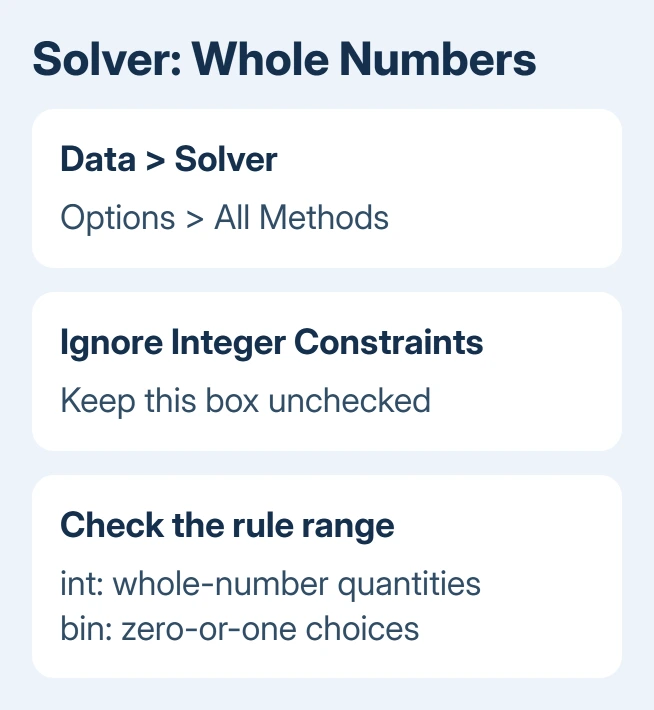
If the resulting changing cells now contain whole numbers and the other limits are met, the option was responsible for the fractional result. Before keeping the result, check that it meets the limits you set for your model.
If decimals remain, don't keep toggling the same box. Check the cell references next. A rule on a nearby total or on the wrong sheet won't restrict the intended changing cells in the way you expect.
Frontline, which supplies Excel's Solver, explains the option in its All Methods settings. Clearing it restores the integer rules; it doesn't add rules that aren't already in the model.
2. Apply int or bin to the changing cells
In Solver Parameters, inspect By Changing Variable Cells. These are the values Solver is allowed to adjust. Compare their addresses with the integer restrictions in Subject to the Constraints.
To add a missing rule, select Add. Enter the changing-cell range in Cell Reference, choose int for whole numbers or bin for a zero-or-one decision, then confirm. Use Change to correct an existing rule's reference.
Microsoft says integer and binary rules apply to decision-variable cells in its Solver setup instructions. A rule on a calculated total doesn't apply the same restriction to the cells Solver changes.
For example, if Solver changes B2:B6 to represent quantities, an integer rule on B7, their total, doesn't make every quantity a whole number. Put the integer restriction on B2:B6 when those quantities must be whole units.
A binary rule is narrower: each restricted cell must be 0 or 1. Use it for a yes-or-no choice. If a quantity needs values such as 2 or 3, choosing binary changes the problem instead of fixing the integer rule.
After correcting the range, solve again and inspect those same cells. If your worksheet displays a fractional calculated ratio elsewhere, that ratio may still be valid even though all the decision variables are integers.
3. Inspect values instead of hiding the decimals
Select a changing cell and check the full value shown in the formula bar. Increase its displayed decimal places if needed. A cell displayed as 2 might still contain 2.4 when the number format shows no decimal places.
Changing the format only changes what the worksheet displays. It doesn't change the value used by formulas or make Solver obey an integer rule. Keep the fractional values visible while checking the model.
The Excel decimal-format controls are useful for inspecting the result, but they don't replace constraints. Don't use a rounded display as the sign that the Solver run succeeded.
I'd also avoid rounding the changing cells after solving as a repair. Rounding can break a budget, capacity or equality limit that the fractional answer satisfied. The model needs a valid whole-number solution from the start.
If the decision cells contain whole numbers but a formula produces a fraction, read that formula before changing Solver. An average, percentage or division can produce decimals from integer inputs without any integer rule being ignored.
4. Keep Integer Optimality separate from whole-number rules
In Options > All Methods, Integer Optimality (%) controls how close an integer solution must be to the best possible objective value before Solver stops. It doesn't mean that each decision cell may contain that percentage of a fraction.
The standard default is 1%. A value of 0% asks Solver to prove an optimal integer solution and can take substantially longer. Changing it isn't the first step when a cell Solver changes contains a clear fraction such as 2.4.
The setting concerns how good the overall profit or cost answer is, not whether a person or product can be fractional. Treat the whole-number rules separately from how close the overall result is to the best possible answer.
A value close to a whole number can reflect numerical tolerance, the small calculation error Solver allows. The integer-constraint guidance distinguishes that from ignoring integer rules entirely. Read the full value to tell them apart.
Don't tighten every numerical option at once. Record the current setting, change only the option relevant to the result, and solve again. Otherwise, a much slower run can leave you unsure which change affected the answer.
5. Check the model and the final Solver message
Read the message in Solver Results before keeping the solution. A stopped run, an inability to find a feasible solution and a completed solution are different outcomes. The worksheet values alone don't explain why Solver stopped.
For a Mac 2011 loop that reads cells before Solver finishes, separate the solve request from the result capture before judging those recorded values.
Check that Set Objective points to the formula you want to optimize and uses the changing cells. Review quantity bounds, totals and equality rules. Solver can follow your rules but answer the wrong question if the model is wrong.
Choose the solving method that fits your formulas: Simplex LP for a linear model, GRG Nonlinear for smooth nonlinear formulas, or Evolutionary for non-smooth problems. These choices aren't a substitute for adding the required integer rules.
If the Solver command is missing or reports a file it can't locate, follow the Solver add-in repair instead. That loading fault happens before these model options can help.
On Mac and Windows, compare the options and cell references before blaming the order of the constraints. Reordering a displayed list is a separate issue from correcting its cell references.
Get the model checked when the rules still fail
Save a small example that produces the same problem, including the objective, changing cells, constraints, solving method and final message. Replace private values with sample numbers while keeping the formulas that reproduce the result.
Send that workbook to Office or Solver support. Ask why the specified integer cells remain fractional with Ignore Integer Constraints cleared. Include Excel's version and any difference between the saved model on Mac and Windows.
The Short Version
Clear Ignore Integer Constraints, apply int or bin to the correct changing cells, and inspect their real values. Decimal formatting and Integer Optimality don't replace integer rules. Read Solver's final message before accepting the output.
Checked November 17, 2026.






