

An open Word document or Excel workbook can stop Outlook from attaching that file. Save it, close its editing window, and use Browse This PC to attach the saved version. Compare a fresh file if closing it doesn't help.
Check whether every attachment fails or just existing Office files that are still open. Your next step depends on that difference.
In this guide
1. Save and close the file before attaching it
In Word or Excel, save your current edits with Ctrl+S. Close the document or workbook, then return to your draft in classic Outlook. Select Attach File > Browse This PC and pick the saved file.
Read the attachment's filename inside the draft. A document with a similar name in another folder can make this appear to work while attaching an older copy of your work.
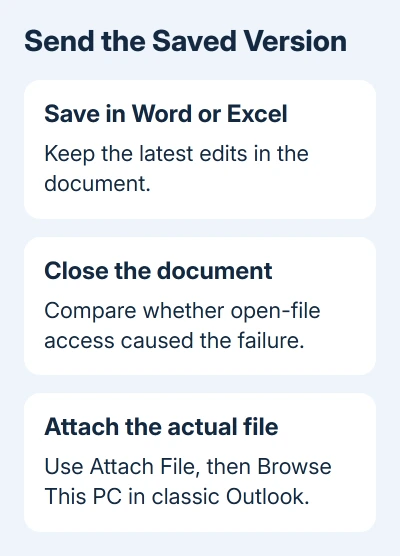
If the file attaches only after its editing window closes, that gives you a usable sending route. It suggests something blocks access while the file is open. Another check is needed to tell which app or storage service is holding it.
Closing the file may not solve the underlying problem, but it lets you send the saved version without changing security settings. Reopen the document after Outlook has attached it if you need to continue editing.
Edits made after attaching a local copy don't update that copy in the draft. Save the final work, remove the outdated attachment, and attach the finished file before sending it.
If the same saved file still fails while closed, move to a fresh-document comparison. The wording about permissions isn't enough reason to change ownership of the entire folder.
2. Compare a newly created Office file
Start a fresh Word document or Excel workbook, enter a short harmless line, and save it to a normal local folder such as Documents. Close the document or workbook, then try attaching it to a new Outlook message.
Reopen that same file, leave it open, and try attaching it in another draft. This compares the same saved file while closed and while open. Check whether older documents behave differently too.
An owner in Microsoft's forum could attach a newly created, saved file while their usual documents still failed. They didn't confirm that the later repair suggestion fixed those older files.
If a fresh file attaches but an existing one doesn't, note what differs: its folder, whether it's open, and whether it's stored through OneDrive, SharePoint or a network drive. Make a note of those differences for the next check.
For a document that's needed urgently, use File > Save As to make a separately named copy in a location you're allowed to use, then try attaching that copy. Keep the original and confirm the copy contains the latest edits.
If both old and new files fail even while closed, treat it as a wider Outlook attachment problem. Don't spend more time changing the contents of the original workbook when the blank comparison fails too.
3. Bypass the recent-file entry and choose a file or link
Use Attach File > Browse This PC in classic Outlook instead of choosing an item from the recent list. This lets you select the actual saved path rather than relying on a previously used location.
For a stale OneDrive or SharePoint recent entry that says it can't find the file, follow the recent attachment account checks. That error differs from access failing only while a local workbook remains open.
Microsoft's attachment instructions distinguish attaching a copy from sharing a cloud file. A local attachment is a snapshot; a cloud link points to the document held by the service.
If collaboration is the reason the file must stay open, consider sharing its authorized OneDrive or SharePoint link instead of repeatedly attaching copies. Set the sharing access for the intended recipients before sending.
That changes what the recipient receives. Use a file copy when they need a fixed version, and a sharing link when they should work with the current cloud document. A link isn't a way around an organization's access restrictions.
For new Outlook, start a message, use its attachment control and choose the option to browse this computer. Use the next section's safe-mode and File > Options controls only in classic Outlook.
4. Compare classic Outlook without add-ins
Save your drafts and close classic Outlook. Press Windows+R, type outlook.exe /safe, and press Enter. There is a space before /safe.
Open a new draft and try the same file, keeping it open or closed just as it was when the attachment failed. Classic Outlook's safe mode leaves its normal add-ins unloaded. If the attachment works here, check the add-ins next.
When safe mode allows the attachment, restart Outlook normally. Open File > Options > Add-ins, select COM Add-ins beside Manage, and choose Go. Note the selected entries, then clear one suspected add-in's checkbox.
Select OK to save the changed checkbox. Exit Outlook, launch it normally, and attach the test document. If that add-in wasn't responsible, enable its checkbox again, select OK, and relaunch Outlook for the next check.
On a managed PC, ask IT before changing a security or document-management add-in because it may be part of the required sending workflow.
The original thread's owner had already disabled add-ins without success. If safe mode also rejects your file, don't repeat this branch. Move to repair or give IT your results from trying files in different locations.
5. Repair the Office installation if failures are widespread
An Office repair makes sense when several Office files fail and checking the file location and trying safe mode haven't explained it. Save work and close the other Office applications before starting because the repair covers the suite.
In Windows 11, open Settings > Apps > Installed apps, find Microsoft 365 or Office, select its three-dot menu, and choose Modify. In Windows 10, use Apps & features, select the product and choose Modify.
For Click-to-Run Office, Quick Repair targets damaged installation files and takes less time. Online Repair covers more installation problems and needs internet access. Follow the repair instructions for your installation type.
Retest the original attachment after repair. If the file attaches but the recipient doesn't see it, continue with missing attachment checks rather than repeating an access repair on the sender's document.
Give IT the comparison that still fails
Send IT the full error, Outlook and Office versions, storage location, and whether the document was open. Include the result for a fresh local document and for safe mode.
Ask IT to review file access and the storage or document-management software involved. Keep the folder's existing security settings. Granting wider access for a vague permissions message can expose your files without fixing the problem.
The Short Version
Use the saved, closed document's actual path for the attachment. Compare a fresh document if it still fails. Use the result to choose a file-location check, classic Outlook add-in comparison, or Office repair.
Checked November 17, 2026.
 If you have any business, I can build it online






