An unwanted startup program trying to load a fake file can trigger MpGear.dll errors at sign-in. Removing that entry fixed the message for one owner, so check what Windows is launching before looking for a replacement DLL.
Seeing MpGear.dll elsewhere on the drive doesn't tell you which application requested it.
Record the error's window title and when it appears; check startup programs if it appears during sign-in, or the app itself if opening one particular app triggers it.
In this guide
1. Record the program named by the error
Save a screenshot showing the error window before you close it. Keep the window title, filename and full text together. The title can identify the executable that failed, which is more useful than searching the missing filename alone.
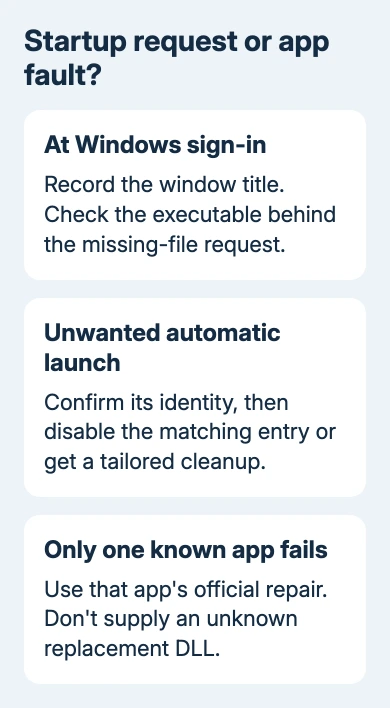
Restart once and note whether the message appears before you open any apps. If it does, Windows is launching something automatically.
If it appears only when you start a known application, record that application's name and continue with its repair route in section 4.
In another confirmed case, an adviser explained that a startup item was trying to load a fake MpGear.dll. A cleanup made for that owner's logs removed the startup item, and the owner reported that the error stopped.
The fix removed the request to load the DLL rather than creating a replacement file. It also means the filename can't tell you whether Windows Defender, Malwarebytes or a particular Windows update is broken.
Don't try clearing the message with a DLL downloaded from search results. A startup program can load code from that file, so supplying an unknown replacement gives the unwanted program another component to run.
2. Inspect the matching automatic launch
Press Ctrl + Shift + Esc. On Windows 11, select Startup apps in Task Manager's navigation. Windows 10 uses the Startup tab; choose More details first if its compact view is showing.
Look for the executable identified by that window title. Check its publisher and right-click it for Properties or Open file location, where available. Record the path.
Don't disable antivirus or every unfamiliar item just to see whether the message vanishes.
When a listed item clearly belongs to an optional app you recognize, disable that one startup entry to check whether it causes the message. The entry can be enabled again if needed. Restart afterward.
If the message disappears, repair or uninstall that app rather than leaving its broken launch unexplained.
Task Manager doesn't show every automatic launch location.
If it has no matching item, use Microsoft's Autoruns startup utility, which also covers scheduled tasks, services and other launch points.
The Sysinternals Suite containing Autoruns is available in the Microsoft Store app. Search for Sysinternals Suite, check that the publisher is Microsoft Corporation, install it and open Autoruns.
Use administrator access when it needs to inspect protected entries.
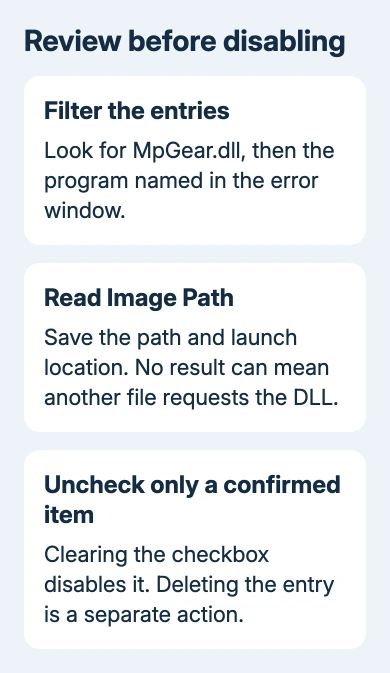
Filter for MpGear.dll first, then for its executable name if needed. Look at Image Path and the entry's location.
An empty result doesn't mean the PC is clean; the missing file may be requested by another executable.
Only uncheck a matching unwanted entry after its identity has been confirmed. Autoruns can disable an entry by clearing its checkbox, while deleting the entry is a separate action. Keep the path and entry name for the support review.
3. Get a cleanup made for this PC when the entry is unclear
The original thread's accepted reply asked for Farbar Recovery Scan Tool logs. The owner later ran a Fixlist written for their PC, restarted and confirmed that the system error no longer appeared.
Have an adviser check logs from your PC instead of downloading that same Fixlist. It can contain instructions to remove files, tasks or registry entries specific to another computer.
The same error message can come from different startup entries on another PC.
Open a new Microsoft Q&A support question or use your security provider's malware-removal support. Include the screenshot and explain that MpGear.dll appears at startup.
Ask for help identifying the program requesting it and reviewing the automatic launch.
If the adviser requests Farbar logs, follow their current download and scan instructions. The original procedure produced FRST.txt and Addition.txt.
Use the adviser's support channel to share those logs while protecting your private information.
When they provide a Fixlist written for your logs, follow their instructions for saving it beside the Farbar executable and running Fix. Save the resulting FixLog.txt, restart when requested and report whether the error returned.
I'd keep that review separate from Windows file repairs. The confirmed startup case needed the unwanted launch removed; repeatedly running system repair commands wouldn't identify the entry that requested a fake DLL.
4. Repair a known app when it alone triggers the message
When a known app alone triggers this message, close it. Use its updater or Microsoft Store listing to check for a newer version. Use the application's official repair or reinstall instructions if its files remain damaged.
For a Windows 11 app with a repair option, open Settings > Apps > Installed apps, find it and choose Advanced options > Repair. Some desktop programs instead offer Modify or their own installer-based repair.
On Windows 10, look for those controls under Settings > Apps > Apps & features. Not every app offers all these controls. Don't choose Reset without checking what local data that application stores.
Two owners also reported that copying a DLL stopped the warning. Their reports didn't identify a verified file source.
Without a verified source for the file, those reports aren't a safe set of steps for replacing Windows files.
If the window instead flashes and closes too quickly to read, the Command Prompt startup checks help match an automatic launch to its time and parent program.
When the warning stops but security symptoms remain
Removing a broken launch can silence its message without removing every harmful file. Run your active antivirus scan and review its result.
If protection won't start or browser searches redirect, follow the broader Windows malware recovery steps.
Give security support the startup entry, executable path, scan result and FixLog if you have one. Ask them to confirm the cleanup is complete.
If the entry returns after a restart, ask the adviser to review it again rather than copying a new DLL into place.
The Short Version
Save the window title, then check the matching startup program. Disable only an identified unwanted entry, and get a log-specific cleanup when its purpose is unclear.
Repair a known app through its official tools instead of installing a random MpGear.dll.
Checked November 27, 2026.
 If you have any business, I can build it online