
Your AirPods start crackling partway through a podcast and then slur into something you cannot listen to. Music is perfectly fine, which makes the whole thing feel random.
It is not random, and I do not think your AirPods are failing.
There is one setting inside the Podcasts app that produces exactly this, and I will take you straight to it.
Turning it off in the player
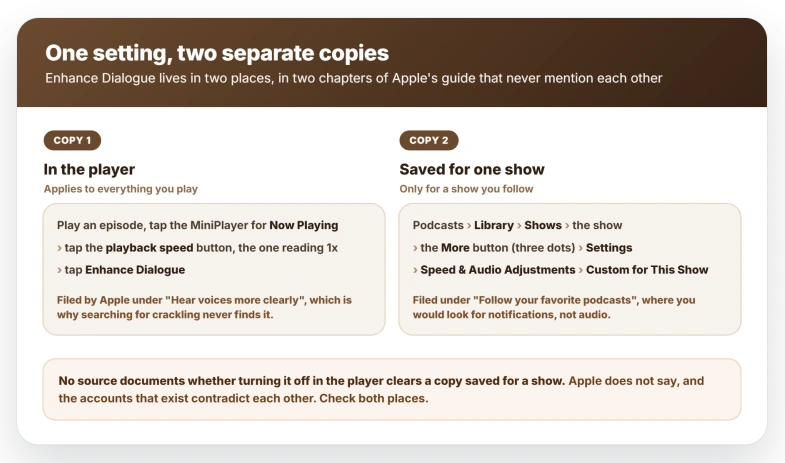
- Play an episode and tap the MiniPlayer to open the Now Playing screen.
- Tap the playback speed control, the button reading 1x or whatever speed you use.
- Tap Enhance Dialogue to turn it off.
Apple's iPhone User Guide files it under the description "Hear voices more clearly", which is why a search about crackling never surfaces it.
There is a visual tell reported for the on state: a small dot under the playback speed button.
That comes from a hands-on write-up in September 2025 rather than from Apple, which documents no indicator, so treat it as a hint.
The setting exists for a good reason, which is why switching it off is a trade.
Apple describes it as using real-time processing to reduce background noise so speech comes through more clearly, and on a badly recorded interview it does help.
What you are asking for in return is that your iPhone reprocess speech as it plays, on every episode of every show, until you tell it to stop.
To check it took, go back to the episode that was breaking up, start it, and let the screen go dark.
Give it several minutes, because the reports describe a fault that arrives partway in rather than at the first second. Clean audio through that same window is your answer.
The second copy, which the first one may not touch
Apple lets you save the setting against an individual show, and that copy lives somewhere else entirely.
It is filed in the guide under Follow your favorite podcasts, the chapter about subscriptions, which is why the page about playing podcasts never mentions it.
Apple's steps:
- Open Podcasts, tap Library, tap Shows, then select the show.
- Tap the More button, the three dots, then tap Settings.
- Scroll to Speed & Audio Adjustments.
- Choose Custom for This Show, then turn Enhance Dialogue off.
Apple scopes this to a show you follow. If the show is not in Library, Shows, open it and tap Follow first, and the Settings entry appears with it.
If you would rather not follow a show just to reach a switch, the player copy is the one available to you.
Two real gaps here. Apple does not document what confirms the per-show choice on screen, so the reliable check is the same listening test as before rather than anything you can see.
And no source documents whether the player switch clears a copy saved against a show, so check both places.
The accounts that exist disagree with each other about how per-show memory even works: one said it remembers automatically, another said no per-show setting exists at all, and Apple's shipping guide says you pick Custom for This Show deliberately.
If the people reviewing the feature could not agree where it lives, check both.
Use the screen as a test, not an explanation
The pattern both owners describe is oddly specific: the audio degrades once the screen goes dark and recovers when you wake it.
The obvious reading is that the iPhone throttles audio processing in the background. No Apple document supports that, and none refutes it either.
The only Apple material connecting screen state to audio at all is a developer note from 2010, long since retired, saying the system switches to larger and less frequent audio buffers when the screen locks in order to conserve power.
It is too old and too narrow to settle anything about Apple Podcasts on iOS 26.
So the cause is not established. What the pattern is good for is reproducing the fault on demand, which is what makes that listening check reliable.
If your crackling tracks the screen going dark, you have a repeatable test.
If it happens just as often with the screen lit, Enhance Dialogue is a weaker bet and the two AirPods-side settings further down move up your list.
Apple has never acknowledged any of this. Searching Apple's own iOS 26 update notes, covering every release from 26 through 26.6, returns no mention of Enhance Dialogue, crackling, static or clipping.
Apple's only page about crackling ends with "Listen to audio from a different app to see if the app causes the issue", which is the right instinct and then stops.
It is archived, no longer updated, and written for AirPods Pro 1st generation.
If both copies are off and it still crackles
Then the processing is probably on the AirPods rather than in the app, and where the fault appears sorts it faster than anything else.
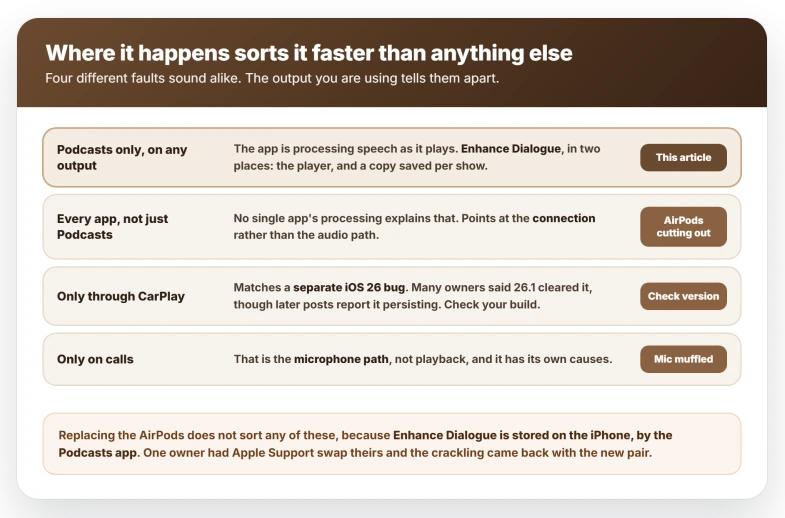
Only in the car. A separate iOS 26 bug produced this complaint through CarPlay, with several posters reporting Bluetooth and the phone speaker were fine on the same iPhone, and many saying iOS 26.1 resolved it.
Treat that as unfinished: later posts in the same thread report it persisting on 26.2 and on newer iPhones. Check your build at Settings, General, About, in the Software Version row.
In every app, not just Podcasts. That is the connection rather than any one app's processing, and AirPods cutting out sorts those by symptom.
Everywhere, with a robotic quality. Then look at the AirPods' own processing rather than the app's.
Personalized Volume and Adaptive Audio both sit in Settings under the name of your AirPods, and AirPods lowering the volume on their own has the paths and the tells for each.
Try Personalized Volume both ways rather than assuming off is better: the one owner who traced robotic breakup to it, on calls rather than podcasts, found switching it on cleared it.
Two limits to know while you are ruling things out.
Enhance Dialogue is an iPhone and iPad feature: Apple says it is "available on iOS and iPadOS", and the Mac version of the very same per-show screen offers a custom playback speed with no Enhance Dialogue beside it.
One write-up also reports it does not apply over AirPlay. The Music app has no equivalent either, only EQ and Sound Check, so a setting you remember changing for music is not this one.
Apple TV has an Enhance Dialogue of its own, graded rather than a single switch, with a fourth Isolate option you can add from Accessibility settings.
Apple does not say whether the two share any underlying technology, and one hands-on report describes the Podcasts version as the TV app's feature carried over.
The controls and the scope differ either way, so instructions written for Apple TV will not help here.
What does not help
- Replacing the AirPods. One owner had Apple Support replace theirs and still had the problem, in a post a month after the fix was published, though they were answering a different suggestion and never say whether they tried this one. Nothing in a new pair changes a setting stored on your iPhone.
- Restarting the iPhone or re-pairing the AirPods. Enhance Dialogue is stored by the Podcasts app and survives both.
- Turning off Spatial Audio. Suggested confidently in that thread, along with Attention Aware Features, Background App Refresh and downloading rather than streaming. None of those five suggestions touched the setting that turned out to be responsible.
- Re-downloading the episode. One owner reported the fault on downloaded episodes, so the file is not the issue.
- Waiting for an update. iOS 26.1 fixed the separate CarPlay bug, for many of the people who had it. Nothing in the iOS 26 update notes, right through 26.6, mentions this setting.
Status: unacknowledged as of iOS 26.6. No iOS 26 release note mentions Enhance Dialogue, crackling or clipping, and Apple's only crackling page is archived and covers AirPods Pro 1st generation.
Where is Enhance Dialogue on iPhone?
In the Podcasts app, not in Settings. Play an episode, open the Now Playing screen, tap the playback speed button showing 1x, and Enhance Dialogue appears there.
A second copy can be saved for one show under Library, Shows, the show, the More button, Settings, then Speed & Audio Adjustments.
How do I turn off Enhance Dialogue for one show?
Open Podcasts, tap Library, tap Shows, select the show, tap the More button, tap Settings, scroll to Speed & Audio Adjustments, choose Custom for This Show, then turn Enhance Dialogue off.
Apple offers this only for a show you follow, so tap Follow on the show first if the entry is missing.
Why do my AirPods crackle only on podcasts?
Podcasts is the one app carrying a dialogue-processing setting of its own, so rule that out first.
Spoken word distorting while music stays clean has had other causes too, including a CarPlay bug on some older iPhones that reports say iOS 26.1 fixed, so where it happens matters as much as what you are playing.
The Short Version
- Enhance Dialogue in the Podcasts app can produce crackling and garbled speech. It is not a Settings option.
- Reach it by tapping the playback speed button on the Now Playing screen.
- There is a second copy saved per show, under Library, Shows, the show, More, Settings, Speed & Audio Adjustments.
- No source documents whether one clears the other, so check both.
- Once on, it stays on across episodes and shows until you turn it off, according to a hands-on write-up. Apple documents neither that nor what the default is.
- Use the screen-off pattern as a repeatable test, not as an explanation. The cause is not established, and no Apple documentation settles the popular throttling explanation either way.
- Where it happens sorts it: only in the car matches a separate bug reports say iOS 26.1 fixed, and in every app points at the connection instead.
- Replacing the AirPods does not help, because the setting lives on the iPhone.
- Three owners reported the symptom and two confirmed this fix, with none reporting it failed. That is a small sample and this article says so.
Where to Next
If podcasts crackle and music does not, look at Enhance Dialogue before you look at your AirPods.
It is inside the Podcasts app rather than in Settings, which is why it is so rarely blamed.
Where the episodes themselves vanish rather than sounding wrong, downloaded podcasts disappearing has its own causes.
Sound is only half of what these do now. AirPods Pro 3 heart rate not showing on iOS 26 covers the sensor side and why it stays blank.
If turning it off makes no difference and music is still clean, tell me which podcast app you are using, because a couple of the others have their own version of the same feature.

Isaac Smith is the founder and editor of PC Glance, a website that covers computers, laptops, and technology. He is a tech enthusiast and a computer geek who loves to share his insights and help his readers make smart choices when buying tech gadgets or laptops. He is always curious and updated about the latest tech trends.