

APA format in PowerPoint means citing sources on the relevant slides and adding full references at the end. APA doesn't prescribe a complete slide design. Follow your instructor's requirements for layout, font size, and spacing.
Make the slides easy to read, then check that each citation matches an entry in your references. A polished presentation can still leave borrowed ideas uncredited. Correct citations also need text large enough for the audience to read.
In this guide
Start with the assignment, then set up the title slide
Check the assignment rubric for a template, slide count, required sections, and any rules for speaker notes. Those instructions settle layout questions that a general APA citation rule doesn't answer.
Include your title, name, institution, course, instructor, and due date when the assignment asks for standard student title-page details. Keep the title clear instead of squeezing everything into one long line.
Don't assume a paper's margins and running-head layout must be copied onto every slide. Check what your instructor expects before importing a paper template or adding headers to every slide.
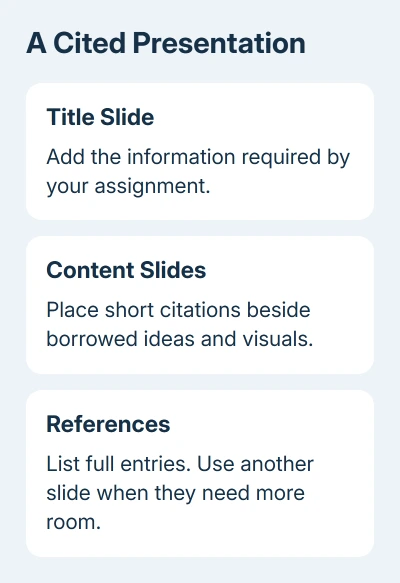
Use a simple theme and consistent text sizes. Keep enough contrast between text and background to read the content comfortably. These are presentation choices, not a special APA-approved color palette or a universal slide-font requirement.
SNHU's library guidance notes that APA has no dedicated PowerPoint layout section. Apply APA principles to title details, citations, and final references. Follow any more specific requirements from your course too.
Put author and year beside the borrowed idea
Add a brief author-date citation to a slide that paraphrases someone else's work. Place it close enough to the statement that a reader can tell which claim it supports, rather than collecting unrelated citations in one corner.
For practice, a made-up citation could look like (Rivera, 2024) after a paraphrased point. Replace that placeholder with the actual author's surname and publication year from the source you used.
If the sentence names the author, put the year after their name instead. The citation should read as part of the thought. Avoid repeating the author immediately in both the sentence and parentheses.
Avoid putting several claims from different sources under one unclear citation. Split the content or add citations next to the relevant statements. The goal is for someone viewing the slide to understand whose work supports each point.
Speaker notes can hold explanation, but they don't replace visible credit on a slide that uses borrowed content. Someone receiving only the slides still needs to see the citations that go with what they're reading.
Give quotations and visuals their own credit
For a direct quotation, preserve the original wording and add the author, year, and page number when available. If the source has no pages, use an appropriate locator, such as a paragraph number, so the passage can be found.
Choose a short quotation that fits the point. A long passage in tiny text is hard to present, even if its citation is complete. Paraphrase when the exact wording isn't needed, while keeping the source citation.
Credit images, graphs, tables, data, audio, and video that come from someone else's work. A picture found through image search still has an original creator and source. The search results page isn't a substitute for those details.
If you copy or adapt a figure, check which APA figure note and copyright details it needs. A short author-year citation may not give all the credit the image requires.
Citation and reuse permission are different questions. Giving credit doesn't automatically allow copying every image. Choose material whose terms let you use it in your deck, and keep any credit its license requires.
Add complete references at the end
Create a slide titled References and list the sources cited in the presentation. Use the APA reference format for each source type, such as a journal article, webpage, book, or report, rather than using one format for everything.
Alphabetize entries by author and check that each visible citation has a matching entry. Then work backward through the references to confirm that every listed work is actually used in the slides.
Add another references slide if the entries won't fit at a readable size. Shrinking a whole bibliography into a dense paragraph makes the details difficult to use. Keep complete entries together where the layout allows it.
An article reference and a webpage reference don't contain exactly the same elements. Check dates, titles, publication details, and DOI or URL against the source. A pasted website address alone usually isn't a complete APA reference.
If the source itself is a slide deck, the PowerPoint APA citation guide covers that different job. Formatting your own presentation and referencing someone else's slides need separate decisions.
Apply hanging indents in desktop PowerPoint
A hanging indent leaves the first line of an entry at the left and moves its later lines inward. Let a long entry wrap naturally. Pressing Enter after every displayed line creates separate paragraphs and makes the indent behave differently.
On Windows desktop PowerPoint, select the reference paragraphs. Open Home, then the Paragraph dialog launcher. Under Indentation, set Special to Hanging and use the required half-inch indent for the reference list.
Microsoft's hanging-indent instructions explain the paragraph controls. Select just your reference text when applying these controls, so you don't change the title or other objects too.
On Mac desktop PowerPoint, select the text and open Format > Paragraph. Choose Hanging and set the required amount. In a wrapped entry, later lines should move inward while the first line stays left.
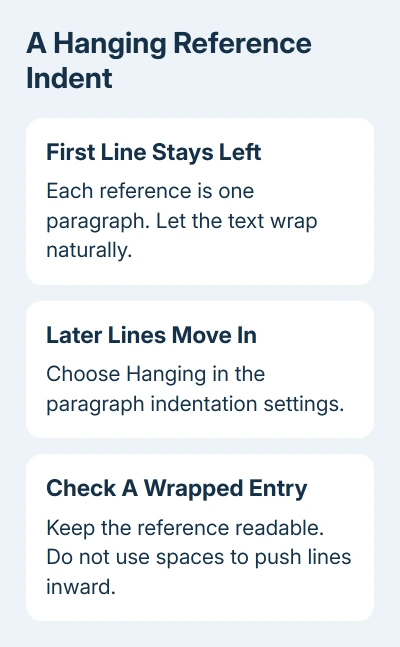
If the browser version doesn't have the indent control you need, choose Open in Desktop App to continue editing. Don't simulate the indent with a row of spaces; it can shift when the font or text box changes.
Review the deck in the form you'll submit
Run the slideshow and inspect the citations as well as the main headings. If you can't read a source credit at the expected viewing size, increase it or reduce the content. Don't remove credit to make the slide look cleaner.
If the assignment requires a PDF, inspect the exported copy too. Confirm that references haven't been clipped and that any required notes were included using the requested export settings.
For extra slides that aren't part of the talk, hiding PowerPoint slides keeps them in the file. Remember that hidden content remains accessible to someone who receives the presentation.
Ask your instructor or writing center about an unclear course requirement before submitting. Give them the rubric and a sample slide so they can answer the actual formatting question rather than guessing which rule your assignment uses.
The Short Version
Follow the rubric for design. Cite borrowed content where it appears, add complete references at the end, and apply hanging indents to those entries. Review readability, source matches, and the exported submission before sending.
Checked November 12, 2026.
 If you have any business, I can build it online






