

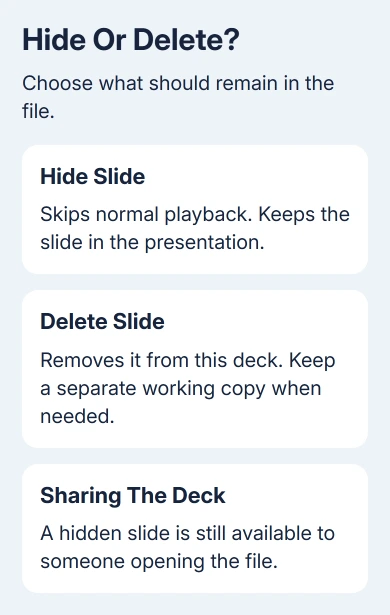
Hide slides in PowerPoint by right-clicking their thumbnails and choosing Hide Slide. They stay in the file but are skipped during normal playback, so you can keep backup detail without including it in the main talk.
Hiding doesn't remove private information from a file you share. Anyone who can open the presentation can still reach its hidden slides, so use a separate copy with those slides removed when the content must stay out of the shared deck.
In this guide
Choose the slide thumbnail before hiding it
Open the presentation in Normal view and find the slide in the thumbnail pane on the left. Select its thumbnail, rather than clicking a picture or text box on the large slide you're editing.
Right-click that thumbnail and choose Hide Slide. On Windows, the slide number gains a slash to show that it is hidden. The slide's content remains visible while you're editing the file.
Microsoft documents the procedure in its hide-or-show guide. It covers Windows, Mac, and the web, including the thumbnail menu in Slide Sorter.
On Mac, use the slide thumbnail's shortcut menu for Hide Slide. A hidden indicator appears on the thumbnail. In the browser version, right-click the thumbnail and choose Hide Slide there too.
Check the marker after choosing the command. If the menu only offers picture or text formatting, you selected an object inside the slide. Return to the thumbnail pane and select the whole slide before trying again.
The slide-copying guide explains this thumbnail-versus-object distinction. The same distinction matters when hiding slides: select the whole slide, rather than one item on it.
Rehearse the ordinary slide-show route
Start the slide show before the hidden slide and advance normally. PowerPoint should go from the preceding visible slide to the next visible one, skipping the slide you marked hidden.
If you only start directly on the hidden slide, that doesn't check whether normal playback skips it. Rehearse the transition your audience will actually see as you advance through the presentation.
Look at the transition in context. A skipped slide can leave the next title or spoken sentence referring to something the audience hasn't seen. Adjust what you plan to say so the main talk still makes sense without the backup detail.
I'd keep an optional explanation immediately after the slide that raises its question. That makes it easier to locate during discussion while leaving the main presentation short enough to follow.
For a section with several slides, inspect each hidden indicator. Hiding one slide doesn't hide every related slide after it. Rehearsing the section catches a leftover detail slide still included in playback.
If the deck contains interactive navigation, test each button separately. Advancing to the next slide and deliberately choosing another destination are different routes, so rehearse both before presenting.
Show a hidden slide when someone asks for it
On Windows, while the slide show is running, right-click the current slide and choose See All Slides. Find the hidden slide in the thumbnail list and select it. PowerPoint displays that slide full-screen and resumes the show.
When you're using Presenter View, the audience doesn't see the steps you take to choose that slide. They see the slide after you select it. Check which screen shows Presenter View during your rehearsal if you're using a second screen.
In PowerPoint for the web, point near the bottom-left corner during the slide show. Select the toolbar's grid view control, then choose the hidden slide you want to show.
On Mac, with full-screen playback on all monitors, go to the slide before the hidden slide and press H. In Presenter View, point near the bottom to reveal the navigation pane, then select the hidden slide.
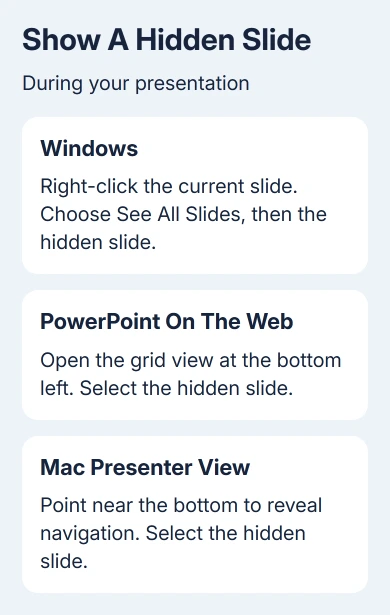
Use the steps for the version you're presenting with. Windows uses a right-click menu, while the browser uses a grid control. Both let you reach your backup slides.
After showing the extra detail, return to the intended main slide and continue your talk. Practice returning to the main talk, so an audience question doesn't leave you searching unrelated thumbnails.
Unhide the slide when it belongs in the main talk again
Leave Slide Show view and return to the thumbnail pane. Right-click the hidden slide and select Unhide Slide. On Mac, Control-click the thumbnail to open its menu if needed, then choose Unhide Slide.
Check that its hidden indicator disappears. Start playback on the preceding slide again; normal advancement should now include the restored slide. Save the file after you've confirmed the intended order.
Displaying a hidden slide during a presentation is different from permanently putting it back in the main talk. Use the Unhide command when the slide should be included in the slide show every time you present.
If you've prepared an optional section for a different audience, check the full sequence after unhiding it. Titles, speaker notes, and the closing summary should fit the version you're about to present.
For decorative headings, check curved PowerPoint text at slide-show size. A restored slide needs the same readability review as the rest of the talk.
Share a copy that contains only the intended content
Keep your working deck with its backup slides if they're useful to you. When the audience should receive a reduced deck, save a separate copy and remove content that shouldn't be included in that file.
Review the shared copy's thumbnail list, notes, and final playback. Don't rely on the hidden marker to protect information from someone who can open the presentation. It only changes which slides play during a normal slide show.
Before handing in an academic deck, review its APA citations and reference slides alongside the content you chose to include.
If you're sharing a PDF instead, inspect the exported file's actual pages before sending it. Check the export choices and the pages in the PDF itself; don't judge it from the hidden markers in the original deck.
If Hide Slide is missing, try a slide in a new editable deck. If that works, check you can edit the original file and have selected its thumbnail. If it still fails, give PowerPoint Support the version, file type, and test result.
The Short Version
Choose Hide Slide on the thumbnail and rehearse to check it's skipped. Use slide navigation to show it when needed. Unhide restores normal playback; hidden content remains in the shared presentation file.
Checked November 12, 2026.
 If you have any business, I can build it online






