
To curve text in PowerPoint, select the text object and choose Text Effects > Transform. For a new heading, insert WordArt, type your words, then choose a curved preset in the desktop app. Resizing the object changes the curve.
Use Text Effects on the Shape Format tab. Shape Effects changes the surrounding box rather than curving the words.
Start with editable words on the slide
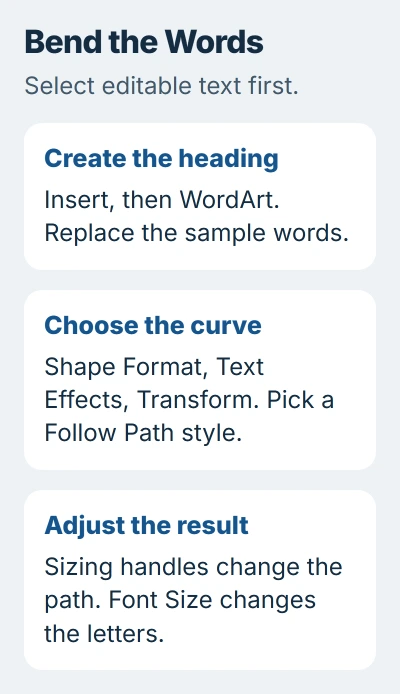
Start PowerPoint on your Windows PC or Mac and open the deck. Select the slide, then choose Insert > WordArt. Pick a simple style and replace the sample words with your heading.
Try a short heading first, such as Community Garden, so you can see the curve clearly. Replace it with your final wording once the shape looks right.
Microsoft explains the feature in its WordArt instructions, which also cover PowerPoint. Your words stay editable, so you can change the wording, font and color after adding the curve.
For existing words, select their text box instead of typing a duplicate heading. A regular text box can also use Text Effects. If you need a separate object first, the PowerPoint text-box guide explains that step.
PowerPoint can't curve individual letters inside a picture. Clicking a screenshot or logo opens picture controls instead of text controls. Retype the words as editable text to curve them.
Select the object and apply Transform
Click the outside edge of the WordArt or text box to select the whole object. The Shape Format tab should appear. Older versions may use a different tab label.
Open Text Effects, choose Transform, and look through the presets. Choose an arch under Follow Path for words that follow a curved line, or Circle when the text should run around a circular path.
The same curved-text procedure works in Windows and Mac PowerPoint. Words on a circle follow one path; words along straight sides use separate WordArt objects.
Click away from the object to see the result. If you were still editing individual words, selecting the whole object again makes it easier to work with its position and sizing handles.
If the gallery contains shadows, reflections or glow but no curved choices, open Transform within Text Effects. If you're looking at bevels or effects on the box itself, switch from Shape Effects to Text Effects.
I'd get the curve right before adding decoration. A plain text color makes it easier to see whether the letters follow the intended path and whether the heading is still readable.
Adjust the path and font size separately
Drag the object's sizing handles to change its width and height. For a circular layout, bring those dimensions closer to equal. For an arch, compare a wider box with a taller one until the bend suits the space on the slide.
Don't expect resizing the box to act like increasing the font. The WordArt resizing controls change the box separately from the text size. Select the words and use Home > Font Size to change the lettering.
Change the box proportions first, then the font size, then the wording. If you shorten the heading and widen the box together, it's harder to tell which change improved the curve.
A short phrase won't necessarily fill a whole circular path. Change the wording or letter size to suit the design instead of adding repeated spaces until it looks right on one screen. Check the result after every adjustment.
For a heading around a logo or photograph, position the WordArt over that object and resize the path to fit. The curve won't automatically attach to the picture or follow its uneven edges.
If the final heading needs a particular typeface, install the PowerPoint font before doing the last spacing adjustments. Different letter widths change how much of the curve your words fill.
Move the heading without changing the curve
Drag the selected object's edge to move it around the slide. Use its rotation handle to change the heading's angle. Moving and rotating are separate from choosing a different Transform preset.
For an exact angle, use Shape Format > Rotate and the available rotation options. The object rotation instructions explain where those controls appear and why they can be hidden in a narrow window.
Leave enough space around the curve that its letters don't crowd nearby text. Zoom out until the whole slide fits on screen, then check whether the heading is easy to read.
For a square or another straight-sided design, use a separate text object on each side. A Circle transform won't bend the text into four straight edges. Place each object where it belongs, then check their spacing together.
Use desktop PowerPoint when the browser lacks the control
PowerPoint for the web can show WordArt already created in a presentation, but it doesn't offer the same WordArt creation tools. Open the file in desktop PowerPoint to add the Transform effect.
The web feature comparison shows which tools are available. In the file's editing menu, look for Open in Desktop App or the desktop-editing command your version offers.
If the desktop app also lacks the controls, insert a fresh WordArt object on a blank slide. If that works, check the selection on your original slide: a picture, grouped artwork or editable text.
Save a copy that keeps the effect
Keep the editable presentation as .pptx. If you also need an OpenDocument .odp copy, preserve the PowerPoint original before converting. The format compatibility table says WordArt effects and formatting can be lost in ODP.
Close and reopen the saved copy, then look at the curved heading in Slide Show. Check the wording, shape and placement. That catches a conversion problem before you send the presentation to someone else.
If a fresh desktop object won't curve, send Microsoft Support the PowerPoint version, file format and selected object type. Describe the controls you see so support can tell whether the feature is missing or the formatting isn't working.
The Short Version
Select your text object, then open Transform through Shape Format and Text Effects. Adjust the path with sizing handles and the letters with Font Size. Create the effect in desktop PowerPoint and keep a PPTX copy to preserve it.
Checked November 5, 2026.

Isaac Smith is the founder and editor of PC Glance, a website that covers computers, laptops, and technology. He is a tech enthusiast and a computer geek who loves to share his insights and help his readers make smart choices when buying tech gadgets or laptops. He is always curious and updated about the latest tech trends.