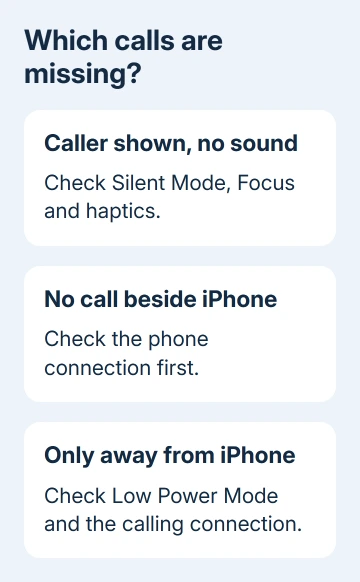
An Apple Watch needs its nearby iPhone or a working Wi-Fi or cellular calling connection to receive calls. Bring the iPhone close first; if calls fail only when you leave it behind, check Low Power Mode.
That mode sends incoming calls to voicemail when the paired phone is out of reach.
A watch that shows the incoming caller but stays quiet needs different checks than a watch with no incoming-call screen. Check sound and Focus settings for the first case, then the connection and calling plan for the second.
In this guide
1. Compare a nearby call with an away-from-phone call
Put the unlocked watch on your wrist and bring the paired iPhone close. Have a saved contact ring the mobile number associated with your iPhone. Look at both screens and note which device receives the call.
Make this comparison with an ordinary mobile call. A FaceTime audio call and a call inside WhatsApp use different services. Success in one of those apps doesn't confirm that your mobile number is reaching the watch.
If the iPhone doesn't receive the call either, check its service, call filtering, and Focus first. The watch can't repair a mobile line that isn't receiving calls. Tell the carrier whether several known callers fail or only one number does.
If the iPhone rings and the watch shows the caller silently, go to the sound checks. If the watch has no incoming-call screen, check its connection. I'd do this first, before considering a plan change or a fresh pairing.
2. Restore the nearby iPhone connection
On watchOS 10 and later, press the side button. You'll see Control Center. On watchOS 9 and earlier, hold a finger against the lower screen edge, then swipe upward. Look for the connection status.
A red X or red iPhone symbol signals a disconnected watch. Bring the devices close, disable Airplane Mode if active, then check Settings > Bluetooth and Settings > Wi-Fi on the iPhone. Both should be on.
Keep Airplane Mode off on the watch as well. Restart the iPhone and watch normally, then repeat the call from the same contact. If the call now appears on the watch, that points back to the connection, rather than a missing cellular plan.
The watch connection guide gives the fuller reconnection sequence if the red status remains. Get nearby calling working before testing what happens without the iPhone.
A GPS-only watch can handle phone calls through its connected iPhone. It doesn't need a watch cellular plan for that nearby connection. Buying a plan isn't the first fix when the phone is sitting beside it.
3. Fix a call that arrives without sound or taps
In the watch's Control Center, check Silent Mode and the active Focus. Turn Silent Mode off for an audible test. Turn off Do Not Disturb, Sleep, or another active Focus temporarily, then ask the same person to call again.
A Focus can allow selected callers while silencing others. If only certain calls are missing, review that Focus on the iPhone in Settings > Focus, including its allowed people and call settings.
Don't judge all incoming calls from one blocked caller.
On the watch, open Settings > Sounds & Haptics. On watchOS 26 and later, automatic ringtone and alert volume has a Level choice such as Louder. Choose a louder level, or turn off Automatically Adjust Volume to set a constant volume.
On older watchOS, raise alert volume with its slider. On the current layout, open Haptics and select Default or Prominent. Older layouts have a Haptic Alerts switch to enable first. Prominent adds an extra tap before some alerts.
Keep the band snug enough for the back of the watch to contact your skin.
Silent Mode can still allow haptic alerts, so an absent ringtone doesn't mean the call failed to arrive. For text and app alerts that fail too, use the watch notification checks.
4. Turn off Low Power Mode for standalone calls
Open Control Center, tap the battery percentage, then disable Low Power Mode. Alternatively, open Settings > Battery on the watch and switch it off there. Then test another call with the iPhone out of range.
Apple's away-from-iPhone guidance explains the important limit: Low Power Mode turns off Wi-Fi and cellular data when the iPhone isn't nearby until an app needs a network connection. Incoming calls then go to voicemail.
This can explain a watch that calls out successfully but doesn't receive an incoming call while you're away.
Opening a network app wakes the connection, but incoming calls still depend on the watch maintaining its connection.
If this happens during exercise, check Settings > Workout > Low Power Mode too. That workout option can turn on Low Power Mode automatically. Turn it off if receiving standalone calls matters during those workouts.
5. Check the route used without the iPhone
A GPS + Cellular model needs an active, supported watch plan and coverage to make ordinary mobile calls independently over cellular. In the iPhone's Watch app > My Watch > Cellular, check whether the plan is set up.
On the watch, open Control Center and check cellular status. A GPS-only watch has no cellular hardware, so you can't enable mobile-network calling on it.
If a cellular model shows a plan error, ask the carrier to check that the watch line is activated and correctly linked.
Wi-Fi is another route, including on GPS-only models, but ordinary phone-number calls need supported Wi-Fi Calling. On the iPhone, open Settings > Cellular > Wi-Fi Calling and enable Wi-Fi Calling on This iPhone.
When your carrier supports it, also enable Add Wi-Fi Calling For Other Devices. The watch needs a suitable Wi-Fi connection; the maker's calling instructions describe a network the iPhone has connected to previously.
If those options aren't offered for your line, ask the carrier whether its plan supports Wi-Fi Calling on Apple Watch. A watch showing the Wi-Fi icon can have internet access without having a supported route for ordinary phone-number calls.
6. Escalate with the failed calling setup identified
Update the paired iPhone through Settings > General > Software Update, then check Watch app > General > Software Update. Follow the charging and proximity requirements shown during the watch update. Retest after both devices restart.
For calls that fail only on the watch's cellular connection, send your carrier the model name, plan status, location, and whether outgoing calls work. Ask them to check activation and incoming-call routing for the watch service.
If calls fail with a connected iPhone beside the watch, contact Apple Support with both software versions and the nearby-call result. Say whether the caller appears silently or never appears at all.
That tells support which checks you need next, so you don't have to repeat the whole setup.
The Short Version
Compare a known caller with the iPhone nearby. Repair the connection if no call appears, or adjust sound and Focus if it arrives silently.
For standalone calls, disable Low Power Mode, then verify the watch plan or Wi-Fi Calling support.
Checked November 15, 2026.