

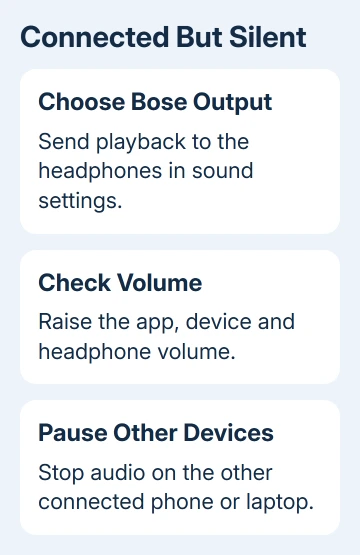
A Bose Bluetooth connection can stay active while sound goes elsewhere. Choose the headphones as the audio output, raise their volume and the device volume, then pause audio on the second connected device.
If music is silent in every app, the next step differs from fixing one silent player or a call using the laptop speakers. Check where the sound is going first, then repair the Bluetooth connection if the headphones stay silent.
In this guide
1. Send the sound to the headphones
Play a recording you know and check that its progress counter is moving. Set a moderate volume on the phone or computer, then raise the volume on the headphones. A paused player or muted app can look like a failed headset.
For iPhone or iPad playback, bring up Control Center, expand the playback panel, and open its audio destination control. Choose your Bose headphones. The selected device should change from the phone or another speaker to the headphones.
On Windows 11, open Settings > System > Sound and select the Bose device under Output. Windows 10 uses Choose your output device on that Sound page. Play the same track after changing the selection.
On a Mac, open System Settings > Sound > Output and select the Bose headphones. If the sound moves into the earcups, the Bluetooth connection was working and the computer had been sending audio elsewhere.
Android names differ by maker. Open the paired Bose device in Bluetooth settings and enable Media audio if that switch is present. A device set up for calls alone can connect without playing your music.
2. Pause the other phone or laptop
Many Bose over-ear models can stay connected to two devices. A laptop playing an unnoticed browser video can prevent the phone's music from taking over, despite a connected status on the phone.
Stop the other device's playback, then press Play on the one you want to hear. If you're not sure which device is taking over, temporarily switch Bluetooth off on the other nearby phone, tablet, or laptop.
Bose's no-audio help page recommends checking routing, volume and the other connected device. I'd try that second-device check before deleting pairings.
If the headphones now play normally, reconnect the second device only when needed and pause its audio before switching sources. If they remain silent with one device connected, continue with the app check.
3. Compare another app and a local recording
Try a different player. For example, move from the silent streaming app to a video saved on your phone. Playing a saved recording takes internet access out of the check.
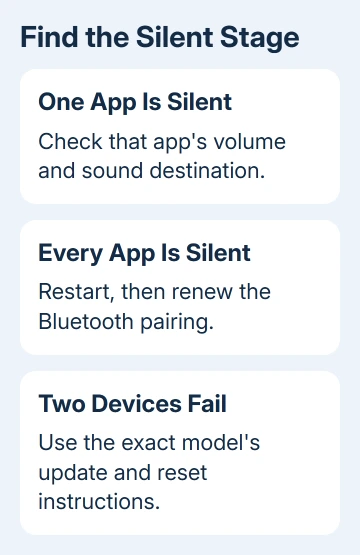
If the second player works, the headphones can play sound from that phone or computer. Check the first app's own mute control, volume, selected output, and playback state instead of resetting the headset.
On Windows 11, open Settings > System > Sound > Volume mixer while the silent app is running. Check its volume and its output device. An app can send sound somewhere different from the main Windows output.
Windows 10 has App volume and device preferences in its Sound settings. Check the same app there. After correcting the output, quit the app if playback keeps its old destination, then open it again.
For meetings, open the calling app's audio settings and choose the Bose device as Speaker or Output. Selecting the headphones as a microphone alone doesn't tell the app where to play other people's voices.
If the whole computer is silent through every output, use the guide to headphones not working on a PC. That points you toward Windows sound settings rather than a Bose-only repair.
4. Restart both devices and remove audio cables
Power the headphones off, then turn them on again. Restart the phone or computer too. Unplug any audio or charging cable for this test. That leaves Bluetooth as the listening connection.
Reconnect to one device and retry the same saved recording. If audio returns after the restart, check it again when switching between your usual apps. That helps you tell whether it was a temporary interruption or a problem with one app.
USB audio support varies across Bose generations. A cable that charges the headphones isn't automatically a supported listening connection. Use Bluetooth for this check unless your exact model's manual lists USB audio.
If the battery is low, charge the headphones before continuing. The separate guide for Bose headphones not charging covers the power problem when they won't stay switched on long enough to test playback.
5. Forget the old pairing and connect again
Remove the saved Bose connection from your phone or computer, then pair it again. On an iPhone, use Settings > Bluetooth, open the headphones' information control, and choose Forget This Device.
On Windows 11, use Settings > Bluetooth & devices > Devices, open the device's menu, and choose Remove device. On Windows 10, open Settings > Devices > Bluetooth & other devices, select the headphones, and remove them.
On Android, open the device's Bluetooth settings and choose Forget or Unpair for the Bose entry. On a Mac, open System Settings > Bluetooth, use the device's details control, and choose Forget This Device.
Start pairing with the control listed for your model. QuietComfort models with a sliding Power/Bluetooth switch use that switch. Models with a separate Bluetooth button have different controls, so wait for their pairing signal.
Use the Windows Bluetooth pairing controls to add it again on a PC.
Connect only the device you're testing. Start playback and select the Bose output again. If the fresh pairing fixes the sound, reconnect your other devices afterward rather than rebuilding every connection at once.
6. Check the model's software before a reset
Open the companion app your model uses and install any offered headphone update. Older products may use Bose Connect, while newer ones use the Bose app. Follow the app's prompts and let the update finish.
Next, pair with a second phone or computer and play a local recording. If sound works there, return to the first device's audio settings. If both devices are silent, the headphones themselves could be the problem.
Open the model's page in Bose Product Support and select No audio troubleshooting. Follow its reset sequence. The switch steps for one QuietComfort model won't necessarily work on another generation with different buttons.
If both test devices remain silent after the reset, ask about repair or replacement through that product page. Include whether startup tones are audible, whether wired audio works, and which devices you tried.
The Short Version
Choose Bose for sound output, check the volumes, and pause the second device. Compare apps, restart, and renew the pairing next. If two devices remain silent, follow the exact model's update and reset instructions.
Checked November 13, 2026.
 If you have any business, I can build it online






