

An iOS update can be removed before installation by deleting its downloaded installer in Settings > General > iPhone Storage. Turn off automatic installation too if you don't want the phone to install a future download overnight.
Once the Apple logo and installation progress bar appear, leave the iPhone powered and let it finish.
Check whether the update is downloading or already installing. While Software Update is still in Settings, you have options that aren't available once the phone restarts to install it.
In this guide
Check which stage the update has reached
Open Settings > General > Software Update if the phone still responds normally. A download estimate or a preparation message means the phone hasn't yet reached the Apple-logo installation screen.
Read its current status before making a change.
An Install Now button means installation is still waiting for your approval at that moment. You don't need to tap it to get rid of the download. Leave that screen and use the storage route instead.
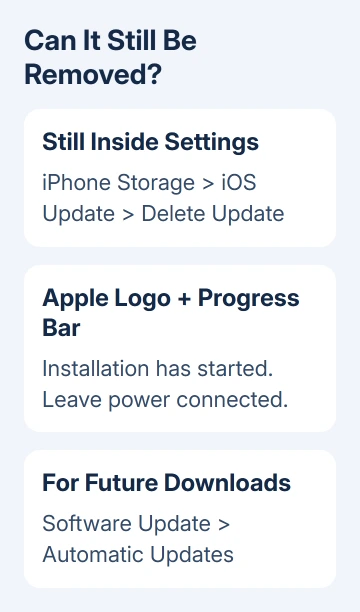
After a restart, the Apple-logo screen and progress bar indicate installation. Don't force a restart to try to cancel it. The progress bar can move slowly, and stopping power isn't a cancellation method.
I'd decide whether to postpone while the update is still in Settings. Once installation starts, waiting for the phone to return to the Lock Screen is the sensible next step.
Delete the downloaded update from iPhone Storage
Open Settings > General > iPhone Storage. Let the app list finish loading. Find the iOS update in that list, open its entry, and tap Delete Update. Confirm the removal if the phone asks.
Apple recommends this update-removal route when a downloaded installer needs replacing. Deleting the installer removes that update file; it doesn't erase your photos, messages, or installed apps.
Return to Software Update afterward. The phone may still offer the release, because deleting its file doesn't remove it from the list of available updates.
Check that the downloaded installer is gone, so it isn't sitting on the phone ready to install.
If the entry hasn't appeared as a download starts, check the storage list again after it refreshes. There isn't a universal Cancel button on every Software Update stage, and you don't need to erase anything if the update isn't listed.
Disconnecting from the internet can pause a download, but it doesn't delete the package or change your automatic-update choices.
Don't rely on switching off Wi-Fi as your lasting cancellation method, particularly on a phone that can download over cellular.
For an iPad, use Settings > General > iPad Storage instead. The distinction between a downloaded installer and an installation already running is the same.
Stop another update installing automatically
Open Settings > General > Software Update > Automatic Updates. In the current layout, turn off Automatically Install under the iOS update controls.
With installation disabled, review Automatically Download and switch that off too if you don't want future installers downloaded.
Automatic downloading and automatic installation are separate decisions. Keeping downloads enabled lets the phone prepare an update for later; turning installation off means you'll choose when to install it yourself.
On older iOS layouts, those controls may be labeled Download iOS Updates and Install iOS Updates. Read the text beside the switches and turn off the download and installation options that match what you want the phone to do.
Don't confuse the iOS controls with System Files on the current screen. System-file updates can improve parts of the system without changing the displayed iOS version. They're a separate choice from postponing a full iOS release.
Deleting an installer without changing automatic downloads can leave you seeing a fresh download later. Changing the switches without deleting the existing installer leaves that existing file on the phone.
Do both when you want to remove it and manage future downloads manually.
Handle an overnight update notice
If the phone offers to install later, dismiss that offer rather than approving it. Then review Automatic Updates and the stored update file. A notification about an available release isn't the same thing as installation already running.
For context on an older security release, iOS 18.6.2 repaired an ImageIO flaw; today's installation choice should come from the phone's offered compatible update.
Keep the phone usable while doing this: open Settings and check the actual controls rather than judging from a notification you saw hours earlier.
Once the phone has restarted to install the update, you can't cancel it by deleting the installer.
Work and school iPhones can follow an organization's update policy. If the update screen says the device is managed, ask the administrator whether a deadline or required installation applies.
Your Automatic Updates settings may not override that requirement.
For a personal phone, plan a later installation time instead of postponing indefinitely. Check the release details, back up, and set aside a period when the phone can stay powered and you won't need to use it.
Let an installation finish, then check the result
During the Apple-logo progress screen, leave power connected until the process completes. A slow bar by itself doesn't mean you should interrupt it. The phone should eventually return to its normal startup or Lock Screen.
After it starts, open Settings > General > About and check the iOS version. If the new release is listed, installation has completed. Deleting a file from iPhone Storage now won't return the phone to its earlier version.
For a phone still in Settings with a verification message, use the stuck-verifying-update checks. Verification in Settings precedes the installation screen shown after restart.
If the phone works but the new release has a problem, address that fault directly. The iPhone restarting guide is relevant when repeated restarts are the symptom, rather than assuming the installer can simply be deleted afterward.
When the update can't be removed
If no installer entry exists and the phone remains usable, leave the available release alone and check the automatic controls. An update can be offered even when its full installer isn't downloaded to the phone.
If Delete Update fails repeatedly, contact Apple Support under iPhone > Update, backup and restore. Give them the current iOS version, the Software Update message, and whether the installer appears in iPhone Storage.
Ask about the stuck download before agreeing to any erase-and-restore step.
The Short Version
Before installation, delete the iOS installer from iPhone Storage and change Automatic Updates if you want manual control. Once the Apple-logo progress bar appears, keep the phone powered and let installation finish.
Deleting an installer can't undo an installed release.
Checked November 12, 2026.
 If you have any business, I can build it online






