

iOS 18.6.2 fixed an ImageIO security flaw on August 20, 2025. Since that release is old now, an iPhone still on it needs the compatible newer release listed under Settings > General > Software Update.
In this guide
What the update actually changed
The security entry lists CVE-2025-43300 in ImageIO, the system component that processes image data.
An image designed to exploit the flaw could cause memory corruption: the phone could mishandle information in memory while processing the file.
Apple says attackers may have used the flaw against particular people in a highly sophisticated attack, according to its iOS 18.6.2 security notice.
That means attackers may have targeted particular people. It doesn't mean every affected phone was attacked.
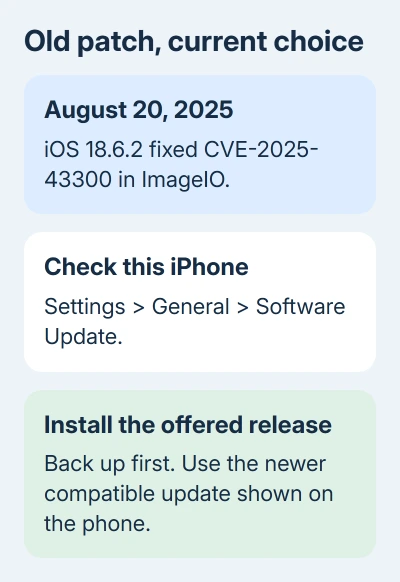
The fix improved the checks the system makes when writing image data into memory. You don't need to change camera settings to receive it. The fix arrived as part of the operating system update, alongside the corresponding iPadOS release.
This was a security fix, with no new feature to switch on after installation. It doesn't promise longer battery life or fix every problem that appeared around that date. Treat those as separate issues.
Which devices received iOS 18.6.2?
The original release supported iPhone XS and later models that could run iOS 18 at the time. That doesn't mean a newer iPhone can install an operating system older than the one it shipped with.
The matching iPadOS 18.6.2 release covered iPad Pro 13-inch, iPad Pro 12.9-inch from the third generation, and iPad Pro 11-inch from the first generation. It also covered iPad Air from the third generation.
The remaining listed iPads were iPad from the seventh generation and iPad mini from the fifth generation. Those were the models supported in 2025. Check Software Update to see which newer release your device can get today.
Find an iPhone's current software under Settings > General > About. Read the iOS version and model name together. A tutorial written for a different model or an earlier date can point toward an update your phone doesn't offer.
Choose the offered update instead of the old number
Open Settings > General > Software Update and let the check finish. The page identifies the installed software and any release available to this device.
Read the whole page before choosing, including any separate upgrade option it displays.
If the phone already runs a later release, don't try to replace it with 18.6.2 to get that historical fix. Keep following the supported update path for that model. The security release list contains newer releases than this 2025 patch.
If the phone still runs 18.6.2, install the newer compatible release offered there. Keeping an old patch because it repaired a serious flaw in 2025 leaves later problems unaddressed; later security issues need later updates.
I'd use Software Update rather than an old download link. It shows what's available for the phone in your hand, so you aren't relying on a version number from an old announcement.
For a phone that has already downloaded another update, the iOS update cancellation guide explains the difference between a pending download and an installation that has started.
Check that state before changing anything.
Install the compatible release safely
Back up the iPhone with iCloud or a computer before starting. Use a charger and a Wi-Fi connection for the update. Open Software Update, choose Download and Install when offered, then complete the on-screen installation prompts.
Enter the device passcode if asked. Keep the phone connected while the download and installation proceed. The download progress bar and the restart with an Apple logo are different stages, so let each finish.
After installation, unlock the phone at the Lock Screen and open Settings > General > About. The version shown should match the release you selected. Check that number instead of looking for a new security app or special switch.
For automatic installation, return to Software Update > Automatic Updates. The labels vary between versions, so check whether each option downloads updates or also installs them.
On current software, Automatically Install can install an update overnight with the charger plugged in and Wi-Fi available. An automatic download alone doesn't mean the installation has finished.
Verify the installed version when you next use it.
When no update appears or installation fails
Check the message on Software Update first. A check that finishes without offering an update is different from an error connecting to the server. Record the exact wording and the installed version before choosing a troubleshooting step.
For a connection error, try a reliable Wi-Fi connection and check whether a VPN or proxy is preventing contact with update servers. If a work-managed phone restricts changes, ask its administrator about the update policy.
For a storage warning, read what the updater offers to do. It may suggest removing apps temporarily and reinstalling them after the update finishes.
To choose what gets removed yourself, review Settings > General > iPhone Storage, then retry the download.
If the updater reports a space shortage, use the iPhone update storage checks. Resolve the stated error rather than assuming the old 18.6.2 patch is what the device needs.
If wireless updating still fails, use a computer. Finder handles supported iPhones on a Mac running Catalina or later; Windows uses Apple Devices, or iTunes where appropriate.
Use the computer's update option. Don't select erase and restore.
For repeated failures, give Apple Support the model name, current version, requested release and error wording. Ask for help completing that compatible update.
A search for the old patch's name won't resolve a current installation error.
The Short Version
iOS 18.6.2 repaired an ImageIO security flaw in August 2025. It isn't a current update target. Check the installed version, back up the phone, and take the compatible newer release offered by Software Update.
Checked November 15, 2026.
 If you have any business, I can build it online






