A Canon camera not popping up on a PC often needs a direct USB data connection or the correct import mode. Try the cable first. If Windows detects it but EOS Utility doesn't, check the app and camera settings next.
Don't use a missing drive letter as the only test. Some cameras transfer pictures through an import app rather than behaving like a USB flash drive. What appears in Device Manager matters more than an automatic pop-up.
In this guide
1. Connect directly with a charged camera and data cable
Charge the camera battery, turn the camera on, and connect its USB data socket directly to the PC. Bypass hubs and docks for this first connection check. A charging response alone doesn't show that the cable can carry pictures.
Use the interface cable specified for the model when available. Canon cameras use different connectors, including Mini-B, Micro-B, and USB-C. Check your camera's manual before ordering; a cable pictured with another EOS model may not fit.
Try another USB port, then a known working data cable. Watch for a Windows device notification or a new camera entry. A working connection on a second port helps narrow the problem without changing any drivers.
If the same port also fails with other USB devices, follow the Windows USB recognition checks. A camera setting won't repair a PC port that can't detect anything attached to it.
If the camera appears but won't import, leave that working cable connection in place and continue. Changing the cable repeatedly after Windows recognizes the device can hide whether an app or connection-mode change helped.
2. Check the connection mode for the exact Canon model
The original EOS R has a specific restriction: in Wireless communication settings > Wi-Fi settings, set Wi-Fi to Disable before using the USB interface cable. Its USB connection guidance also recommends connecting directly without a hub.
That instruction applies to the EOS R; other Canon models work differently. A newer body's USB menu may offer a choice of how to use the connection, instead of requiring the same wireless setting.
For example, the EOS R7 has Choose USB connection app > Photo Import/Remote Control for EOS Utility. Its Canon app(s) for iPhone choice serves a different connection. Select the PC import option before reconnecting the cable.
The PowerShot V10 uses Choose USB connection app > Photo import. Its Video calls/streaming option is for using compatible apps as a camera feed, not the photo-import route. Follow your model's manual when the menu labels differ.
If your camera has neither menu, look up its USB or computer-connection instructions. Don't change unrelated settings to match a different model. The chosen mode needs to support importing photos, rather than streaming only.
3. Open the supported import app yourself
A missing Windows pop-up isn't necessarily failed detection. Open the camera's supported import software with the device connected and powered on. For compatible EOS cameras, use EOS Utility, not the separate EOS Webcam Utility.
The EOS R doesn't support CameraWindow. Some compact cameras do use CameraWindow, so software that worked with an older compact camera isn't automatically the right app for a newer camera with interchangeable lenses.
Find software for the exact camera and Windows version on its model support page. An older EOS Utility may open normally but still lack support for a newer camera. Check compatibility rather than assuming the app is ready because it opened.
On Windows 11 or 10, the Photos app can also import from supported connected devices. Open Photos and select Import, then the connected camera if offered. Test a few pictures and open the saved copies afterward.
If the PC recognizes the camera and one import app works, the cable is carrying data. Focus on the app that fails. If no app or Windows device list detects the camera, continue with Device Manager instead.
4. Refresh the camera's entry in Device Manager
Remove the camera's saved device information, then have Windows scan for it again. This Windows 10 procedure targets the camera instead of removing every USB controller on your PC.
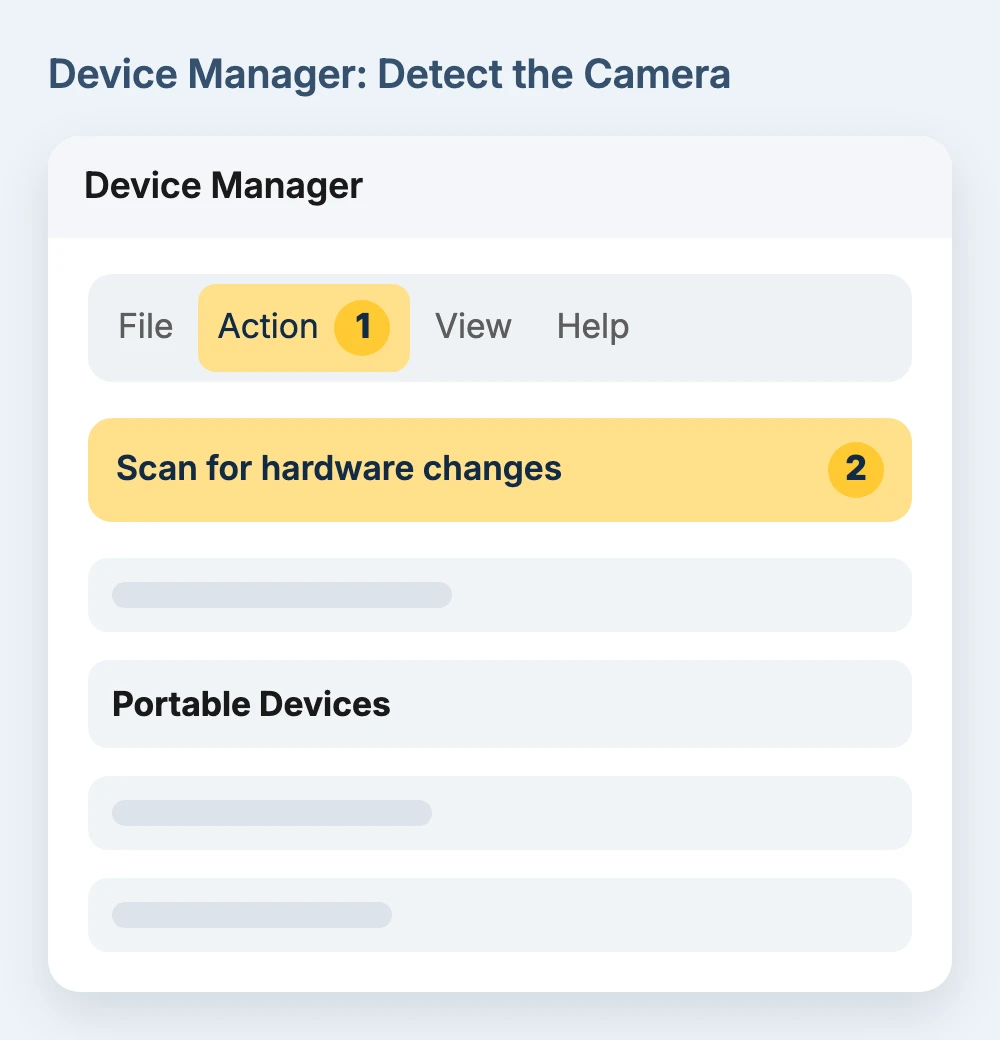
On Windows 10 or 11, right-click Start > Device Manager. Expand Portable Devices and look for the camera model. Confirm the entry belongs to the camera by disconnecting and reconnecting it if the name isn't clear.
Keep the camera connected and on. Right-click the camera entry you identified, choose Uninstall device, and confirm. Then select Action > Scan for hardware changes. Older Windows 10 instructions show different removal wording.
Don't remove an entry you can't identify as the camera. If it appears somewhere other than Portable Devices, note its location and error message. Check an unidentified USB device's connection before trying a different import driver.
After scanning, look for the camera and reopen the import app. If Windows lists it without an error but EOS Utility fails, revisit app compatibility and connection mode. Record any device error that returns.
5. Use a card reader when the photos are urgent
I'd use a compatible card reader to get important photos copied before spending the evening on USB detection. Turn the camera off, remove its memory card, and insert it into a reader that supports that card type.
Copy photos into a destination folder and open several of the copies. Keep the originals on the card until those copies are checked. If the card doesn't appear, the SD card and File Explorer checks cover that separate connection.
Canon's older Windows 10 import guidance suggests a reader when a card has more than 1,000 images, which can cause importing problems. Copy the photos before deleting anything; a full card isn't a reason to erase them first.
Try the same cable and camera on a second PC. If that works, focus on the original PC's USB setup and import software. If neither PC detects it after the model-specific checks, request a USB connection check from Canon Support.
Give support the camera model, Windows version, port and cable results, and any Device Manager entry. Say whether a reader opens the photos. An unreadable card needs different handling from a failed camera connection.
The Short Version
Connect a charged camera directly by USB and choose its PC import mode. Open the supported app yourself. Refresh its confirmed Device Manager entry if needed, or use a reader for urgent photos.
Checked November 27, 2026.
 If you have any business, I can build it online