Yes, a Surface Pro 4 battery can be replaced, but getting past its glued-on screen and taking it apart make an experienced repair shop the practical choice. For a bulging screen, stop charging and using the tablet and arrange safe handling.
Replacing the battery can address a worn-out battery, but it won't repair every charging or shutdown fault. Check the symptom, confirm the model, and get the total repair cost before ordering a part.
In this guide
Decide whether the battery needs replacement
A tablet that runs on its charger but shuts down quickly when unplugged can have a worn battery. A tablet that won't charge at all can also have a charger, connector, or internal power fault. That matters before a repairer opens it.
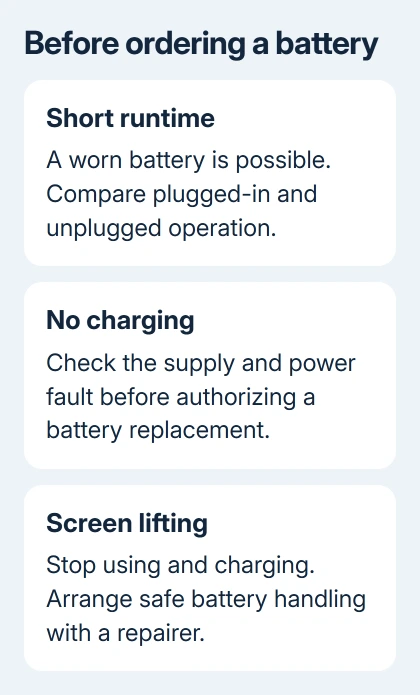
If the screen and case remain flat, compare operation on the correct Surface power supply and on battery. Note whether it starts, whether Windows shows charging, and whether the percentage changes. Tell the shop what you saw.
For a tablet that stays dark, use the Surface Pro power checks first. A battery replacement quote shouldn't be the automatic answer when a power supply hasn't been checked.
Screen flicker is also a separate fault. If the picture scrambles while the battery still runs the tablet, the Surface Pro 4 flickering guide explains the display problem to discuss with a repairer.
I'd pay for a diagnosis before buying a battery when the only symptom is failure to charge. It's cheaper to identify a bad supply than to open the tablet and discover that its battery wasn't the failed part.
Stop if the screen is lifting
A gap between the display and case can indicate an expanding battery. Stop using the tablet, disconnect the charger, and ask a repair shop or Microsoft Surface Support how to handle a potentially swollen lithium-ion battery.
Don't force the display down or clamp the tablet shut. Tell the repairer about the lifting display before transporting the tablet, so they can explain how to handle it and tell you whether they can accept it.
This changes the repair plan. Running the charge down before taking apart a tablet with a flat, undamaged battery doesn't mean you should keep using a visibly damaged one. Get handling advice instead.
Tell the shop if the tablet is hot, leaking, or visibly damaged. They need to know the battery could be unsafe, rather than just failing to hold its charge. Ask about safe disposal of the removed battery as part of the quote.
Confirm the model and the total quote
Confirm that the device is a Surface Pro 4, rather than a Surface Pro 3, Surface Pro (5th Gen), or another tablet with a similar appearance. Give the repairer its serial number and processor configuration if you have them.
The battery and screen parts need to match your model. A listing that just says Surface Pro battery isn't enough. Have the shop confirm compatibility before approving the part, especially if a screen replacement may also be needed.
Ask for a quote covering the battery, labor, fresh display adhesive, testing, and any charge if the existing screen breaks during removal. Also ask who supplies the part and what the repair warranty covers.
The display is the expensive complication in this job. Separating old adhesive can damage the screen even when the original fault is only the battery. A battery's price alone leaves out much of the cost of this repair.
Compare the complete quote with a replacement computer that meets your needs. Include the condition of the keyboard, charger, display, and storage in that decision. A fresh battery doesn't renew every other component in an aging tablet.
Check the service route before sending it away
Microsoft's Surface self-repair information lists supported components by model. The Surface Pro 4 isn't listed as a model with a battery in that self-repair program.
The published battery replacement service list also doesn't include the Pro 4. Registering your tablet or opening a general Surface service page doesn't mean you can order a new Pro 4 battery through that program.
Ask Surface Support what service, if any, is available for your serial number and location. If it isn't offered, look for an independent shop with experience opening Surface Pro 4 displays and handling glued-in batteries.
Before approving a normal repair, back up the tablet's files while it's safe to operate. If it's encrypted, save its device-encryption or BitLocker recovery key too. Ask whether the shop expects to preserve the storage or requires an erase.
Understand what the replacement involves
The iFixit guide for this model starts with removing the screen to reach the battery. With the tablet powered off, the repairer loosens the display adhesive and cuts it carefully with opening tools.
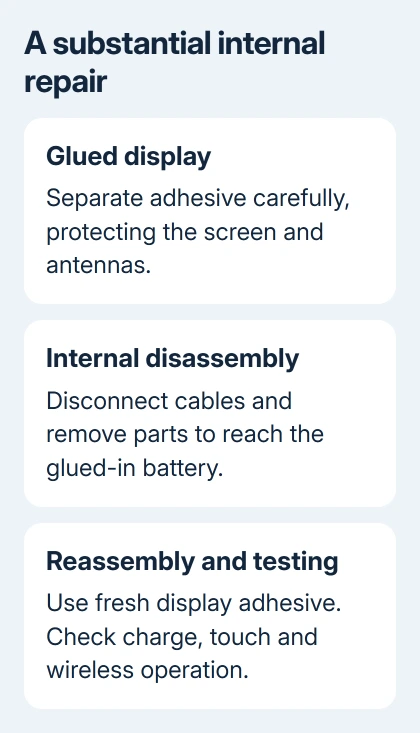
The top edge needs particular care because antennas sit in the adhesive area. Simply sliding a tool around the whole perimeter can damage them. After lifting the display, its cables must be disconnected before the screen is removed.
The job continues through shields, screws, cables, and motherboard removal. It isn't a battery exposed immediately under a removable back cover. The repairer needs to track each cable connector and screw location as the tablet comes apart.
The battery connector must be blocked as directed while removing the motherboard to prevent a short circuit. The battery itself is also glued into the case, so freeing it requires the guide's adhesive-removal procedure and plastic tools.
A lithium-ion pack must not be bent or punctured to overcome stubborn adhesive. For someone without experience opening glued tablets, this is a job for a professional rather than a chance to practice on the installed battery.
Use the complete Surface Pro 4 battery replacement procedure if you're equipped for the work. Its step photographs and tool positions matter; this overview isn't a substitute for them.
Test the repair before closing the job
After replacement and reassembly, check that the tablet boots and recognizes the battery. Confirm that charging increases its percentage and that it continues running after the charger is disconnected.
Ask the shop to check touch response across the display, Wi-Fi, sound, cameras, and the physical buttons. Those checks help catch a display cable, antenna, or other connection that came loose during repair, before you take the tablet home.
Fresh screen adhesive is part of completing the repair. Check that the display sits evenly without lifting edges, and keep the invoice with the battery part details and warranty terms.
If the tablet still shuts down or won't charge after replacement, return it under the repair warranty for power-system checks. Give the exact behavior rather than ordering another battery. Ask the repairer to check what's still causing it.
The Short Version
A Surface Pro 4 battery needs a difficult glued-screen repair. Diagnose charging faults, get a complete quote, and choose a shop experienced with this model. Stop using a tablet whose screen has lifted and arrange safe handling.
Checked November 13, 2026.