

You go looking for what filled your drive and find a 4 GB file called weights.bin inside Chrome's folders. You never asked for it. Deleting it feels risky, and it may come back anyway.
I would turn off one switch in Chrome's settings, On-device AI. Google says that deletes the model and stops Chrome downloading it again, and an owner on Super User found the files gone right after.
The Super User question about that folder has 38,418 views, and a second one from May has 18,022.
What the 4 GB file is
The folder is called OptGuideOnDeviceModel. The member who asked about it explained the contents: "This file is the Gemini Nano large language model that powers the built-in AI features".
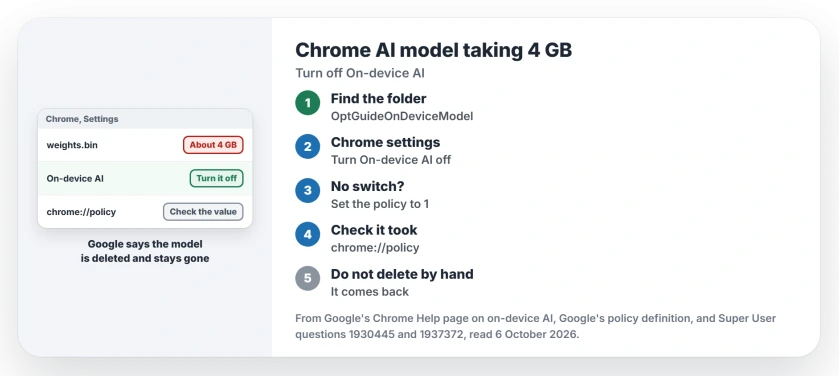
Status: checked 6 October 2026. Chrome kept a 4 GB weights.bin model in OptGuideOnDeviceModel. Turning off On-device AI deleted it for an owner, and Google says it stays gone.
Google says Chrome "may download on-device Generative AI models in the background". It only does that on capable hardware with roughly 20 GB of free disk space.
1. Turn off On-device AI
Google's on-device AI page gives the route: More, Settings, AI Innovations, then turn On-device AI off. Older Chrome versions put the same switch under Settings, System.
Google spells out two results. One is "Model deletion: Chrome will delete the on-device Generative AI model files from your device". The other: "Chrome will not download these models again while the setting is off".
Confirmed by an owner: "disabling On Device AI option deleted those files automatically for me". They found it under System in June.
2. No switch? Set Google's policy instead
For Chrome versions without the switch, a Super User answer used Google's GenAILocalFoundationalModelSettings policy.
Google's own policy text: "When the policy is set to Disabled (1), the model will not be downloaded, and the existing model (if already downloaded) will be deleted".
On Windows, run this in a Command Prompt, then restart Chrome:
reg.exe add HKCU\SOFTWARE\Policies\Google\Chrome\Recommended /v GenAILocalFoundationalModelSettings /t REG_DWORD /d 1 /fOn a Mac, another member posted this Terminal line:
defaults write ~/Library/Preferences/com.google.Chrome.plist GenAILocalFoundationalModelSettings -int 1I would type chrome://policy in the address bar to confirm the value took. The Windows line comes from an answer that says the Recommended key keeps your own Settings switch working.
Chrome may still say it is managed, and the Ask Gemini page explains that message.
If Chrome has also switched off older extensions of yours, the page on Chrome 138 and Manifest V2 explains what still works.
Why deleting the file by hand falls short
The member who asked showed you can delete it. In their words: "Chrome won't fatally break". Another member warned it will not last: "It'll definitely come back once you upgrade".
Google agrees with the second half. Deleting model files by hand "is not recommended and may not prevent future downloads".
What you give up
Google lists what the model can power, including help writing text, scam warnings, page summaries and tab organizing. With the switch off, "Features that rely on these on-device models will no longer work".
Ours: many of us never touch those. I would switch it off on a small drive, and leave it on if you rely on the scam warnings.
Does this turn off Gemini in Chrome?
No. Google says some AI features "do not rely on on-device Generative models", and those keep running. The Ask Gemini menu has its own policy.
If your drive is still full after this, freeing up disk space on Windows walks through the bigger folders.
The Short Version
- weights.bin in OptGuideOnDeviceModel is Chrome's Gemini Nano model, about 4 GB.
- Turn off On-device AI in Chrome's settings to delete it.
- Google says Chrome will not download it again while that is off.
- No switch: set GenAILocalFoundationalModelSettings to 1.
- Deleting the file by hand brings it back after an update.
- Ask Gemini and other cloud features are separate.
Where to Next
Open Chrome's settings now and search for On-device AI. Then check the OptGuideOnDeviceModel folder after a restart.
How many gigabytes came back for you? Tell me in the comments.

Isaac Smith is the founder and editor of PC Glance, a website that covers computers, laptops, and technology. He is a tech enthusiast and a computer geek who loves to share his insights and help his readers make smart choices when buying tech gadgets or laptops. He is always curious and updated about the latest tech trends.