

Word keeps a running word count on the status bar along the document window's bottom edge. Click that number for more statistics, or select a passage first to count only that part instead of the whole document.
The selection matters when a limit applies to an essay but excludes its title or references. Select the text that actually counts toward the limit, rather than guessing how many words to subtract from the document total.
In this guide
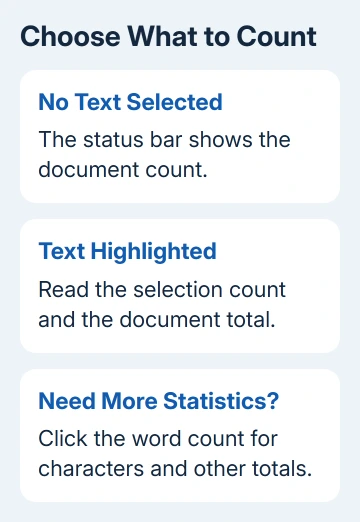
Read the count for the whole document
With your document open in Word, click the main text to clear any highlighted passage. Look at the status bar, the strip along the bottom of Word's window. Its word count changes as you write and edit.
Click the word count to open the statistics box. Along with words, Word can report pages, characters, paragraphs, and lines. Check whichever number your assignment or submission form asks for.
Microsoft explains Word's counting controls for Windows, Mac, and the browser app. The desktop statistics help when you need more than a simple word total.
A page count isn't another way of measuring the same thing. Changing margins, type size, or line spacing can change how many pages the document occupies without changing the words you've written.
I'd check the wording of the limit before editing to a target. A form asking for characters can reject a passage that is comfortably inside a word limit. The two numbers answer different questions.
Select the passage before counting part of it
Drag across the exact passage you want to measure. Include all the paragraphs that belong to the submission, then stop before anything the instructions exclude. The status bar shows the selection's count alongside the document total.
For example, an essay and its reference list can live in one file while the required count applies only to the essay. Select the essay itself instead of assuming that the full-document number matches the assessment rule.
Check both ends of the highlight: it should include the passage's opening word and its last word. A paragraph left outside the highlight stays outside the partial count.
Scroll through a long selection to check its boundaries before recording the result.
Click the count while the selection remains highlighted if you need its other statistics. On Word for Mac, Tools > Word Count is another way to count the selected passage. Once you clear the selection, the count covers the document again.
When you're checking two sections separately, record which section each number belongs to. Counting the introduction, clicking elsewhere, and then reading the new total can give the impression that your first result changed.
The Word text-selection and formatting controls help with editing after the count. Changing the appearance of a passage is separate from adding or removing its words, so check the text itself when shortening it.
Use the Mac and browser controls that match your version
In Word for Mac, click the status-bar count to open Word Count. With no text selected, its statistics cover the document. With a passage highlighted, use Tools > Word Count to inspect that passage.
These controls work in the Mac app on Intel and Apple silicon computers. The same Word menus apply to either processor.
In Word for the web, the count also updates as you type. If it isn't visible at the bottom, check that the document is in Editing view. The help page describes Edit Document > Edit in Word for the web for entering that view.
Open Review > Word Count and enable Show Word Count when that option is cleared. Turn it off through the same control when you no longer want the number displayed. Hiding the display doesn't remove any document text.
The browser app normally needs your account sign-in and permission to open the file. Word's signed-out welcome page isn't the document editor. Open the actual document before looking for its Review controls or status bar.
If a shared document is read-only, ask the owner to let you edit it, or open a permitted copy in desktop Word. The owner doesn't need to share the file more widely just to reveal a toolbar.
Put an updating count inside the Windows document
The status bar doesn't print as part of the document. To display a count on a cover sheet or inside a report in Word for Windows, insert the NumWords field. A field is a value Word can refresh, rather than an ordinary number you typed.
- Click the spot where the count should appear.
- Open Insert, then find Quick Parts in the Text group.
- Choose Field.
- Select NumWords under Field names, then click OK.
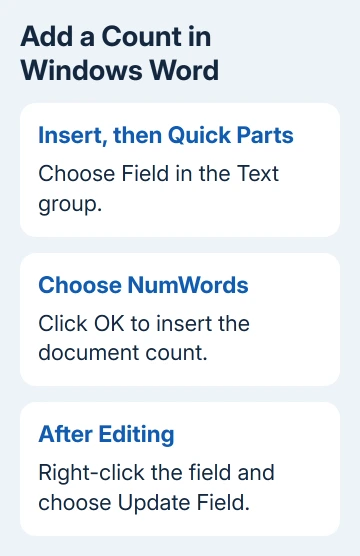
Word inserts the count at that location. Add a label such as Word count: beside it if the reader needs context. Keep the label outside the field so it stays readable when the numeric value changes.
After editing the document, right-click the inserted field and choose Update Field. Otherwise, it can still show the count from before your edits. Don't assume a visible field refreshes at the same moment as the status bar.
For automatic updating when printing, open File > Options > Display. Under Printing options, enable Update fields before printing. Check the resulting print preview after making your final edits.
NumWords represents the document count, not a custom selection such as an essay without references. If the submission requires a particular passage, measure that selection separately and make clear which text your submitted count covers.
Check the final number before submitting
Save the final document after the last edit, then count the intended text again. If another person has edited the file, confirm you're looking at the submitted version rather than a similar draft with an older title.
An AI-generated summary isn't a counting tool. Use the Word Copilot summary controls to shorten material when helpful, then measure the actual result with Word's count.
If the count stays missing or incorrect, use Word's Help to contact Microsoft support. Include the Word version, Windows or macOS version, whether a selection is active, and whether the status bar or an inserted field is the problem.
The Short Version
Read the status-bar count for the document, or select text for a partial count. Click the number for statistics. On Mac, Tools > Word Count also handles a selection. In Windows Word, refresh an inserted NumWords field after editing.
Checked November 15, 2026.
 If you have any business, I can build it online






