
You open localhost:631 on macOS 27 to manage a printer, and every page past the first says the web interface is disabled. The old fix, cupsctl WebInterface=yes, now fails with an error.
Losing it is annoying when you look after printers for an office or a studio. I read the CUPS command guides and a MacRumors thread that has tracked this since the first beta of macOS 27 in June.
What changed in macOS 27
On Sequoia and Tahoe, the web interface was off by default, and one Terminal line turned it on. On macOS 27, owners report that the same line returns an error. In their words: "cupsctl: Cannot set WebInterface directly."
The server still answers. So the first page loads. One owner found that any link inside leads to the disabled message. Editing the settings file by hand and restarting the service changed nothing for another.
Owners who filed bug reports with Apple got a short answer back: "Investigation Complete - Works currently as designed". Nothing changed in the release, and the newest betas show no change either. Plan for it staying off.
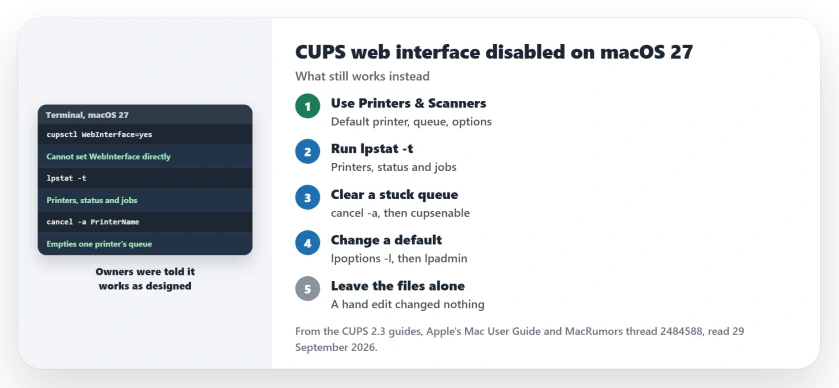
Status: checked 29 September 2026. cupsctl can no longer turn the web interface on, and owners report Apple treats this as intended. The CUPS commands in Terminal still cover the same jobs.
1. Do everyday jobs in Printers & Scanners
Choose Apple menu, System Settings, then Printers & Scanners. Apple says you can set the default printer and the default paper size there.
Click a printer in the list to change its name, its location or its driver. Apple's Printers & Scanners guide says you can also "open the Printer Queue or the Options and Supplies information for the printer" from there.
Control-click a printer to remove it or reset the printing system.
If you only used the web pages for these jobs, you are done. Everything after this covers the jobs Settings cannot do.
2. See every printer and job in Terminal
The CUPS commands behind those web pages are still part of macOS. Open Terminal and run:
lpstat -tThe CUPS guide says this "Shows all status information." You get each printer's queue name, whether it is enabled for printing, and every job still waiting.
Copy the queue name exactly. CUPS does not allow spaces in printer names, so yours may use underscores. The next commands use PrinterName where yours goes.
3. Clear stuck jobs and restart a stopped printer
To empty one printer's queue, then start it again:
cancel -a PrinterName
cupsenable PrinterName
In the CUPS guide's words, cupsenable "starts the named printers or classes". It adds that these tools "may ask the user for an access password depending on the printing system configuration."
4. Change a printer's default settings
First list what your printer offers:
lpoptions -p PrinterName -lThe CUPS guide says this "Lists the printer specific options and their current settings." Each line is one option with its choices.
To change a default, use lpadmin with one of the choices from that list. For example, lpadmin -p PrinterName -o PageSize=A4 sets A4 as the default page size.
I would use lpadmin rather than lpoptions for this. The guide says lpoptions settings feed the lp and lpr commands, which are not the apps you print from.
5. Leave the configuration files alone
It is tempting to edit the files under /etc/cups by hand. One owner tried that. They restarted the service, with no change.
The CUPS guide warns that the printer list files "should not be edited directly".
Replacement apps have also appeared in the thread. One owner questioned a helper that asked for your password before its code was public, so check who made any app first.
Printer stopped printing after the update?
This page is about managing printers. If a printer stopped printing altogether after the upgrade, our macOS 27 printer page starts with Rosetta. For jobs that sit in the queue and never print, the Mac printing page goes step by step.
If Terminal work leaves you with a box asking to install the command line tools again and again, the command line tools page has two owner fixes.
Can I turn the CUPS web interface back on in macOS 27?
Not with cupsctl. It returns an error on macOS 27, and owners who reported it were told it works as designed.
What replaces localhost:631 on a Mac?
Printers & Scanners in System Settings covers everyday jobs. For everything else, use lpstat, cancel, cupsenable, lpoptions and lpadmin in Terminal.
Does macOS 27 still use CUPS for printing?
Yes. Owners report that macOS 27 ships CUPS version 2.3.4, the same as Sequoia. Only the web pages are shut.
The Short Version
- cupsctl can no longer turn the web pages on.
- Owners were told it works as designed.
- Use Printers & Scanners for everyday jobs.
- Run lpstat -t to see printers and jobs.
- Use cancel -a and cupsenable for stuck queues.
- Use lpoptions -l to list, lpadmin to set defaults.
- Do not edit the CUPS files by hand.
Where to Next
Run lpstat -t in Terminal today to see your queue names. Then keep the commands from this page next to your printer notes for next time.
If you have found a job that only the web pages could do, describe it in a comment. I will add the Terminal way if there is one.

Isaac Smith is the founder and editor of PC Glance, a website that covers computers, laptops, and technology. He is a tech enthusiast and a computer geek who loves to share his insights and help his readers make smart choices when buying tech gadgets or laptops. He is always curious and updated about the latest tech trends.