
Deleting an iCloud photo also removes it from devices syncing the library. Open icloud.com/photos, select the picture, and confirm with Delete. You can also delete the same item in Photos on a synced iPhone, iPad, or Mac.
If the picture should stay on your phone or computer, save a separate original first. A synced copy isn't a separate backup, and deleting through the website doesn't leave that copy untouched.
In this guide
Check whether the photo should disappear everywhere
iCloud Photos keeps one library updated across devices. A deletion made on the website or a synced device travels through that library, just like a new photo or an edit does.
Continue with deletion if you want the picture removed everywhere. To free space only on the phone while retaining the online original, check photo storage optimization instead. Deleting would also remove the cloud copy.
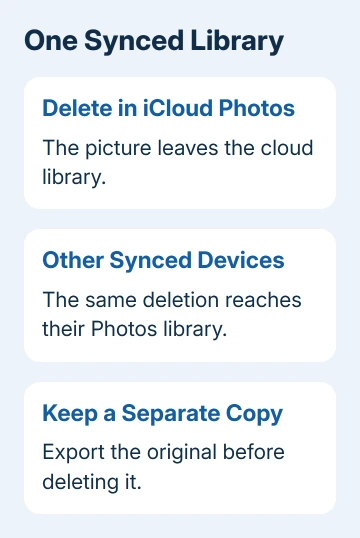
To save a separate copy on iPhone, select the photo in Photos, tap Share, then choose Export Unmodified Originals. In Files, pick a storage location separate from iCloud Drive, such as connected external storage, and tap Save.
Open the exported file before removing the library copy. I'd check the actual file rather than relying on its thumbnail, especially for a video that takes time to download.
If you want a device to stop syncing photo changes from iCloud, use the iCloud Photos switch-off steps instead. That is a different decision from deleting one unwanted picture.
Delete the picture at iCloud.com
Open icloud.com/photos and use the Apple Account holding that picture to sign in. Choose the library view, then select the unwanted photo or video. Use the trash-shaped Delete button and confirm Delete.
On a phone or tablet, use Select when the grid requires it before tapping an item. On a computer, select the thumbnail in the library. Check the selected picture before confirming, especially if several similar shots appear together.
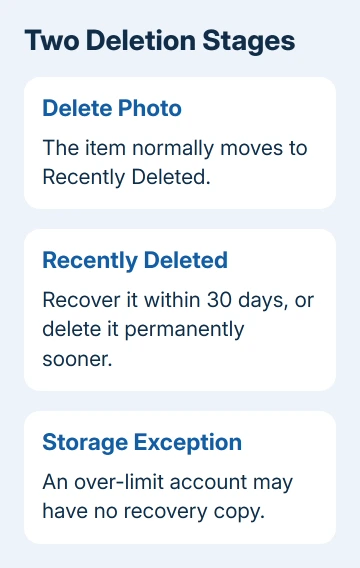
Apple says deleted iCloud library items move to Recently Deleted. It disappears from the normal library and is also removed from devices with iCloud Photos turned on.
If the website won't show your library, use the iCloud photo access steps first. You'll need to fix the sign-in or web-access problem before you can delete a picture through the website.
The photo grid only appears after you sign in. Its control positions differ between phone and desktop layouts, so use the button's name and trash symbol rather than expecting an identical toolbar on every screen.
Remove the item in iPhone or iPad Photos
Open Photos, open the picture, tap the Trash button, and confirm Delete Photo. For several pictures, return to the library, tap Select, choose the items, and then use Trash.
This reaches the same cloud library when Settings > your name > iCloud > Photos > Sync this iPhone is enabled. On iPad, look for that device's Sync control. If syncing is off, deleting a photo on the device won't delete it from iCloud.
Deleting from an ordinary album is easy to confuse with removing from the library. Remove from Album only changes that album's contents. Use Delete when the intended result is removal from the photo library itself.
When Trash appears gray, the photo may have been synced from a computer and can't be deleted here. Manage that item using the original computer. A picture can appear in Photos without being stored in iCloud Photos.
Delete from the Photos library on a Mac
Open Photos on the Mac and select the picture in Library. Press Delete, then confirm the deletion. For multiple pictures, select the intended items first and check the selection before confirming.
With iCloud Photos enabled for that library, this also removes the cloud item and its synced copies. A picture stored only in a different local library is a different file, so check which Photos library you're using.
Inside an ordinary album, the Delete key removes the item from that album instead. Return to Library to delete the photo itself. Deleting from a Smart Album, such as Favorites, does remove the library item.
Check that the item has left the library. If another device still shows it, connect that device to a working network and read its photo-sync status. Avoid deleting similar-looking pictures while waiting for the update.
Decide whether Recently Deleted should keep it
Deleted library items normally remain recoverable for 30 days. If you deleted the wrong photo, open Recently Deleted, select it, and choose Recover. That restores the library item rather than creating a second downloaded copy.
To remove it permanently sooner on the website, open Recently Deleted, select that particular item, and choose Delete. Read the confirmation carefully. Permanent deletion removes the normal recovery option.
For an account exceeding its iCloud storage limit, deleted photos and videos are immediately removed from the device and unavailable in Recently Deleted. Export wanted originals before confirming deletion.
The iCloud storage instructions also state that items in Recently Deleted don't count toward iCloud storage. Emptying it isn't required just to stop those deleted items using that cloud allowance.
Check shared photos before confirming
A Shared Album and an iCloud Shared Photo Library have different deletion permissions. In a Shared Album, the creator can delete anyone's contributions; a subscriber can delete the items they added.
In a Shared Photo Library, any participant can delete a photo or video. Only the person who added it can permanently delete it before the 30-day period ends. Other participants are affected by that deletion too.
If the expected delete control is absent, check which shared collection you're viewing and whether you added the item. Don't leave the whole shared library to remove one picture. Ask its contributor or organizer about that specific item.
For a deletion that won't sync, tell Apple Support iCloud Photos isn't removing the item across devices. Give the device version, sync message, and library type. Keep any wanted exported original while they check the account.
The Short Version
Keep an exported original of any picture you want. Delete the item using iCloud Photos or synced Photos; it will disappear from your other synced devices too. Recovery normally lasts 30 days, with shared-item and storage-limit exceptions.
Checked November 12, 2026.






