

Excel 2013 had a sorting fault that could leave a very large list unchanged without an error. Install its available Office updates before changing graphics or workbook settings.
The asker marked sorting resolved after an Office update. An owner also confirmed a successful large sort after updating.
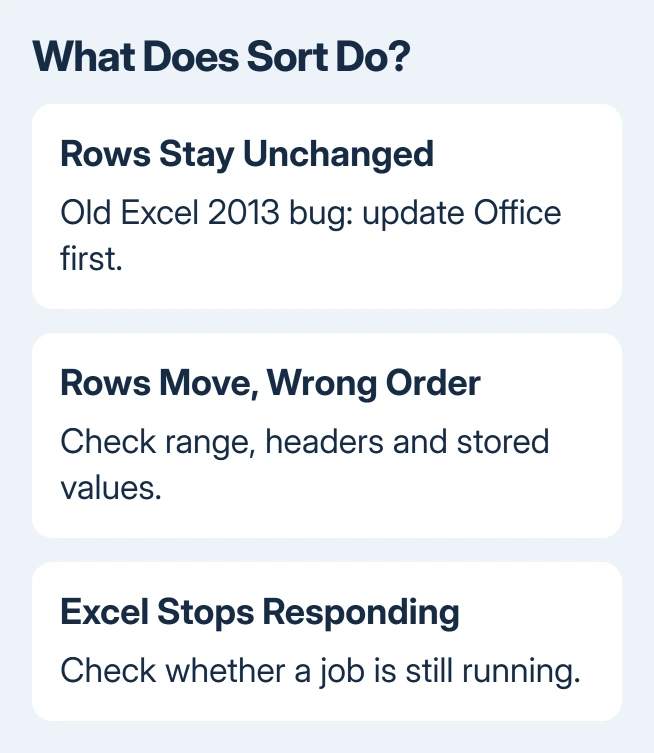
A list that rearranges into the wrong order needs different checks from a sort that does nothing. Check what happens to your rows, then follow the matching steps on a saved copy.
In this guide
1. Install the update that addresses the old sorting fault
Open Excel and choose File > Account. For a Click-to-Run installation, choose Update Options > Update Now. If Enable Updates is offered first, select it, then check again. Save other Office work before the installer closes apps.
Follow the Office update instructions for an installation without that menu. A managed computer may have updates controlled by IT; an older Windows Installer installation uses a different route.
In the original large-file report, the asker added that the sorting problem was resolved with an Office update. A later owner also reported that updating through File > Account let them sort a million rows.
The discussion refers to Office 2013 Service Pack 1, but it doesn't give a precise fixed build for every installation. Don't search for an arbitrary old executable.
If you can't update through the normal menu, have IT review the installed Office updates.
After updating, close Excel and reopen a copy of the same workbook. Repeat the same sort on the same full range. If it now completes, check a few complete records before saving a separately named sorted copy.
Excel 2013 is unsupported. The historical fix explains this particular failure, but a supported Excel installation is the sensible destination for ongoing work with business data.
2. Check the file format before trusting the row count
The thread calls the workbook an XLS file while describing about 700,000 rows. A genuine Excel 97-2003 .xls worksheet holds only 65,536 rows. Modern .xlsx and .xlsb worksheets support 1,048,576 rows.
Check File > Save As and read the actual file type. Don't infer it from someone calling every spreadsheet an XLS file. The file type controls how much data your sheet can hold, not just how long a sort takes.
For hundreds of thousands of rows on one sheet, use a modern format. Keep the original and review compatibility warnings when saving another copy. Renaming the extension alone doesn't convert the file.
A macro-enabled workbook needs a format that retains its macros, such as .xlsm or .xlsb. Don't accept a macro-removal warning just to try a sort. Ask the workbook's author which format its formulas and automation require.
If the range is already in a modern format and within its row limit, continue with the selection check. The file extension by itself won't explain the historical no-error sorting fault.
3. Sort the complete records rather than one column
Save a separate copy before sorting. Select the entire rectangular block of related data, including its heading row when present. Make sure the selection reaches the final record rather than stopping at an empty row inside the list.
Open Data > Sort. Set Sort by to the intended column, Sort On to values, and Order to the required direction. Enable My data has headers for a selection beginning with column labels.
If Excel asks whether to expand the selection, include the neighboring columns that belong to those records. Sorting only a customer-name column can detach names from their orders even when the alphabetical order looks correct.
When a protection message blocks the sort, check locked cells and sorting permissions before treating the failure as the old large-file bug.
Before sorting, pick a record you'll recognize, then check that its cells still belong together afterward. I'd check that record's ID and amount together, then inspect entries near both ends of the sorted list.
A changed first row alone doesn't confirm the whole report is usable.
If rows move but dates end up grouped strangely, use the date-sorting checks for dates saved as text. Dates grouped incorrectly mean rows moved; the historical bug left the list untouched after OK.
4. Don't treat a small successful sort as a size limit
The asker found that small subsets would sort while the large range didn't. Another owner described a different cutoff. Those row counts described what happened in their files; they weren't published Excel limits.
Splitting a report into separate blocks and sorting each block won't produce a single ordered list. The last item in one block can belong after the first item in another. Keep the full records together if you need the whole list in order.
If the same copied workbook sorts in a supported Excel installation, keep that working copy and compare product versions with IT. Use the same data and sort settings in both, so a different selection doesn't hide the original problem.
If it also fails there, send the workbook's author the selected range and sort settings. A damaged file or data-specific problem needs a closer look than another round of Office 2013 display changes.
5. Treat blank windows and stale columns separately
The original report also described a large workbook opening blank when another file was already open, and a deleted column staying visible until the workbook was reopened. The update success statement specifically addresses sorting.
For the blank-window symptom, save and close other workbooks, exit Excel normally, then open the large file by itself. Opening it alone got the asker's workbook visible again; the sorting update wasn't confirmed for this symptom.
For a deleted column that remains drawn on screen, inspect a saved copy after reopening it before deleting again. In that report, the column had already been deleted, but Excel was still drawing it on screen.
Repeating deletion risks removing a different column.
The asker had already tried the suggested graphics-acceleration and Dynamic Data Exchange settings without success. Don't begin with those changes for this specific no-error sort failure.
If Excel actually hangs, rather than returning to an unchanged sheet, follow the Excel not responding checks. Check whether a job is still running before closing the program and losing unsaved work.
Give support a reproducible large-sort example
Record File > Account > About Excel, the workbook format, approximate row count, selected range and sort rules. Ask the person who manages Microsoft 365 or develops your workbook to repeat that sort in a supported Excel version.
To share the file, use an example without private data that still has the same problem. Explain whether OK does nothing, the order is wrong, or Excel stops responding. Include the update result and whether the same range sorts elsewhere.
The Short Version
Update Excel 2013 first for the old large-sort bug. Verify the actual file format and sort all related columns together. Small successful subsets don't define Excel's row limit, and the blank-window symptoms need their own checks.
Checked November 16, 2026.
 If you have any business, I can build it online






