

A protected Excel sheet won't sort a range containing locked cells, even when Sort is allowed. Unlock that full range, then reapply protection with sorting enabled. Working filters don't grant the same access.
If those cells contain formulas that must stay protected, don't unlock them just to make the button work. Have the workbook's owner sort the data or provide a separate reporting copy instead.
In this guide
1. Check the cells included in the sort
Open the affected worksheet and check Review. If the command reads Unprotect Sheet, the sheet is protected. Keep a backup of your workbook before you change permissions or rearrange its records.
Identify the full block of related data, including columns that need to move with each record. A single unlocked input column isn't enough if sorting also needs to move locked amounts, names or formula cells beside it.
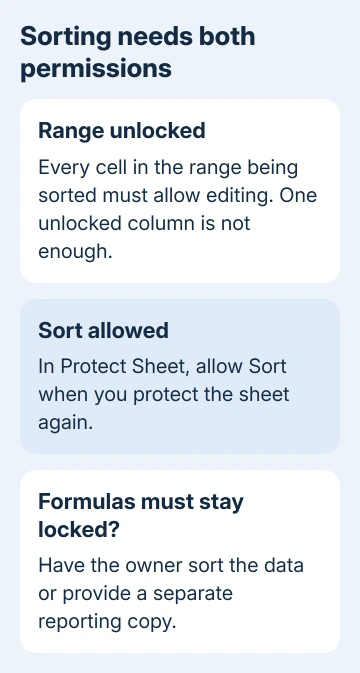
The worksheet protection rules state that ranges containing locked cells can't be sorted on a protected worksheet, regardless of the Sort setting. The checkbox permits sorting; it doesn't override cell locks.
If you don't have the password, ask the workbook's author to change the range or provide a sorted version. They need to decide which cells users can change; a password-removal tool isn't the answer.
If protection is off and only a very large Excel 2013 sort leaves rows unchanged, check the historical large-file sorting fault. That failure has different causes from a protected range.
2. Unlock the full range that users may rearrange
Choose Review > Unprotect Sheet and enter the sheet password when asked. Select the data block users may sort, including its headers when they're part of that range. Include all related columns, rather than just the sort-key column.
Press Ctrl + 1 on Windows to open Format Cells. On a Mac, use Command + 1, or right-click the selection and choose Format Cells. Open Protection, clear Locked, and select OK.
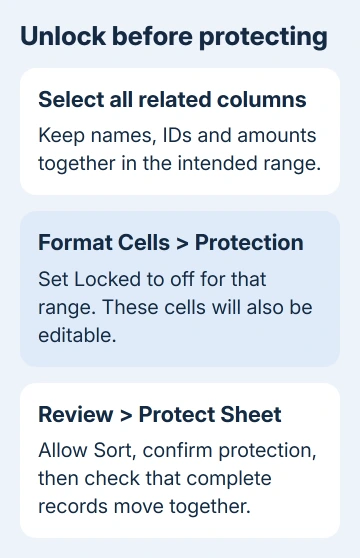
The Locked box is usually checked even on an unprotected worksheet. It takes effect when you turn on sheet protection. Clearing it lets users edit those cells after you protect the sheet again.
Unlock only a range that the people using the workbook are allowed to change. Unlocking a formula column lets them edit its formulas as well as rearrange it, so those formulas won't be protected.
If you unlock one column and sorting still fails, check the full area you've selected for sorting. A locked cell anywhere in that area can stop the sort, even when the column you're sorting by is unlocked.
3. Reapply protection with Sort allowed
Open Review > Protect Sheet. In the list of actions allowed on the worksheet, select Sort. Leave the other permissions set for how people need to use this workbook, then set or confirm the password and finish the dialog.
Try Data > Sort using the intended full range. Set the sort column and order, then confirm. A successful result rearranges complete records without Excel reporting that protected cells prevent the change.
For a table with column labels, check My data has headers in the Sort dialog when the selection includes that heading row. The labels should stay labels rather than being mixed into the data.
Check a recognizable record afterward. Its name, ID and amount should still belong together. I'd compare a few of the first and final records before saving the changed workbook.
If Excel offers to expand the selection, include the related columns. A successful alphabetical sort can still damage the report if only names move while their corresponding values stay in their old rows.
If rows move but dates group incorrectly, follow the date-sorting checks. Dates stored as text need a data correction, not another protection change.
4. Set up filtering separately from sorting
Filtering shows rows that match the condition you choose. Sorting changes their order. A protected sheet can allow one while blocking the other because they do different jobs.
For filtering, remove sheet protection first and create the filter while the sheet is unprotected. Apply protection again with Use AutoFilter allowed. Users can then use the existing filter's controls to choose which rows to show.
That permission doesn't let users create or remove AutoFilter on a protected sheet. Set up the required filter before handing over the workbook, rather than asking recipients to add one after protection is applied.
If you can open a filter but its sort choice fails, check the range's locked cells again. The same control can offer both actions, but being able to filter doesn't give you permission to sort.
Excel in a browser uses Review > Manage Protection for its protection settings. To unlock ranges with these steps, use the desktop Excel app to make and save those changes.
5. Keep protected formulas under the owner's control
For formulas that must stay locked, have the owner unprotect, sort the complete records, and protect again. Give readers a sorted copy if they don't need to rearrange the working file.
A separate report lets people view the data in a different order while the working sheet stays protected. Decide whether it needs formulas or just the current results. A copy of results alone won't keep recalculating like the original.
One reply in the original discussion proposes Allow Users to Edit Ranges and a separate range password. That lets users edit the range; preventing them from selecting locked cells isn't a reliable way to protect formulas from changes.
That workaround doesn't let you sort while keeping the same formula protection. Ask the workbook author to set up permissions or a separate report based on what each user should be able to change.
If sorting still fails after the range is unlocked and Sort is allowed, send the author the selected address, the protection choices and the full error. Ask them to check every column included in that range, not just the chosen sort column.
The Short Version
Protected-sheet sorting needs an unlocked range and Sort permission. Keep related columns together. Filtering uses separate permissions; formulas that must stay locked need an owner-controlled sort or a separate report.
Checked November 16, 2026.
 If you have any business, I can build it online






