

Excel's extract range has a missing or invalid field name error usually points to the headings selected in Advanced Filter's Copy to box. Copy the source headings and select only those output labels.
Check that List range includes its heading row too.
The labels in Criteria range need a separate check. Changing them won't fix a Copy to selection with a blank cell or a heading Excel doesn't recognize. Start with the output range, then check the source and criteria if the error remains.
In this guide
1. Rebuild the Copy to headings from the source
Make a workbook copy first, then adjust where Advanced Filter puts its results. Identify the source list's real heading row and find unused output cells with room for the matching records.
Copy just the headings for the columns you want into that output area. For example, copy Name, Team and Status into P1:R1. These names are examples; use the exact labels in your workbook.
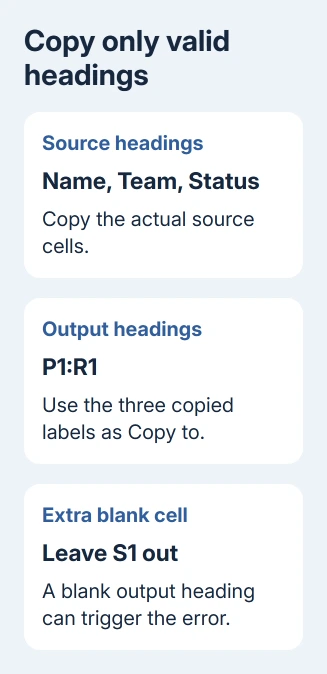
Open Data > Advanced in desktop Excel and select Copy to another location. In Copy to, select P1:R1 for that example, not entire columns P:R and not P1:S1 with an extra empty heading.
A selected output heading tells Excel which source column to extract. A blank cell or a different label can leave it without a usable field name. Copying the source cells avoids an unnoticed leading or trailing space.
Don't replace those labels with report titles such as Current Team Members unless the source column has that exact heading. Put a decorative report title outside the range used by Advanced Filter.
Run the filter again. If records now appear under the selected headings, the output selection caused the failure. If the same message remains, keep the corrected headings and inspect the source range next.
2. Include the real heading row in List range
Click in List range and check its first row against the sheet. For example, if A1:C20 contains three headings and nineteen records, use that full block rather than starting at A2.
Starting one row late makes Excel treat a record as the field names. Starting one row early can give it blank cells or a merged report title instead. Neither matches the labels copied to the output area.
Look across every included column. A column included by accident still needs a valid heading. Leaving that heading blank doesn't let Excel treat the column as a gap in the list.
Keep the selected source block rectangular and limit it to the fields you need. A blank spacer column outside the data shouldn't be included just because the report looks neater with extra space around it.
Compare the source heading text with the destination headings again after adjusting the range. If the copy succeeds now, the problem was which cells List range included, rather than the conditions you're using to choose records.
If ordinary filtering is all you need, filter the source list directly. Advanced Filter is useful for extracting a separate block, but it adds a destination range that a normal filter doesn't need.
3. Check Criteria range without changing formula labels blindly
For ordinary criteria, copy the relevant source heading into the criteria area and put its condition in the next row. Include both the label and condition when selecting Criteria range.
Keep at least one empty row between criteria and the source list. Microsoft's Advanced Filter instructions describe this layout and how to select only certain output columns.
For example, a Status label with Open in the cell under it selects records using that field. A criteria label typed as Status report doesn't refer to a source field named Status.
Formula criteria have a different heading rule
Formula criteria are different: a formula that checks each record needs a blank criteria heading or a label different from any list heading. Don't rename that label to a source field automatically.
Check what the criterion is doing before changing its heading. A comparison typed under a field name and a formula referring to a record are two different layouts, even if both appear to return the same rows.
Check which conditions share rows. Conditions on the same criteria row must all match; on separate rows, either row's conditions can match. A filter returning no records can mean no conditions match, rather than another invalid-field error.
4. Run a small extraction before rebuilding the report
I'd try one output heading and one straightforward condition first. It keeps the check small enough to see whether Excel recognizes the fields without changing formulas or charts at the same time.
For example, copy one source label into an empty output cell and use that cell as Copy to. Keep the source's heading row in List range. Run the filter and check whether the expected field is extracted.
If that works, add the other copied output headings and repeat. The first added heading that brings back the error is the one to compare against the source, including any hidden spaces.
Use an output area clear of your working report. The filtered rows need space to appear, and a successful extraction can overwrite cells in that destination. Check the destination before pressing OK.
Remember that Advanced Filter copies a result when you run it; it isn't a live formula. After adding source records, check the range and run the extraction again before using its output for charts or totals.
For an average that must follow the currently filtered source rows, use the visible-row average. Calculating from an old extracted report can leave yesterday's records in the answer.
5. Separate a formula workaround from an Advanced Filter repair
For one owner in the original discussion, copying headings alone hadn't fixed their workbook. That owner later used a supplied FILTER formula for their reporting task instead.
Their final success came after selecting the right workbook in a prompt that appeared when pasting that formula. The formula worked for their file, but they didn't report getting Advanced Filter working again.
For a report that must update automatically, ask the workbook author whether a FILTER formula suits its Excel versions. A formula copied from someone else's file needs your own worksheet names, ranges and output space.
If the corrected Advanced Filter ranges still fail, give the author a small workbook containing the source heading row, criteria and destination labels. Remove private records, but keep the structure that produces the message.
For Microsoft Support, include those three range addresses, your Excel version and whether the one-heading extraction works. Those selections show support which fields Excel is trying to match; the error message alone leaves that out.
The Short Version
Copy output labels from the source, select only those labels in Copy to, and include the source heading row in List range. Check ordinary criteria labels next, remembering that formula criteria use a different heading rule.
Checked November 17, 2026.
 If you have any business, I can build it online






