

Excel's Fixed Objects Will Move warning can stop a sort, filter, or save because of how the workbook handles pictures, controls, and other inserted items. Start by turning on the option that keeps inserted objects with their parent cells.
That setting fixed this exact warning for owners using Excel 2010. If the warning keeps coming back, check the workbook's objects next, especially when it happens in just one old spreadsheet.
In this guide
1. Keep the original workbook before changing its objects
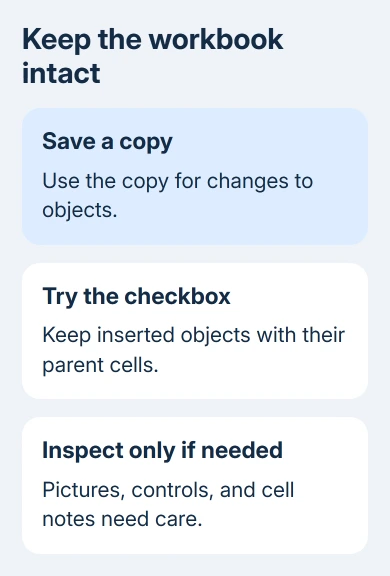
When the message lets you return to the worksheet, save a separate copy through File > Save As. Use that copy for the checks. A picture or control may still be needed elsewhere in the sheet.
A repeating dialog can also block other open workbooks in the same Excel session. Try Esc to dismiss it, then save any other documents that still respond before doing anything that closes Excel.
If Excel won't respond at all, Ctrl + Shift + Esc opens Task Manager on Windows. Ending Excel there loses unsaved changes, so use it only when the dialog leaves no usable way to return to your work.
Reopen the workbook and check any recovery copy Excel offers before repeating the failed action. Note whether the warning appears during a filter, a row change, or a save. You'll repeat that action to see whether each change helps.
2. Turn on the parent-cell option in Windows Excel
In desktop Excel for Windows, open File > Options > Advanced. Scroll to Cut, Copy, and Paste and select Cut, copy, and sort inserted objects with their parent cells. Select OK to apply it.
Microsoft's Advanced options reference explains that this keeps pictures, buttons, text boxes, and other graphic objects with their cells during cuts, copies, filters, and sorts.
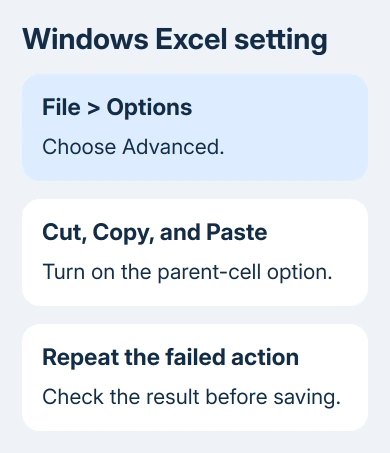
Return to the copied workbook and repeat the operation that produced the warning. For a filter, choose the same column and condition. For a save, make a small harmless change and save that copy again.
One owner reported that this checkbox stopped the warning in Excel 2010; a second owner confirmed the repair. That's the reason to try it before deleting worksheet content, even when no large picture is immediately visible.
If the operation finishes, inspect the affected rows and nearby objects before saving. Check that each label, picture, and control still sits beside the record it belongs to, even if the warning has stopped.
The File > Options route applies to Windows desktop Excel. Mac Excel and the browser edition use different settings menus. If you're using either version, you won't find the Windows menu there.
3. Find the objects on the affected worksheet
If the setting was already selected or didn't help, check which inserted items the sheet contains. In Windows Excel, open Home > Find & Select > Go To Special, choose Objects, and select OK.
Selected pictures, shapes, and controls should show their selection handles. Look across the affected area rather than assuming the problem must sit inside the cell you clicked. An object can be positioned over several cells.
Use Home > Find & Select > Selection Pane when you need a list of selectable objects. Select an item in the pane and see which worksheet element it highlights. That helps you see what an unfamiliar name refers to.
Keep the original's objects intact. In the saved copy, delete only an item you recognize and don't need, then try the operation again. Removing everything selected could erase useful charts, form buttons, or pictures.
If deleting one unwanted item clears the warning, keep that repaired copy and check the workbook's calculations and controls. If it changes nothing, go back to the copy that still has all its content and check the next object.
For moving actual records, the Excel row-moving steps explain how to insert a whole row without overwriting its destination. A cell move and an object's placement setting are different parts of the worksheet.
4. Check notes separately from pictures and shapes
Even if Excel selects no objects, the workbook can still contain cell notes. Older spreadsheets often call these comments, while current Excel distinguishes traditional notes from threaded comments.
In current Windows Excel, use Review > Notes > Show All Notes to inspect traditional notes. In older releases, that control uses Comments in its name. Check the notes around the rows or columns involved in the warning.
Keep any useful text before removing an unwanted note from the test copy. Repeat the original action after that single change. If the save or filter now works, that change points to content in this workbook as the cause.
An error reading Cannot shift objects off sheet needs different object-position and display checks. Keep its exact wording for support, since it describes another fault.
Follow the cannot-shift-objects repair when hiding or inserting columns fails; that error involves object visibility and positioning.
I'd keep useful controls and notes until a test copy shows which item matters. Deleting every inserted item is quick, but rebuilding a workbook's buttons and charts can take much longer than checking them.
5. Separate one damaged workbook from an Excel-wide fault
Try the same kind of operation in a small new workbook. A plain sheet that sorts and saves normally helps narrow the problem to the original file or its contents. It doesn't call for resetting every Office app.
If ordinary new workbooks also freeze, use the Excel not responding checks for add-ins, updates, and application repair. Those checks address the wider failure rather than removing objects from unrelated files.
If just this file keeps failing, give its author or IT team a copy without private information, the message, and your Excel version. Describe the failing action, checkbox state, and any notes or controls in the file.
Use Help > Contact Support when offered, or your Microsoft 365 subscription's support route. Explain how to make the warning appear, and keep the original workbook while support checks the problem.
The Short Version
Save a copy, enable the parent-cell option in Windows Excel, and retry the exact failed action. If it persists, inspect objects and traditional notes in that copy. Give support the affected workbook and the exact warning.
Checked November 15, 2026.
 If you have any business, I can build it online






