

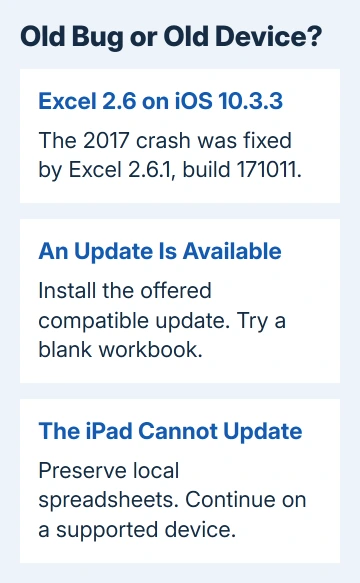
Excel's October 2017 crash on iOS 10.3.3 was fixed by Excel 2.6.1, build 171011. Updating Excel restored workbook access for owners, including devices that couldn't upgrade to iOS 11.
For an iPad still running 10.3.3 today, that old fix doesn't restore current Office support. Check the installed versions and preserve your spreadsheets first; use a supported device when the iPad can't install a usable Excel update.
In this guide
1. Check whether this is the old Excel 2.6 crash
Open Settings > General > About on your iPad to see the installed iOS version. Don't rely on remembering that an update finished. In the original case, the asker initially thought iOS 11 had installed but later found 10.3.3.
Next, open Settings > Excel and look for its version information. Record the full Excel version and build if shown. The reported faulty release was 2.6 (171004), followed by the working 2.6.1 (171011) update.
The old failure occurred when opening a spreadsheet or creating a blank one. Excel could show a working message and then close to the Home Screen. It wasn't limited to a single damaged workbook.
If your iPad runs a recent iPadOS and Excel release, this 2017 version-specific repair isn't the right explanation. Record those current versions and use the blank-workbook comparison later in these steps to describe the failure.
Skip the search for that old installer. Version 2.6.1 fixed the crash at the time; a supported iPad today should use the compatible release now offered to it.
2. Install an offered compatible Excel update
On iOS 10.3.3, open the App Store > Updates tab and look for Excel. Install the offered compatible update. Afterward, launch Excel and try a new blank file before your working spreadsheet.
On current iPadOS, the update controls are different: open the App Store, tap your account picture, choose App Updates, and tap Update next to Excel. Older layouts show pending updates on the account screen itself.
Apple's manual app update instructions describe the current layout. The update offered to a current device won't have the 2017 version number, and that's expected.
In the original Excel thread, an owner confirmed 2.6.1 fixed the problem on an iPhone 5 still running iOS 10.3.3. Other replies confirmed recovery on iPad too.
Earlier reset attempts hadn't worked for several owners. I'd check the available update before clearing credentials or removing Excel, especially on an old device where reinstalling may not restore the same app.
If the App Store doesn't offer a compatible update, stop there and preserve the files. Repeatedly refreshing the update list can't change the operating systems supported by the app available now.
3. Separate an app crash from one broken spreadsheet
After the update finishes, create a fresh workbook in Excel. Enter a small value, save the file to an accessible location, close the file, then reopen it.
If that works, try the spreadsheet that originally failed. If the new workbook works but your spreadsheet won't open, check that file, its location and its contents. The old iOS crash may have had a different cause.
Open the same spreadsheet on another supported device using the same storage account. Check its latest saved content. If it opens there, keep working on that device while checking the iPad. It also shows another Excel app can read the file.
If every workbook and even a blank one closes Excel, record that behavior for support. Tell support that Excel closes, rather than showing a message about one unreadable file, an unavailable folder or a sign-in problem.
The Excel file-opening checks cover a document that won't open separately from this old mobile app crash. Keep the original spreadsheet when trying any file repair.
For a OneDrive file missing on another device, check the OneDrive sync guide. Missing cloud changes and an app closing are different problems, even when they happen during the same task.
4. Save local work before changing the installation
Check where your important workbooks are stored. Files visible on another device in OneDrive have reached that account; files kept only on the iPad still need a separate copy before Excel is removed.
Use any working sharing or export option available in the installed app to copy local workbooks to accessible storage. Open the copy on another device and check a recent edit, instead of trusting the filename alone.
When a crash prevents access to those controls, keep the app installed. Ask support about retrieving its local files for that device and installation before trying a removal that could discard them.
One owner in the old discussion recovered after resetting Excel, deleting it, reinstalling and signing in again. That happened after the repaired release arrived; keep today's last working old copy until your files are safe.
The same discussion also contains failed reset reports and a later installation problem. That's why I'd check updates and save your files first. Reinstalling isn't a dependable fix for every old iPad.
5. Move to a supported device when updates stop
Check Settings > General > Software Update to see whether the iPad can install a newer system. A device with no later compatible release can't be upgraded simply by changing an Excel setting.
The current Office update notice lists iOS 17 or later and app version 2.93 as the minimums for the update it describes. An iPad on iOS 10.3.3 can't use that update.
Those minimums don't promise that every newer Office feature runs on every device. Check the current App Store requirements for the Excel release you're trying to install, especially before buying another used iPad.
Use a supported computer or tablet to open the cloud spreadsheet and continue working. Excel on the web is another option in a supported browser; don't assume the old iPad's Safari can run today's web app properly.
For files trapped locally, contact Apple Support about retrieving app documents, and Microsoft support about the Excel failure. Give them the exact iPad model, iOS version, Excel build and whether any workbook can still open.
For a current supported iPad that still crashes, use Excel's Help & Feedback controls if its menus still respond. Include the blank-workbook result and a nonprivate sample file when the failure affects only one spreadsheet.
The Short Version
Excel 2.6.1 fixed the 2017 crash on iOS 10.3.3. Check for an available update, then compare a blank workbook with your file. Preserve local spreadsheets and use a supported device when the old iPad can't update.
Checked November 17, 2026.
 If you have any business, I can build it online






