
Excel can keep showing a SharePoint version error even when the workbook opens and saves. One owner stopped it by saving as XLSX, then XLSM. That removes VBA macros, so keep the original file before trying it.
If only the macro button triggers the error, check how that button runs the macro first. A broken button needs its own checks when the macro runs from its editor. A workbook that won't open has a different problem.
In this guide
1. Check for the old version number in the path
Read the complete path in the error. The reported case included a SharePoint personal-site address followed by version 143.0 and an old date. Excel then displayed another message saying it couldn't access that same file.
The owner could still edit and save data. Opening other entries in version history didn't remove the error, and running the row-hiding macro from the worksheet triggered it again.
Open the affected file in desktop Excel, dismiss the message if needed, and check whether you can use its sheets. Does opening the file trigger the message, or does it appear during saving or a macro run? Note which action causes it.
If Excel can't open the file at all, start with the Excel file-opening checks. This procedure is for the narrower old-version path error, particularly a workbook that remains editable.
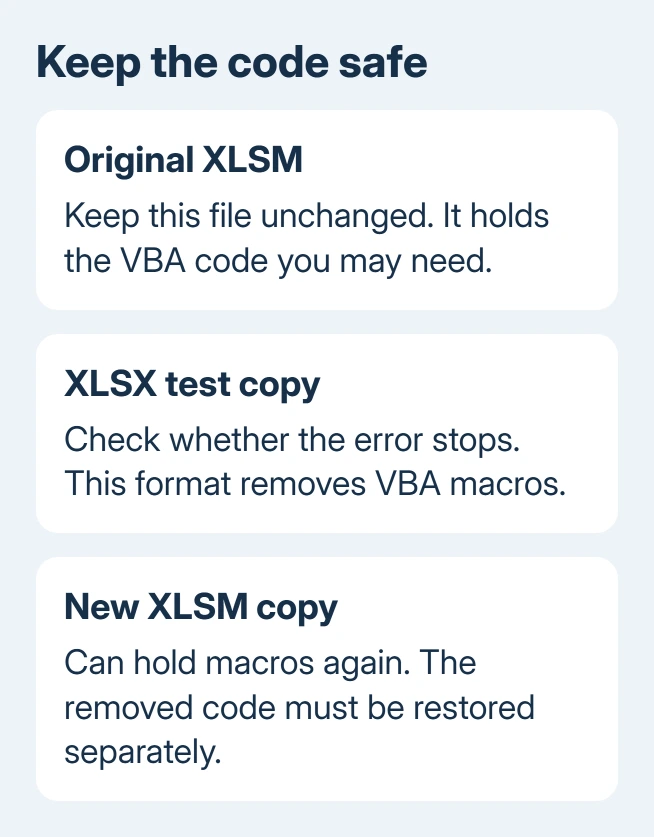
Before converting formats, save another .xlsm file with a different name. Keep it in a location you recognize and leave the shared original in place. That copy needs to keep the macro code as well as the sheets you can see.
2. Check a macro button that points to the wrong file
The owner could run the macro in the VBA editor, but launching it from Excel failed. Check which macro the button is set to run, though the owner didn't confirm that changing it fixed the error.
For a worksheet button that offers Assign Macro, right-click it and open that dialog. Read the selected macro reference. Look for an old workbook name, or a version number and date at the end that match the error.
If the dialog lists the macro you need in the current workbook, select it and confirm. Run it in your test copy and inspect the rows it should change. Check that the intended task actually ran.
Some controls run code when you click them without offering Assign Macro. If that option isn't present, have the workbook's developer check the control and its code. Don't replace it with a different button without knowing what it does.
For a custom Quick Access Toolbar or ribbon command, Microsoft's macro-button instructions show how commands are linked to macros. Check that assignment separately from a worksheet control.
If the button now works but the error still appears when opening the file, continue with the format test. More than one part of the workbook can point to the old file.
3. Try the confirmed format conversion on a copy
I'd try this on a copy first. The workaround stopped the owner's error, but your replacement file also needs its macros. Check that the replacement runs the tasks you need, even when the alert has disappeared.
In desktop Excel for Windows, open the copy and choose File > Save As. Depending on your Microsoft 365 layout, Save a Copy may be the command shown for the cloud file. Choose Browse when you need the full file picker.
Pick Excel Workbook (*.xlsx) as the file type and give it a different filename. When Excel warns that VBA can't be saved in that format, continue only if you're working on the test copy you can afford to discard.
Close that copy, open the saved XLSX, and check whether the old SharePoint-version error returns. Test a few important sheets, formulas and totals before taking the result further.
Next, save this file as Excel Macro-Enabled Workbook (*.xlsm) under another recognizable name. Close and reopen it. That follows the owner's sequence and lets you check the saved file in a fresh Excel session.
Microsoft's workbook-saving guidance warns that XLSX doesn't retain macros. Saving the XLSX back as XLSM allows it to hold VBA again; it doesn't recover code removed during the first conversion.
Changing formats stopped that owner's error. They didn't say that the original row-hiding macro survived or that all workbook features were checked afterward.
4. Restore the required automation before replacing anything
If the converted file opens without the warning, compare it with the original XLSM you kept. Check buttons, automatic tasks, external connections, calculations and the work your colleagues depend on it for.
Have the developer restore the code from the original. VBA code can be stored in ordinary modules, in modules attached to individual worksheets, and in the workbook's own module. Copying visible cells won't carry all that code.
Ask them to look for code pointing to the old SharePoint URL and version number while restoring the macros. If the warning returns after a particular component is restored, tell support which component brought it back.
Keep the rebuilt workbook as a separate file until the intended macro works from its normal button. Check both reopening and running the action. A macro that runs from the editor can still fail when you click its button.
The web version of Excel can edit VBA-containing files; running their macros requires the desktop app. The OneDrive workbook-opening guide covers browser versus desktop failures; a browser opening successfully isn't a macro test.
When the version reference survives the conversion
If the converted copy shows that error too, keep both the original and test copy. Repeating the same conversion on the shared original adds risk without giving you a different result.
Give the exact old-version reference to your workbook developer or Microsoft 365 administrator for review. Include Excel's build from File > Account > About Excel, the file type, the full error, and when it appears.
Say whether other workbooks open, this file opens in the browser, and the macro runs from its editor. If support needs the file, remove sensitive data from a copy and share it privately.
A screenshot of the error won't show code that points to the old file.
The original report used Windows 10 and Office 365 build 1903. The workaround was confirmed on that older setup. Don't assume every current SharePoint file-access error has the same cause.
The Short Version
Preserve your original XLSM. Check the macro assignment, then test XLSX-to-XLSM on a copy. XLSX removes VBA; saving as XLSM doesn't restore it. Test the rebuilt automation before replacing the shared file.
Checked November 17, 2026.






