

When the taskbar and desktop vanish, come back and vanish again every few seconds, File Explorer is stuck in a crash loop. Most often another program's add-on, such as a PDF app's thumbnail or preview handler, is crashing inside it.
Turn off the non-Microsoft add-ons with the free ShellExView tool and the loop stops. Then switch the add-ons back on in small batches; the batch that brings the crash back contains the bad one.
If the crashing started right after a certain file landed on your desktop, move that file somewhere else first. That keeps the desktop steady while you fix the real cause.
In this guide
Why an add-on can take Explorer down
Explorer is more than the file window. It also draws your desktop and taskbar, so when it crashes, all three disappear until Windows restarts it on its own.
To show thumbnails and previews and fill the right-click menu, Explorer loads small pieces of code from your installed programs. These shell extensions run inside Explorer, so when one crashes, it takes Explorer down with it.
That's why a clean boot or Safe Mode often changes nothing. In one long Microsoft forum thread, the crashes kept going in both, because the bad add-on wasn't a startup app: Explorer loaded it every time it drew the PDFs on that desktop.
Windows logs every crash, and the log sometimes names the add-on for you. Type reliability into Start, open View reliability history, click a red Windows Explorer entry and choose View technical details.
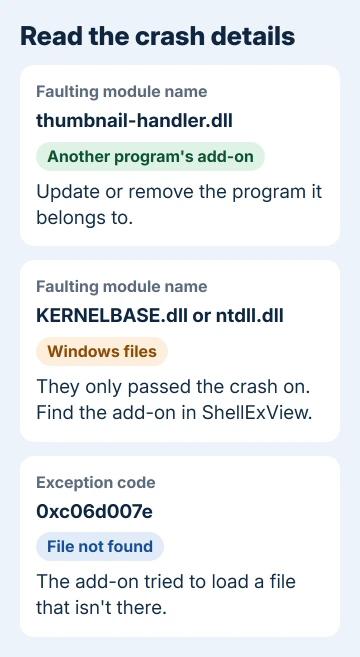
Event Viewer shows the same details under Windows Logs > Application as event 1000. If the faulting module belongs to another program, usually a file outside the Windows folder, it points straight at the culprit.
KERNELBASE.dll or ntdll.dll is just a Windows file the crash passed through, so it doesn't tell you much. That thread's log showed only KERNELBASE.dll with code 0xc06d007e: the add-on tried to load a file that wasn't there.
1. Move the trigger files off the desktop
Think back to what changed just before the crashing started. In that thread it began after PDFs went onto the desktop, and taking every PDF and PDF shortcut off it worked at once: "crashing stops immediately," the asker wrote.
With Explorer restarting every few seconds, dragging files around is a fight, so use a command window instead. Press Ctrl+Shift+Esc to open Task Manager, choose Run new task, type cmd and press Enter, then run:
move "%USERPROFILE%\Desktop\*.pdf" "%USERPROFILE%\Documents"Swap pdf for whatever file type you suspect. If OneDrive backs up your desktop, use %USERPROFILE%\OneDrive\Desktop instead, and move any shortcuts to those files as well.
This doesn't fix anything yet. It does tell you which file type's add-on to go after, and it gives you a desktop that stays put while you work.
2. Switch off non-Microsoft add-ons with ShellExView
ShellExView is a free NirSoft tool that lists every Explorer add-on and lets you turn them off without uninstalling anything. Download the x64 version, unzip it and run shexview.exe; it doesn't need installing.
Open the Options menu and tick Hide All Microsoft Extensions, so only add-ons from other programs are left. Click the Type column to sort them. Thumbnail Handler, Preview Handler and Context Menu entries are the usual suspects.
Select the ones that belong to the program you suspect, or all of them if you're not sure, then choose File > Disable Selected Items. Use Options > Restart Explorer (Ctrl+E) to reload Explorer with them off.
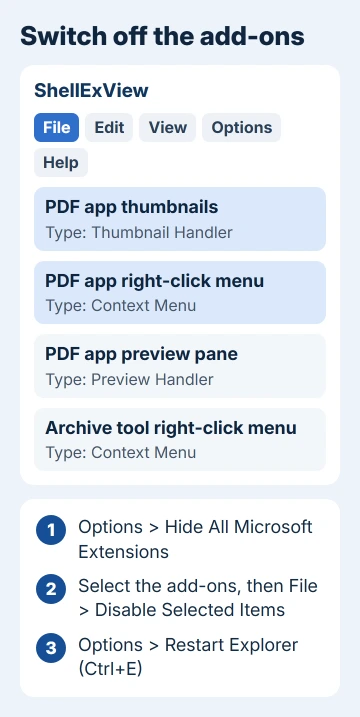
If the crashing stops, turn the add-ons back on a few at a time with Enable Selected Items, restarting Explorer after each batch. When the crashing comes back, the batch you just turned on holds the culprit.
In that thread, turning off three preview handlers, two context menu entries and one thumbnail handler from PDF apps fixed it.
The preview handlers went back on without trouble, but turning the two context menu entries back on left the desktop white. Those stayed off with the thumbnail handler, and PDF Architect and PDF Creator both kept working.
Turning an add-on off only costs you what it added, such as thumbnails or a right-click entry for that program. If you'd rather use a Microsoft tool, Autoruns lists the same add-ons on its Explorer tab.
3. Update or remove the program behind it
Once you know which program owns the add-on, check its maker's site for an update, since a newer version may have fixed the crash. After updating, try switching its add-ons back on.
If you don't need the program, uninstall it in Settings > Apps > Installed apps, which takes its add-ons with it. I'd do that rather than leave a crashing add-on switched off for months and forget why thumbnails are missing.
Tools that restyle the taskbar or Start menu hook into Explorer too, and a Windows update can break them. If you use one, ExplorerPatcher crashing after an update shows how to check that it still matches your Windows build.
4. Test a second user account
Still not sure where it comes from? Create a second account in Settings > Accounts > Other users > Add account and sign in to it.
If Explorer stays steady there, the trigger lives in your own profile, most often a file on your desktop, so go back to the first two steps.
Be careful what you copy over, though. In that thread, the new account started crashing too as soon as the PDFs were copied onto its desktop.
If Explorer still crashes
The asker's sfc /scannow and DISM repairs found nothing to fix, which makes sense when the bad code doesn't belong to Windows. Don't expect them to cure an add-on crash.
System Restore can roll the PC back past a recent install if one of its restore points is older than the crashes; the asker's were gone. Type restore point into Start, open Create a restore point and click System Restore to check yours.
If Explorer freezes with Not Responding instead of disappearing, that's a different fault, and the File Explorer not responding fixes cover it.
A crash that only happens when File Explorer opens on Home is narrower too, and resetting its saved shortcuts stops it.
Otherwise, contact the program's maker or Microsoft support, and give them the faulting module name from the crash details.
The Short Version
Explorer crashing every few seconds points to a non-Microsoft add-on crashing inside it. Move recently added files off the desktop for quick relief, and check Reliability Monitor for a faulting module from another program.
Then use ShellExView to hide Microsoft's add-ons, turn off the rest, restart Explorer and switch them back on in batches until the crash returns. Update or uninstall the program that owns the bad one.
Checked November 19, 2026.
 If you have any business, I can build it online






