

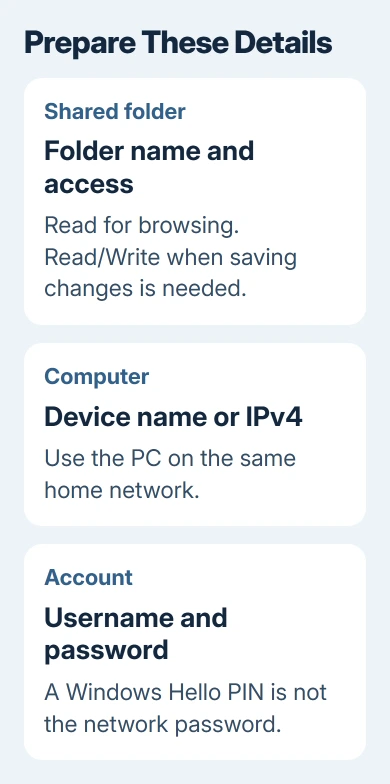
FE File Explorer Pro opens Windows shared folders on an iPhone or iPad. Share the folder on the PC, then add it in FE using the computer's name or local IP address and account password. A Windows Hello PIN won't work for that login.
The connection uses SMB, Windows' network file-sharing system. The PC keeps hosting the folder while FE browses or copies its contents. You don't need to send each file through email or put the folder into cloud storage.
In this guide
1. Prepare a folder on your trusted home network
Connect the phone or tablet to your home Wi-Fi and connect the Windows PC to the same home network. The PC can use Ethernet. Keep the PC awake while you set up and use the shared folder.
Use a folder with only the files you want to access from FE. I'd start with one small test document. It's easier to confirm that the connection works before giving the app access to a large folder of personal files.
For a trusted Windows 11 network, open Settings > Network & internet > Advanced network settings > Advanced sharing settings. Expand Private networks. Turn Network discovery on. Enable File and printer sharing there too.
On Windows 10, open Control Panel > Network and Internet > Network and Sharing Center > Change advanced sharing settings. Expand the private profile and enable those same two options. Save the changes when prompted.
Check that the active connection uses a private profile. In Windows 11's Network & internet settings, open the connected Ethernet entry or Wi-Fi network's properties and select Private network.
On Windows 10, open Settings > Network & Internet > Status, choose the active connection's Properties, then select Private under Network profile. The private sharing settings now apply to that connection.
Keep Password protected sharing enabled under All networks. FE supports an account login, so password protection can stay on. Use Microsoft's network sharing instructions if the switches are hard to locate.
2. Share the folder with the Windows account you'll use
Right-click your chosen folder and select Properties > Sharing > Share. Select the Windows user who should have access, add them if needed, and choose the permission level. Finish with Share and Done.
Choose Read when FE only needs to open or copy files from the PC. Choose Read/Write when it also needs to save changes to that folder. The extra permission allows changes, so don't grant it just to browse a movie collection.
The folder's Security tab also controls access. Access under Sharing doesn't remove a Security restriction. If files open but saving fails, check both sets of permissions for the same user instead of changing unrelated accounts.
Skyjos' Windows 11 setup page covers the folder's Sharing and Security tabs. Use Advanced Sharing to inspect the share name or its permissions.
Write down the share name if you change it. That name can differ from the folder's original name on disk. FE lists the folder by its share name, so look for that name when checking whether the right folder appeared.
3. Find the computer address and account credentials
On the PC, open Settings > System > About and read Device name. This identifies the computer on your network. It isn't the folder name, the Wi-Fi name or the label you give the saved FE connection.
To find the PC's local IP address, open Command Prompt, enter ipconfig, and press Enter. Find the IPv4 Address under the adapter that's connected to your home network. Use the Ethernet entry for a wired PC or the wireless entry for Wi-Fi.
Ignore a disconnected adapter's entries. A PC can list several adapters, so copying the first address you see can point FE at the wrong connection. Keep the correct IPv4 address beside the device name while setting up the app.
Use the Windows account's password. A PIN belongs to Windows Hello on that PC and isn't the password for a network share. If you normally sign in with a PIN, confirm the account password before retrying FE.
For a domain account, FE's guide supports the username forms Domain\UserName and UserName@Domain. A work-managed PC may have sharing restrictions, so ask its administrator which account and folder you're allowed to use.
4. Add the PC in FE File Explorer Pro
Tap FE's add button to set up the connection. Choose the Windows connection type where offered. Under Network Neighborhood, select your PC, then enter the computer account's username and password.
If discovery doesn't show the PC, use the manual connection option. The current guide calls this Computer, NAS. Enter the computer name or local IP address, add the username and password, and save the connection.
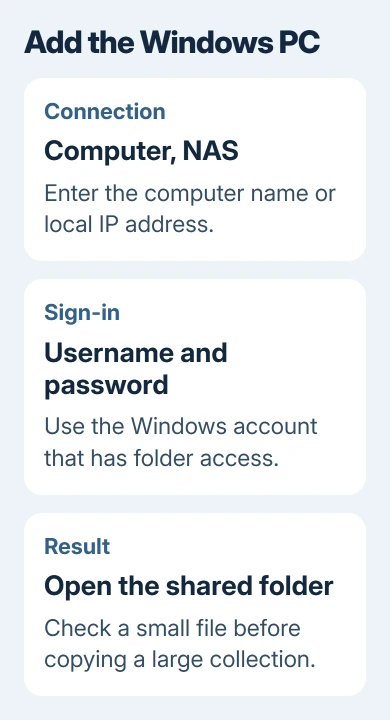
Tap the saved connection to see the shared folders. Open the folder you prepared and check that the test document appears. Seeing the PC in the list isn't enough. Opening the folder confirms your login and access both worked.
If another Windows PC needs the same folder, the network drive guide explains the Windows side of using a saved share. FE itself doesn't need a mapped drive letter on the host computer.
5. Copy a file and confirm where it arrived
In FE, open the shared folder and tap Select. Choose a file, tap Copy to, select a destination and tap Save. Choose a local destination when you need the file available after the PC sleeps or leaves the network.
For pictures you want in Photos, choose the source photos in the network folder, tap Copy to, and select Camera Roll. Allow the requested Photos access to complete that copy.
Opening a remote file isn't the same as copying it to your device. Check the destination after the transfer finishes. Then open the copied file from there, so you know which copy you're using and where later edits will go.
For sending a file outside your home network, use a separate large-file sharing method. This local setup depends on reaching the Windows computer; don't expose its file-sharing service to the internet.
6. Match a failed connection to the next check
For a timeout, check that the PC is awake, both devices use the same home network, and Windows Firewall allows File and Printer Sharing for that trusted network. These help FE reach the PC. Try the current IPv4 address if the name fails.
If FE rejects your login, check the username and account password. If the folder opens but saving fails, check sharing and Security permissions. These are different failures; changing the password won't repair a read-only folder.
For help, email support@skyjos.com with your FE version, iOS or iPadOS version, Windows version and exact error. Say whether discovery, login or copying failed. Keep your password and private files out of the report.
The Short Version
Share a Windows folder on your private network, keep password protection on, and add the PC in FE using its name or IPv4 address. Log in with the account password, then use Copy to when you need a separate local copy.
Checked November 15, 2026.
 If you have any business, I can build it online






