

Find your HP printer's current IP address on its network screen or a printed information report. Start at the printer itself: a touchscreen model can show the address directly, while a DeskJet with an Information button can print it.
The printer must have a network connection to have a usable address on that network.
Use the address for the connection you're actually using. A Wi-Fi Direct address belongs to the printer's separate direct connection, and isn't necessarily its address on your home router.
In this guide
Check the touchscreen's network status
Wake the printer and open its network or wireless status screen. Models differ, so look for a Wi-Fi symbol, Wireless Summary, or Network Settings, rather than expecting every HP screen to have identical menus.
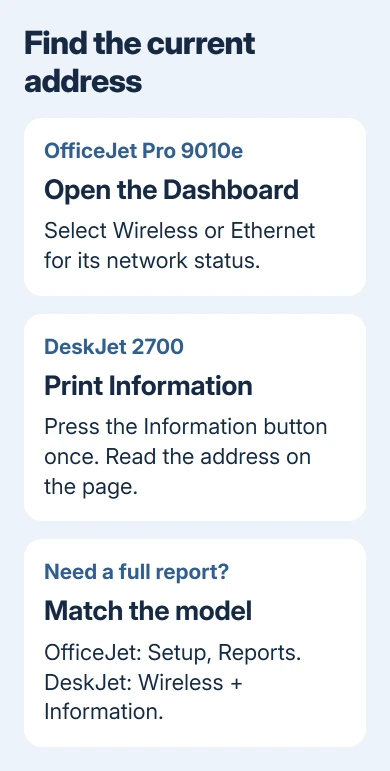
For the HP OfficeJet Pro 9010e series, open the Dashboard by touching its tab or swiping downward from that tab and touch Wireless for a Wi-Fi connection or Ethernet for a cable connection.
The network status screen gives that connection's details.
Find IP Address or the IPv4 address, a number split into four parts by periods. Copy the whole address, including each period. Don't copy the network name, hardware address or password instead.
A network name tells you which Wi-Fi network the printer joined. A hardware or MAC address identifies its Wi-Fi or Ethernet hardware. Neither is the numeric address a printer setup box is asking for when it says IP address.
On that OfficeJet series, choose Print Details from the network status screen if you'd rather keep a paper copy. This prints the network configuration page, so you can read the details beside the computer during setup.
If your model's screen doesn't match, use its network report method next. Reading the assigned address doesn't require a network-settings change.
Print the report on a button-only printer
Load plain paper before printing a report. For the HP DeskJet 2700 series, press the Information button to print its Information page.
That page gives you the address or hostname, the printer's name on the network, to use when opening its management page.
The Information button is the one marked with an information symbol. Pressing it once is different from holding it or combining it with another button, which can print another report or start another operation on the same printer.
If you need the fuller wireless report on this DeskJet series, press Wireless + Information together. That prints the wireless network test report and network configuration page. Read the details for the connection your printer is using.
Don't carry that button combination over to every LaserJet, OfficeJet or Smart Tank. Even printers with few buttons can use different report controls. Check the model printed on your unit's label before choosing a user guide.
For the OfficeJet Pro 9010e touchscreen route, open the Dashboard, then Setup > Reports > Network Configuration Page. This gives another way to print the details without using the Wireless or Ethernet status screen.
Keep the report beside you while entering the address. If the printer has changed networks since an old report was printed, make a new one. An address from last month's router setup can point to a different device today.
Read the address for the active connection
Look at the report section for wireless when the printer joins the router over Wi-Fi. Use Ethernet when a network cable connects it. A printer can list details for more than one connection, so match the address to the connection in use.
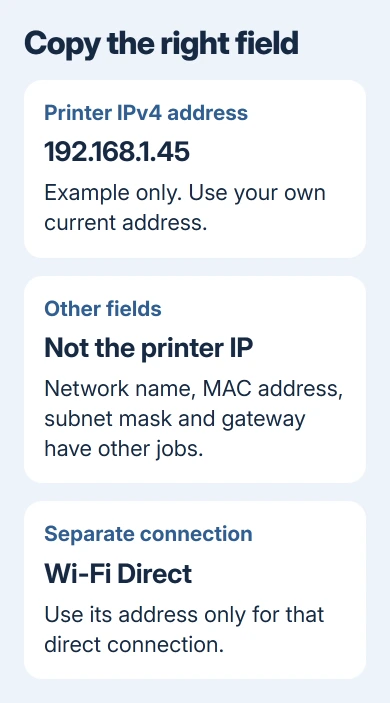
For example, an address such as 192.168.1.45 has the form used by many home networks. That's an example, not a default address for HP printers. Read and use the number on your own printer's current screen or report.
Keep Subnet Mask and Default Gateway separate. The gateway usually refers to the router, while the subnet mask describes the network's address range. Entering either in the printer-address box won't select the intended printer.
A WPS PIN is different again. It is used during a particular wireless setup method. If Windows is asking for that code rather than an IP address, use the HP WPS PIN steps for that prompt.
I'd print a fresh report when calling support. The model name and connection details stay together, and you can check each digit against the page instead of trusting memory.
Fix a missing address before using it
An address of 0.0.0.0, or an address starting 169.254, means the OfficeJet hasn't received a usable address for your network. Copying that number into the computer's setup box won't repair the missing router connection.
Read its connection status and check the name of the joined network. If it isn't joined to the intended router, use the HP Wi-Fi connection steps before searching for the address again.
For an Ethernet printer, check the cable between the printer and the router or network switch. A USB cable between printer and computer is a different connection. USB printing doesn't require you to find a home-network IP address.
Once the printer reconnects, reopen its status screen or print another report. Use the new address shown there. Leave the printer set to get its IP address automatically unless you're managing the network addresses yourself.
HP's OfficeJet manual warns that an invalid manually assigned address can stop network devices reaching the printer. Read the current address first instead of making up a fixed address to fill an empty box.
Use the number without changing the printer's setup
Connect your computer to the same local network as the printer. The Windows printer installation instructions cover adding a printer after its network connection is ready.
The address can also open the printer's Embedded Web Server, its built-in management page. Type the printer's address into the browser address field. Don't use a search engine for this local address.
That page belongs to the printer, not an HP account website.
For these DeskJet and OfficeJet models, enter http:// followed by the printer's IP address. Some settings require the printer's administrator PIN.
You don't need to change those settings just to verify that the correct model opens.
This local page doesn't require internet access for basic tasks, but your computer must be able to reach the printer. If it won't open, recheck the current address and same-network connection before assuming the printer is broken.
If neither the screen nor a report gives a usable address after reconnection, give HP printer support the full model number and your network report. Ask for the model's report procedure or help getting an address from the router.
The Short Version
Read the printer's network status screen or print its Information or Network Configuration page. Choose the address for the active Wi-Fi or Ethernet connection. Reconnect the printer first if the report shows no usable network address.
Checked November 15, 2026.
 If you have any business, I can build it online






