

Motorola phones with Moto Secure can hide apps inside a locked Secure folder, then hide that folder with Stealth mode. Taking an icon off your home screen only clears its shortcut, so use the folder when privacy is the goal.
The method you can use depends on which features your model has. Start with Moto Secure; consider Android Private space if the option exists on your model. Neither menu is present on every Motorola.
In this guide
Set up the locked folder before hiding its icon
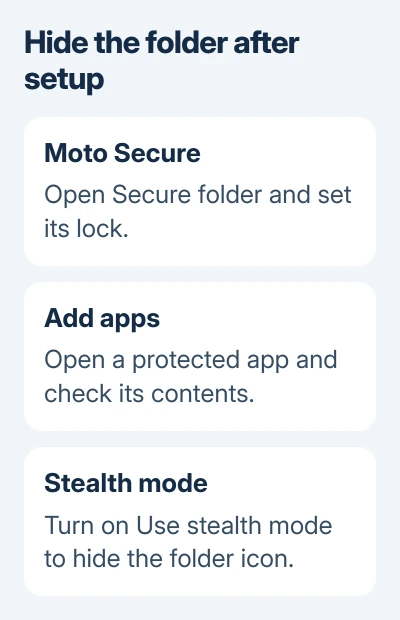
Open your app list and look for Moto Secure. If your model supports it, open it, choose Secure folder, and unlock the phone. Select a pattern, PIN or password for the folder and finish setting its lock.
Motorola documents another security-settings route: Settings > Security & privacy > More security settings > Secure folder.
That menu path applies to supported Android 13 models. Newer software can arrange security settings differently. Search Settings for Secure folder rather than treating a missing submenu as a reason to reset the phone.
Choose a folder lock you can remember. Before putting important accounts inside, make sure you have their passwords and can recover the accounts. A hidden app is still an app you'll need to sign into.
If neither Settings search nor the app list offers the feature, continue to the Private space section. An unrelated download with a matching name won't add Motorola's built-in folder.
Add the apps and check the protected copy
Unlock Secure folder and tap its add-app control. Select the installed apps you want, then confirm the selection. For an app that isn't installed, use Add from Google Play inside the folder.
Open each app from the folder and complete its setup. Check that the account, messages or files you need are available there before changing anything about the app outside it.
Matching icons can make the two copies look identical, but the one inside the folder still needs its own setup. Check its sign-in and local files so you know which copy has the information you need.
If an outside copy remains in the normal app list, the folder hasn't hidden that outside icon. Decide separately whether to keep it. Before uninstalling it, save any local files or account information you still need.
For general cleanup, removing Android apps is a different action from hiding their shortcuts. Uninstalling removes an app; hiding a folder changes how you reach the apps inside it.
I'd get one app working inside the folder first. Once you know which copy has your data and is signed in, you'll know what to check when setting up the other apps.
Make Secure folder disappear with Stealth mode
Inside the unlocked folder, open its menu and select Stealth mode. Turn on Use stealth mode. The folder disappears from the app tray, or from the home screen on a setup without an app tray.
To reopen it, use Moto Secure > Secure folder, or return to its security-settings entry. Unlock it with the folder's own lock. Removing its visible shortcut hasn't deleted the protected apps.
Before relying on Stealth mode, close the folder and practice reopening it once. You'll know how to get back in after the icon disappears, and you won't mistake a successfully hidden folder for a missing app later.
If hiding the icon is more than you need, choose Disguised icons in the folder menu instead. Enable Use disguised icons, select an alternative icon, and enter a different name. The folder remains visible with that disguise.
Those choices serve different purposes. A disguise changes the folder's appearance; Stealth mode removes its launcher entry. With either choice, the folder lock is what keeps someone else from opening it.
Stop notifications revealing the hidden app
Open the protected folder's menu and choose Notification Manager. Select whether secure-app notifications show their name and content, show only the name and icon, or don't appear.
Choose the option that fits the app. An account you open occasionally can stay quiet; you may want a messaging app to keep showing urgent alerts. Hiding its icon alone doesn't decide that for you.
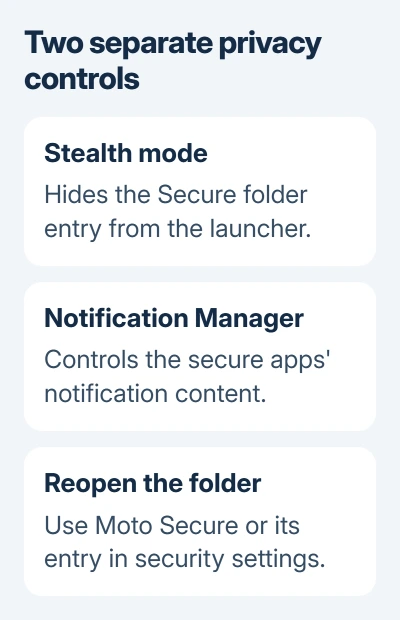
Afterward, lock the folder and leave its screen. Review which notifications are allowed before lending the phone to someone. The app icon and the notification content are separate privacy controls.
Use Private space only when the phone supports it
Android 15 and later can offer Private space, but manufacturers and device administrators can disable it. Google's Private space requirements also exclude some account and user setups.
On a phone that offers it, open Settings > Security & privacy > Private space and follow setup. Install the apps inside that space. These are separate installations, rather than a move of the original app's data.
To conceal its container, unlock Private space, open its settings, and enable Hide private space when it's locked. Lock the space afterward. It disappears when you lock it, rather than while you're still using it.
Locking Private space stops its apps, background tasks and notifications. Consider that before putting an app you depend on there. An app you keep there can't deliver an urgent alert while the space is locked.
This is an alternative feature, not another name for Moto Secure. Use the controls your screen displays. The steps for one won't work in the other.
Restore visibility or ask about feature support
For Secure folder, reopen it through Moto Secure, open Stealth mode, and switch Use stealth mode off. Its launcher icon returns. Turn off Use disguised icons separately if you also changed its name and picture.
To remove a protected app, hold its icon inside the folder and choose Remove app. Avoid Delete secure folder when you only want its icon visible again: deleting the folder also deletes the apps inside it.
If the feature is missing, ask Motorola Support whether your exact model, region and Android build support Secure folder. Include those details from Settings > About phone. A Motorola factory reset isn't a feature upgrade.
The Short Version
Set up Secure folder, check the apps inside it, then enable Stealth mode. Adjust notifications separately. Use Private space only when your Motorola offers it, and learn the reopening route before hiding either container.
Checked November 16, 2026.
 If you have any business, I can build it online






