

A faint or incomplete HP alignment page needs an ink-quality check before another attempt. Use fresh white plain paper and check for missing black or color. A complete sheet that keeps printing can mean the alignment scan wasn't finished.
The steps depend on the printer family. Cartridge inkjets, Smart Tank models, and LaserJets don't share one alignment routine. Read the label on your printer for its full model number. The HP name in Windows alone isn't enough.
In this guide
1. Separate a bad sheet from an unfinished alignment
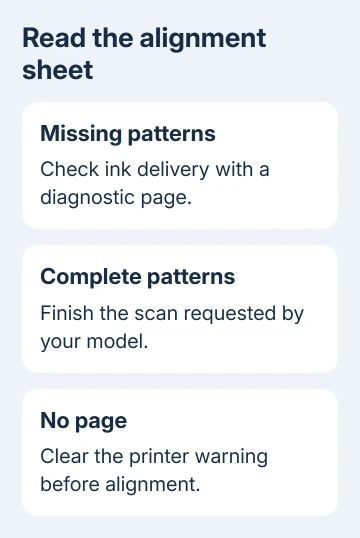
Look at the page and the printer's display or software message. Keep the sheet until you've checked which of these cases matches your printer:
- No sheet comes out: check for a paper, cartridge, or access-door warning before retrying.
- The sheet has missing or faded patterns: the printer needs a print-quality check.
- The sheet looks complete but alignment fails: check the scan instructions and paper placement.
- The same sheet prints at every startup: finish the alignment process instead of canceling it as an unwanted print job.
The printer creates its own alignment page during maintenance. Changing a Word document's margins won't restore missing color on that sheet. Check that every required pattern is printed clearly enough for the scanner to read.
If no paper feeds at all, first clear the warning shown on the printer. The DeskJet printing checks cover that broader failure. Return to alignment once feeding and ordinary printing work.
2. Use clean plain paper and run the model's command
Load unused white Letter or A4 plain paper. Keep the stack flat and adjust the guides to touch its edges without bending it. Reused, colored, or marked paper can interfere with a sheet that the printer must scan.
Don't use photo paper just because it produces sharper photographs. Alignment is a maintenance task with its own paper requirement. Use the paper named by your model's instructions, then leave it loaded through the procedure.
For a DeskJet 2700 with its full-feature Windows software, open the printer software and select Print & Scan > Maintain Your Printer. In the toolbox, open Device Services > Align Cartridges.
The printer should produce an alignment sheet. Continue through the remaining software prompts. HP says to print the sheet and finish the onscreen alignment instructions in its DeskJet 2700 manual.
Other models can offer alignment through their control panel or HP app. Follow the instructions for your full model number. If your software doesn't have these DeskJet options, don't install another printer's utility to get them.
3. Finish the scan when the printer requests one
Some all-in-one printers ask you to put the printed alignment page on the scanner glass. Follow the diagram on that page or your printer's instructions to see which way the printed side faces and which corner to use.
Use the flat scanner glass when instructed, not the document feeder. Close the lid and press the button named in the alignment prompt. Use a copy button only when the model's instructions request it.
Check that the sheet lies flat against the marked corner. Keep the alignment pattern inside the glass area and remove any second document. Read the alignment result before throwing the sheet away.
If the printer reports completion and stops asking for alignment, print a small ordinary document to check the result. If it still rejects a clear sheet, note the error and check the model's scanner maintenance instructions.
I'd finish this step before buying ink when the patterns look complete. A complete sheet that hasn't been scanned doesn't mean the cartridge needs replacing.
4. Check ink delivery when patterns are missing
Check the estimated ink levels in the printer software. They can show when ink may be running low, but check the printed page too. A missing color block needs attention even if the estimate hasn't reached empty.
If a replacement cartridge triggered this problem, check its number, slot, and shipping tape. Use the HP cartridge fitting steps for the release and latch differences between models.
An incompatible or missing-cartridge warning must be cleared before print-quality maintenance can help. Alignment adjusts where ink lands on the page. It can't make the printer accept a cartridge it doesn't recognize.
On the DeskJet 2700's full Windows software, select Print & Scan > Maintain Your Printer > Device Reports > Print Diagnostic Information. Look at the color blocks on the diagnostic sheet.
Solid blocks without white lines show that the printer can deliver those inks. Faded blocks, white streaks, or a missing block suggest ink isn't reaching the page properly. Alignment alone won't fix that.
For a Smart Tank, check the model's ink and printhead instructions. Its separate tanks and printheads need a different maintenance process from the two-cartridge DeskJet example here.
5. Clean only when the diagnostic page needs it
For a DeskJet 2700 whose diagnostic blocks have defects, open Device Services > Clean Cartridges in the same maintenance toolbox. Follow the prompts, then compare the resulting page with the first one.
Run another cleaning stage only when the software asks you to. Cleaning uses ink, so stop if the missing pattern hasn't returned by the end of those stages. Keep the pages to show what changed.
If the diagnostic pattern improves, run alignment again using clean plain paper and complete any requested scan. After alignment succeeds, print an ordinary page to check that the text is readable and the colors line up.
For broader output problems, Microsoft's poor print-quality checks cover supplies and printing settings. If the alignment sheet itself prints badly, focus on the printer and its ink or printheads.
When a clear alignment sheet still fails
Give HP support your model, cartridge or printhead numbers, exact alignment error, and diagnostic pages. Ask whether the failed pattern means you need a new cartridge or printhead, or whether the scanner or printer needs service.
Report a clear sheet with a repeatedly failed scan as a scanning problem. If black or color is still missing after cleaning, tell support which block didn't print. Those details help avoid unrelated Wi-Fi or driver repairs.
The Short Version
Use fresh white plain paper and distinguish missing patterns from an unfinished scan. Check a diagnostic page before cleaning. Finish the alignment prompts, then request supply or scanner service if the failure remains.
Checked November 16, 2026.
 If you have any business, I can build it online






