

An HP laptop that won't charge may have a faulty adapter or battery. Start by plugging the original adapter into an outlet you've checked, then see whether the battery percentage rises.
A laptop that runs while plugged in but shuts off when unplugged needs different checks from a computer that fails to recognize its charger. Check which happens on your laptop before ordering a battery.
In this guide
1. Check the complete power connection
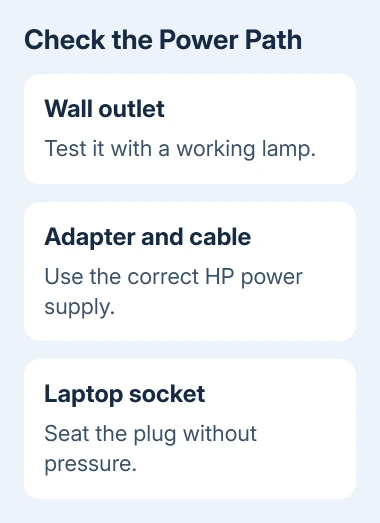
With the laptop turned off, plug its original AC adapter into the wall outlet. Push the detachable power cord firmly into the adapter brick, then seat the laptop connector without forcing it.
Plug a working lamp into that outlet to check its supply. A power strip can be switched on without supplying power. If the lamp works, you've checked the outlet before moving on to the adapter.
Look at the adapter's indicator if it has one, and the light near the laptop's charging socket. HP's power troubleshooting guide explains that the battery light's behavior depends on the model.
Don't judge charging by the light's color alone. Check whether it appears when power is connected, then look at the Windows battery icon. The light can show a connection without telling you how much charge the battery holds.
Inspect the cable and plug while the adapter is unplugged. Stop using an adapter with damaged insulation, melted plastic or a bent connector. A connection that only works when you hold it at an angle needs repair, not a new Windows setting.
If the charging light comes on at another outlet, leave the laptop connected and see whether its percentage rises. If nothing changes, check the adapter's compatibility next.
2. Match the charger to this HP model
Use the adapter supplied with the laptop for the comparison. The connector can fit even when the charger isn't compatible. A replacement must supply enough power for your laptop and match the part specified for it.
Find the laptop's product or model number on its label or in its system information. Use that number when asking HP for a compatible adapter, rather than ordering by the Pavilion, Envy or EliteBook family name alone.
For USB-C charging, connect directly to the laptop's charging-capable socket, leaving out a dock. The USB connector guide helps identify the connection, but the laptop manual decides what that particular port supports.
Microsoft's USB-C charging checks explain why the charger, cable and computer must support the required power. A small phone charger can fit while supplying too little power for a laptop.
Borrow an adapter approved for this model if you can. I'd compare chargers before spending money on a battery. Charging that resumes with the borrowed unit suggests a fault in the first charger or cable.
If the replacement gives the same result, check how the laptop runs on its battery next. Note the adapter model and any warning Windows displays so you can give those details to support.
3. Compare charging with battery operation
Leave the laptop shut down and connected for 15 to 30 minutes, then turn it on. Record the starting and ending percentages to check for an actual increase, rather than relying on the light.
If the percentage increases while shut down but falls during demanding work, the laptop is receiving some charging power. Recheck the approved adapter and cable instead of treating that result as a completely dead battery.
With Windows running and your work saved, unplug the adapter briefly. If the laptop immediately turns off, the battery isn't keeping the computer powered. If it stays on, note how the charge behaves during normal use.
Older HP notebooks may have a removable battery. Turn off the laptop, unplug its charger, then use the release latch to remove and refit the battery. Leave a sealed battery closed; this check doesn't require removing the cover.
Inspect accessible battery contacts for damage, then reinstall the battery and leave it charging for the same period again. If the laptop works on AC power alone but still won't run from that battery, ask HP to check the battery.
For a laptop that won't turn on at all, use the separate no-power procedure. Charging tests inside Windows require a computer that can actually start.
If the percentage stops at a repeatable ceiling but battery operation is normal, check the model's Battery Health Manager setting. On supported HP notebooks, it can limit maximum charge to protect battery health.
Before changing it, check your model's BIOS instructions, which cover the settings you can open before Windows starts. A charge limit doesn't explain a battery that stays empty or a laptop that turns off when unplugged.
4. Run the adapter and battery tests separately
In Windows, search for HP PC Hardware Diagnostics Windows and open it. Accept the permission prompt if it appears. The tool's layout can vary, including on gaming models, so look for these test names even if your screen differs.
In the interface shown in the HP support video, select Device Check, expand Power, choose AC Adapter test, and select Run selected tests. Leave the charger connected for this test.
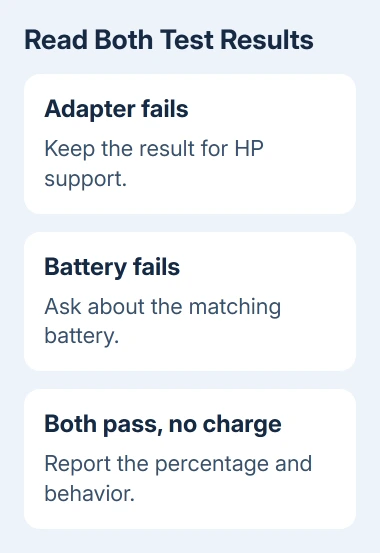
A failed adapter result is a reason to have that adapter checked or replaced with the correct part. Open More info and keep the displayed details. Don't buy a battery to solve an adapter failure.
Next, choose Battery check in the Power group and run it. Read the two results separately: an adapter failure still needs attention when the battery passes, and a battery failure matters even if the adapter passes.
Save the test result and any failure code exactly as shown. If the tool isn't installed, use the official HP PC Hardware Diagnostics download linked from HP support, rather than a third-party driver or repair utility.
5. Take an unresolved charging fault to HP
If both tests pass but the percentage still won't increase, ask HP to check charging for your exact product number. Tell them the battery percentage, the charger's specifications, any warning, and whether the laptop works unplugged.
Also describe a loose socket or a connection that cuts out when the cable moves. Those details help the technician check the adapter, charging socket and power components inside the laptop.
If a battery test recommends replacement, ask for the compatible battery part and a service quote. Check the laptop's warranty before paying. On a sealed notebook, arrange the replacement rather than opening it just to continue this guide.
The Short Version
Check the outlet and original adapter first. Compare charging while shut down with battery operation, then run the separate adapter and battery tests. Give HP the results and product number if charging still fails.
Checked November 13, 2026.
 If you have any business, I can build it online






