iLok errors 1935 and 1603 can come from damaged Windows components or security software blocking setup. Repair Windows' system files, then retry the current installer.
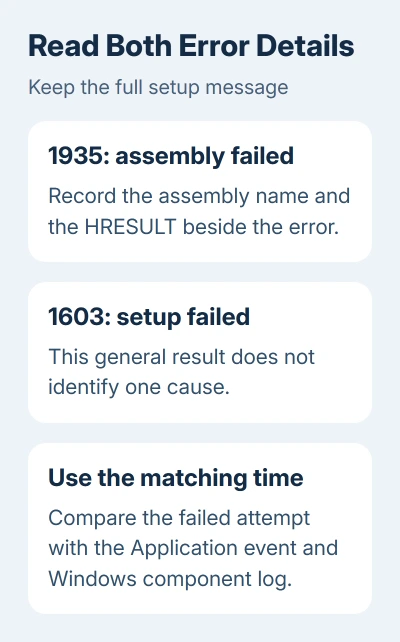
Error 1603 means setup failed. Error 1935 names an assembly, a software component that couldn't install. Save the HRESULT too: that longer error code helps pin down the cause.
In this guide
1. Restart and retry a fresh, extracted installer
Save your audio projects and close your recording software. Restart Windows, especially if an earlier installation or Windows update asked for it. That lets Windows finish anything waiting for a restart before you try again.
Download the current Windows package through the iLok License Manager download page. Extract the downloaded archive with Extract All before opening its setup program. Don't launch an old copy from a plugin's bundled installer.
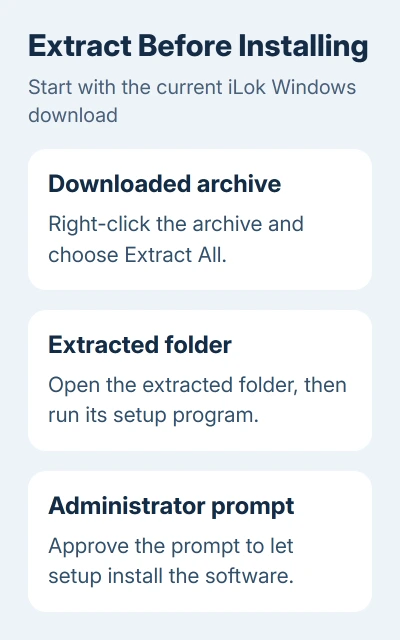
Run the extracted installer and approve its administrator prompt. If it fails, capture its complete assembly message and HRESULT. A server-connection error after installation belongs to a different stage.
Setup should finish and License Manager should open. Seeing your USB iLok in Device Manager doesn't mean the PACE software your protected applications need has installed.
2. Repair Windows components, then try setup again
Microsoft's system-file repair procedure runs DISM before System File Checker. DISM fixes Windows' repair files. SFC then checks protected Windows files against that repaired copy.
Open Start, type Command Prompt and select Run as administrator. In that window, enter:
DISM.exe /Online /Cleanup-image /RestorehealthLet it finish. When DISM completes successfully, run:
sfc /scannowWait for SFC's final result rather than closing the window when progress pauses. If it repairs damaged files, restart Windows and retry the extracted iLok installer. Keep the result if it says some files couldn't be repaired.
One owner installed successfully after SFC, a restart and disabling security software. Another needed ESET Internet Security paused. Check both possibilities; these reports don't show whether SFC alone fixed the failures.
If SFC still reports damage, the separate SFC repair-results guide explains the different outcomes. Repeating iLok setup won't repair a Windows component that SFC couldn't restore.
I'd try this repair before touching protected Windows folders. It's supported by Windows, and its final message gives support something specific to work with.
3. Check whether security software blocked this installer
Open your security application's recent events, quarantine or protection history. Look for an entry at the exact time setup failed, naming the extracted PACE installer or one of its files.
For a blocked installer, follow the security product's allow or restore procedure. Confirm your download came from iLok and check its valid signature under Properties > Digital Signatures before allowing it.
For an ESET-specific repeat of the reported problem, ask ESET or iLok support which protection component to adjust. If their instructions require a temporary pause, re-enable it immediately after the installation attempt.
Don't turn off every firewall and protection feature together. That hides which component mattered and leaves you with more settings to restore. A timed block event is a better reason to change one setting than the error number alone.
Retry once after the targeted change. If installation completes, open License Manager and confirm your protected application can launch. If setup fails again without a matching protection event, check the installation details next.
4. Read the assembly error and the matching log time
Press Windows + R, enter eventvwr.msc and open Windows Logs > Application. Find the installer event whose timestamp matches your attempt. Copy its full details, rather than just 1603.
The original thread includes error 1935 with HRESULT 0x80070005 and a Microsoft.VC80.CRT assembly. That is more specific than a missing dongle. Your assembly name and HRESULT may be different.
For a Windows component failure, open C:\Windows\Logs\CBS\CBS.log in Notepad and search near the same timestamp. Use Ctrl + F to look for the assembly name or Error. Older errors elsewhere in the log can belong to unrelated updates.
A separate confirmed report traced setup failure to STATUS_DIRECTORY_NOT_EMPTY in a named WinSxS assembly folder. In that case, reinstalling Bluetooth or USB drivers wouldn't fix the folder error stopping setup.
Leave files inside C:\Windows\WinSxS in place. The reported workaround involved deleting or moving a protected assembly folder, but choosing the wrong folder can damage Windows servicing. Give the matching log lines to support instead.
5. Match 1603 to the installation conditions
The official 1603 troubleshooting page lists several different causes, including an already installed product and installation-location or permission problems. The number doesn't automatically mean a .NET version is missing.
Check Settings > Apps > Installed apps on Windows 11, or Settings > Apps > Apps & features on Windows 10, for an existing PACE License Support or iLok installation. Tell support what is listed and which version it shows.
Don't uninstall working recording tools or every Visual C++ package to make that list shorter. Older plugins can depend on those components. Follow the removal or repair instructions for the specific failed PACE package.
For other hardware drivers, use the normal Windows driver update sources. A general driver updater can't fix an assembly error in the Windows installer.
What to send iLok support if setup still fails
Open a support request through iLok Help. Include your Windows build from winver, installer version, full 1935 message, HRESULT, matching Application event and DISM/SFC results.
Request a supported repair for the assembly named in your failure. Include any matching security block event. That gives support the specific failure to work on before recommending a Windows repair installation.
The Short Version
Use a fresh extracted installer after restarting. Run DISM and SFC, then check security block history. If 1935 or 1603 remains, collect the assembly, HRESULT and matching logs for iLok support rather than deleting protected Windows folders.
Checked November 16, 2026.