

An iMessage poll that appears only as a message saying a poll was sent often means the device receiving it doesn't meet the requirements. Check that device's system version and that the conversation uses iMessage.
A missing automatic poll suggestion is a different issue: a poll can still be created manually without that suggestion.
In this guide
1. Check the device receiving the poll
Open Settings > General > About on the iPhone and read its installed iOS version. Polls require iOS 26 or later. Seeing the rest of the conversation normally doesn't mean that an older version can display a poll you can tap to vote.
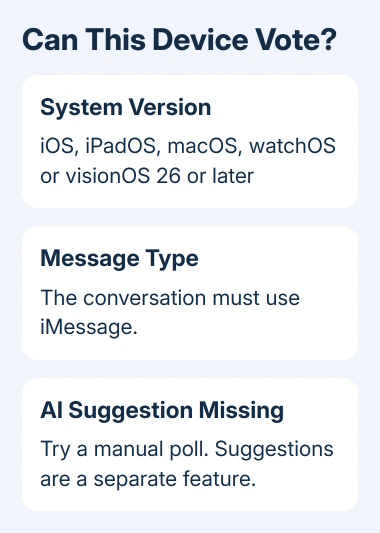
The receiving device matters as much as the sender. A friend can create a poll on a supported phone while an older phone in the group receives only a notice that a poll was sent.
For an iPad, check Settings > General > About for iPadOS 26 or later. On Mac, use Apple menu > About This Mac and check for macOS 26 or later. Older systems can't gain this feature just by reopening Messages.
Polls also require watchOS 26 or later on Apple Watch or visionOS 26 or later on Apple Vision Pro. Check the device where you actually want to see and answer the poll, rather than relying on another device's version.
Apple's Messages poll instructions list those requirements and describe the notice shown to people who can't participate. Start with that version check before changing your account.
2. Confirm the conversation uses iMessage
Open the affected chat and look at the messages and compose field. Blue outgoing bubbles indicate iMessage. Green messages can use SMS, MMS or RCS; those aren't an iMessage conversation with the same interactive features.
On a current iPhone, open Settings > Apps > Messages and check iMessage. On older layouts, the path is Settings > Messages. If activation hasn't completed, wait for that to finish before testing a new poll.
Open Send & Receive within Messages settings. Confirm that iMessage uses the number or account address the group contacts. If the group uses an unavailable number, fix which number the group is messaging first.
Don't delete the conversation to make a test. Have the sender send a fresh iMessage with your working number or address, or a small test group whose members have supported devices. Keep the original chat available for comparison.
If polls work in a new group but fail in the original, tell the sender which thread fails. That tells the sender which conversation needs attention without asking the group to reset their phones.
For ordinary messages that also fail to arrive, use the iMessage delivery checks to check activation first. iMessage needs to be working before its poll controls can work properly.
3. Create a poll manually when the suggestion is missing
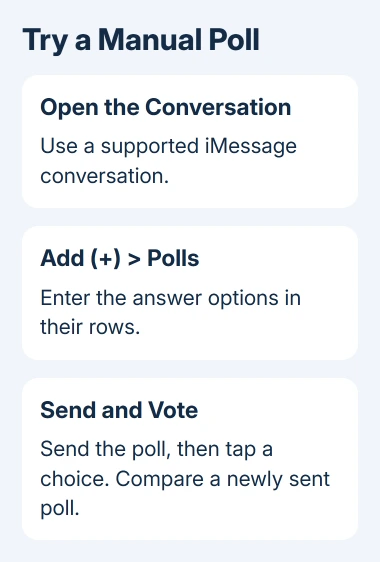
In a supported iMessage conversation on iPhone, tap the Add (+) button beside the message field, then choose Polls. Fill the rows with answer options, then use the send control to share the poll.
A sent poll should appear in the conversation with choices you can tap. Tap an option to vote. Touch and hold the poll and choose Poll Details to see its details.
The Create a Poll suggestion during a discussion uses Apple Intelligence. Choosing Add (+) > Polls is the manual route. An absent suggestion doesn't mean that manual polls are unavailable.
A phone can support iOS 26 and manual polls while lacking the hardware for Apple Intelligence. Don't buy another phone or change the device language just because an automatic suggestion didn't appear. Try Add (+) > Polls first.
I'd try a simple poll created manually before troubleshooting the suggestion. If its choices display and your vote appears, the poll feature works even though the keyboard or conversation didn't offer to create one automatically.
For other missing conversation features, the Messages-background guide explains a separate display feature. Fixing a background isn't a required step for making polls appear.
4. Update supported devices that are still on an older system
Check Settings > General > Software Update on the iPhone or iPad. Back up before installing the offered compatible release. A separate poll add-on won't upgrade an older system's Messages capabilities.
On Mac, open System Settings > General > Software Update. Install an available compatible update if the Mac is still using a release older than macOS 26. The update offered depends on the Mac model.
An older device that can't install the required system can't display the interactive poll through a Messages setting. Use a supported device for voting, or ask the group to share the choices in ordinary text and accept your reply there.
After updating, return to the original conversation and compare a newly sent poll. That gives you a current test rather than relying only on how an older message was originally displayed.
When the update screen offers nothing newer and the version remains earlier than 26, check the model's compatibility. The latest software your model can run might still be too old to support polls.
5. Compare one poll, one conversation and another device
If the device meets the requirements and the chat uses iMessage, ask for a new manual poll in the same conversation. Note whether the choices are missing, whether tapping them fails, or whether the whole message doesn't arrive.
Then compare another supported iMessage conversation. Check whether just one poll fails or every poll fails across the app. Keep the exact wording of any notice so support can tell which case you're describing.
Restart the affected device and retry the new poll. On iPhone, use Settings > General > Shut Down, slide to turn it off, then restart it using the side button. This route avoids different button combinations across iPhone models.
If another supported device on your account shows the poll, include that comparison in the report. Stay signed in during this comparison, and keep your current general settings.
Ask for help with a supported poll that fails
Open the Support app, select your device, and request help with Messages. Give the device model, exact system version, whether the chat is iMessage, and whether a new manual poll works in another conversation.
Explain whether the poll won't display or won't accept your vote. Include a screenshot with private details hidden. Until it's fixed, the sender can take your choice as a normal message so you can still join the decision.
The Short Version
Confirm iMessage and system version 26 or later on the receiving device. Use Add (+) > Polls for a manual test. Compare a fresh poll and another conversation before troubleshooting optional AI suggestions.
Checked November 15, 2026.
 If you have any business, I can build it online






