
Install Gemini on a Mac with its official disk image, then open the copy in Applications and sign in. The native app needs Apple silicon running macOS Sequoia 15 or newer; an Intel Mac needs the web version instead.
Check those requirements before downloading. Once Gemini is running, Option + Space brings up its chat window, so you don't have to find a browser tab.
Confirm the Mac and account meet the requirements
Open Apple menu > About This Mac and read the chip, memory and macOS version. An Apple M-series chip is Apple silicon. An Intel processor doesn't meet the native app's requirement, even with a recent macOS release.
Google's own steps say you'll need macOS 15 or later, 8 GB of RAM and at least 200 MB of available installation space. The service needs internet access too, as the installation guide explains.
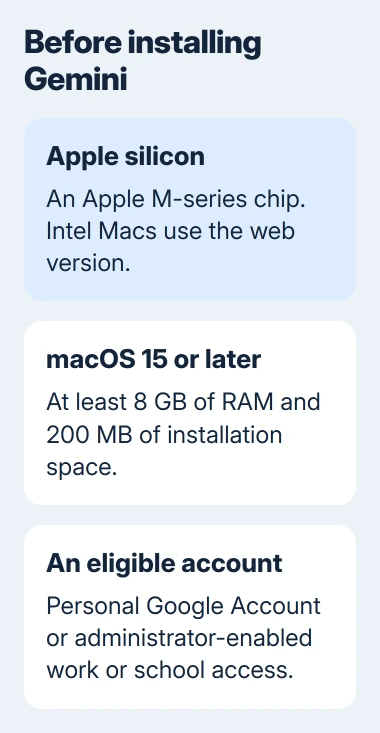
Use a personal Google Account you manage, or an eligible work or school account whose administrator has enabled Gemini. Installing the app won't give a managed account access it doesn't already have.
If IT manages software on your work Mac, check with them before installing. They can provide an approved copy and check whether your account's plan or license includes Gemini Apps.
If your chip is supported but macOS is too old, check which newer releases your Mac can run. Before a major upgrade, back up your files and check whether your essential apps support the new release.
Download from the official Mac page
Open the Gemini desktop download page on your Mac. Choose the macOS download, rather than the Windows package now offered on the same desktop page.
The official help guide also points to gemini.google/mac, which can redirect to the current desktop page. Check that you're still on the official Google domain before downloading.
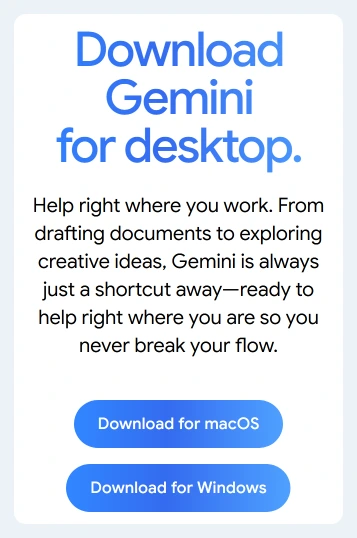
The Mac download is a .dmg, a disk image that opens like a temporary disk. Look in the browser's downloads list or Finder's Downloads folder when the download finishes.
If your browser asks where to save it, choose a folder you'll recognize. Saving the disk image doesn't install Gemini; you still need to copy the app into Applications.
I'd use the official page even when another download listing looks convenient. You can choose your operating system and get the current app there, without guessing which similarly named product to install.
Copy Gemini into Applications and open that copy
Double-click the downloaded disk image. In its installation window, drag Gemini onto the Applications folder and let the transfer complete.
Open Finder > Applications, then double-click Gemini. Use that installed copy instead of reopening the disk image in Downloads. If macOS asks whether you want to open the downloaded app, confirm that you do.
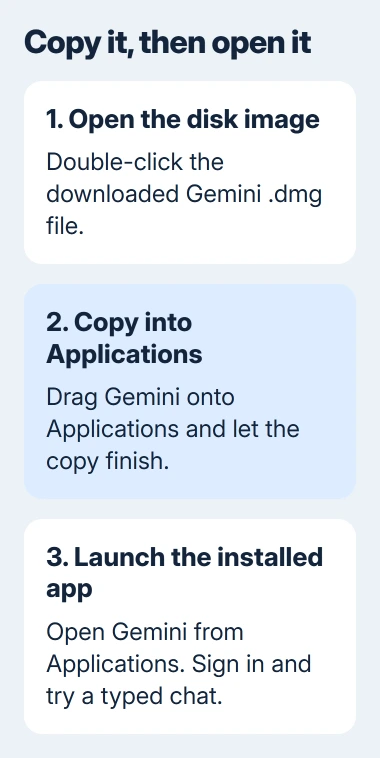
Gemini should open to its sign-in screen or chat window. If copying failed, deal with Finder's error first. Changing your Google password won't fix an app that never finished copying.
Once Gemini opens from Applications, close the installation window and eject the disk image in Finder. You can keep or delete the downloaded disk image after checking that the installed copy works.
If macOS says the app is incompatible, check your chip and software again. Don't change system security settings to force it to run. The native app needs supported hardware.
Sign into the intended Google Account
Follow Gemini's sign-in prompt and select the intended personal or work account. Read the address before continuing, especially if the browser already has both accounts signed in.
After signing in, return to Gemini and type a simple request. A reply in the app's window tells you the installed app, your account and your internet connection are working together.
If Gemini refuses your work account, ask the administrator whether Gemini Apps is enabled for you. Give them the error text and account type. Reinstalling won't change your organization's access settings.
If a browser refuses the same account too, handle the sign-in problem first. Keep verification codes private and follow the account's recovery prompts.
The Gemini button in Chrome is a separate feature. If that's what you're looking for, use the Chrome Gemini button checks to see why it's missing or whether your browser supports it.
Set the shortcut and update the installed app
With Gemini running, press Option + Space to bring up its chat window. The shortcut belongs to Gemini; Command + Space normally opens the Mac's Spotlight search.
If another app already uses Option + Space, open Gemini's settings and change its shortcut. Test the new combination from another application so you know it brings forward the intended window.
To update the app, open Gemini and choose Gemini > Check for Updates in the menu bar. Select Install update if one is offered. This changes the app, rather than your Mac's operating system.
Start with typed chat before trying other features. The Mac app also supports voice and sharing a window with Gemini, though you may need extra permissions or access to those features.
Check which window you've selected before sharing it. You don't need to show a private email, work document or password window just to test a basic chat.
Turning off Ask Gemini in Chrome controls the browser integration. It doesn't uninstall the separate Gemini application you copied into Applications.
When the app won't install or your Mac is unsupported
On an Intel Mac, use Gemini in a supported browser instead of looking for a setting to enable the Apple silicon app. The website and native application are different ways to access the service.
For a failed download, retry from the official page and check the browser's error. For a failed copy, note Finder's message and available storage. For a failed sign-in, note whether the same account works on the web.
Tell Gemini support exactly which stage fails, along with your Mac chip, macOS version and app version if it opens. If you use a managed account, start with its administrator.
The Short Version
Check Apple silicon, macOS 15, memory and account access. Download the macOS disk image, copy Gemini into Applications, open that copy and sign in. Test a typed chat, then set the shortcut and check for app updates.
Checked November 5, 2026.

Isaac Smith is the founder and editor of PC Glance, a website that covers computers, laptops, and technology. He is a tech enthusiast and a computer geek who loves to share his insights and help his readers make smart choices when buying tech gadgets or laptops. He is always curious and updated about the latest tech trends.