
The iPhone voice command for the next line is New line while Dictation is listening. Use New paragraph when starting another paragraph. Speak the command through the keyboard's microphone, with the cursor inside the text you are composing.
Saying it to Siri is a different interaction. Start in a note or message field so the spoken instruction applies to the text at the cursor.
Add the break while dictating
Tap inside the text field, then tap the keyboard's microphone to begin Dictation. Speak the first part of the text, say New line, and continue with the words that belong on the next line.
Apple documents this instruction in its Dictation command reference. New paragraph starts a paragraph instead; spacing between paragraphs depends on the app's formatting.
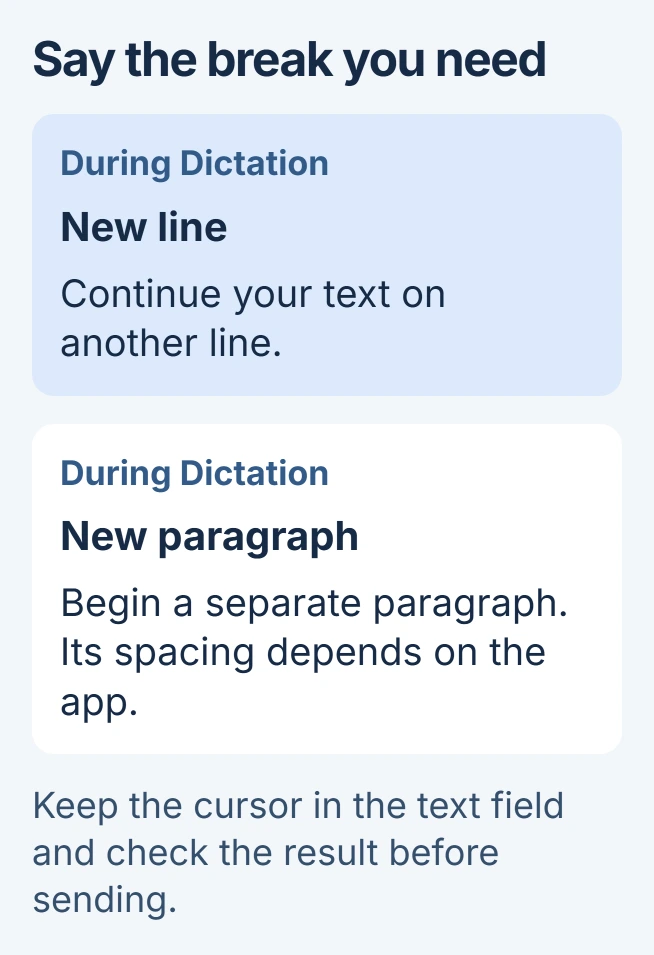
Status: iPhone Dictation and Voice Control documentation checked November 3, 2026. These English commands are documented by Apple; language and feature availability vary.
Try the command in an empty note before composing a long message. Check that the following words appear on a separate line and that the command itself was not inserted as ordinary text.
End Dictation with another tap on its microphone control. Apple also documents Stop dictation as a spoken way to end it. Read the finished text before sending, because a correctly placed break does not verify the surrounding words.
When the words appear instead of a line break
Check that Dictation is active. Apple says the selected keyboard determines the dictation language in its Dictation instructions, so choose the keyboard for the language being spoken.
Use New line, rather than the conversational phrase Next line. The command table documents the former. A pause alone does not request paragraph formatting.
If the microphone control is absent or speech produces no text at all, use the missing Dictation control checks. That is a broader input problem than an unrecognized formatting command.
For a command that works in Notes but fails in another app, keep the same keyboard language during the comparison. Use the app's Return key for the immediate edit if it permits one, then report the difference to its developer.
Check which speech feature is listening
Apple states that Voice Control replaces standard iOS Dictation while it is enabled. Its own modes handle word entry, character-by-character spelling or commands alone.
In Settings > Accessibility > Voice Control > Commands, inspect the available commands for that feature. Apple's Voice Control guide says commands can vary with the app and current task.
If Voice Control was enabled accidentally, the unexpected Voice Control checks explain its shortcut and switch. Avoid treating its mode controls as keyboard Dictation settings.
Keep automatic punctuation separate from formatting
Automatic punctuation can add commas, periods and question marks in supported languages. It does not mean a pause will produce the line or paragraph break you intended; request that formatting explicitly.
For failures across several apps with the correct language selected, tell Apple Support which command fails and whether it becomes text or is ignored. Include the affected iPhone model and iOS version.
The Short Version
With keyboard Dictation running inside a text field, say New line or New paragraph. Check the keyboard language if the command becomes text, and distinguish Accessibility Voice Control from the keyboard microphone.

Isaac Smith is the founder and editor of PC Glance, a website that covers computers, laptops, and technology. He is a tech enthusiast and a computer geek who loves to share his insights and help his readers make smart choices when buying tech gadgets or laptops. He is always curious and updated about the latest tech trends.