A MacBook fan that keeps running usually has heat to remove. Put it on a hard surface and check Activity Monitor for a busy app before resetting anything. Fast fans during a video export differ from fans roaring while your Mac is idle.
Intel and Apple silicon MacBooks need different power-control steps. Check Apple menu > About This Mac: Chip identifies Apple silicon, while Processor identifies Intel. You'll need that detail when choosing the reset steps.
In this guide
1. Give the vents room and finish heavy work
Move the MacBook from a bed, cushion or blanket to a hard, flat desk. Leave its ventilation openings clear. Soft surfaces can trap heat. If moving the laptop quiets the fans, tell support that before trying a software repair.
A game or video job can keep the fans busy. Spotlight can also be busy indexing files after a migration. Let a task you recognize finish, then listen for a change in fan noise. Don't judge idle behavior while an export is still running.
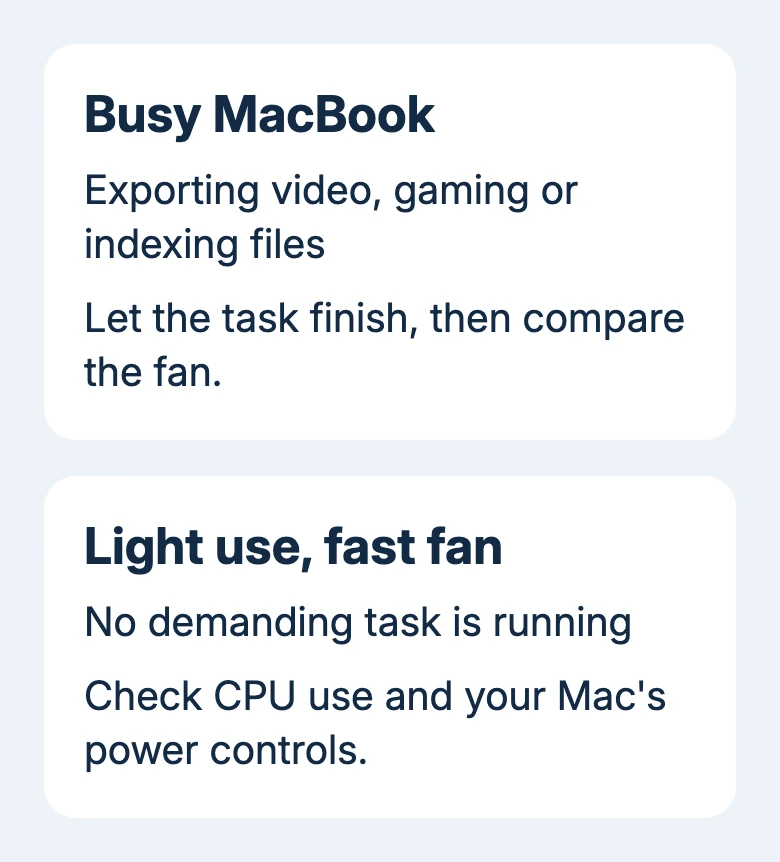
Apple explains the difference in its fan-noise guidance: fans running fast during demanding work are different from fast fans during light use. If your Mac is barely working, check its power controls.
There isn't a fixed number of minutes that every Mac should take to become quiet. Watch what the computer is doing instead. If a light workload still produces the same sustained roar with clear vents, check which app is keeping it busy.
2. Check CPU use in Activity Monitor
Press Command-Space, type Activity Monitor, and open it. Choose CPU, then use View > All Processes so the list isn't limited to your own apps. Click % CPU to place the busiest processes at the top.
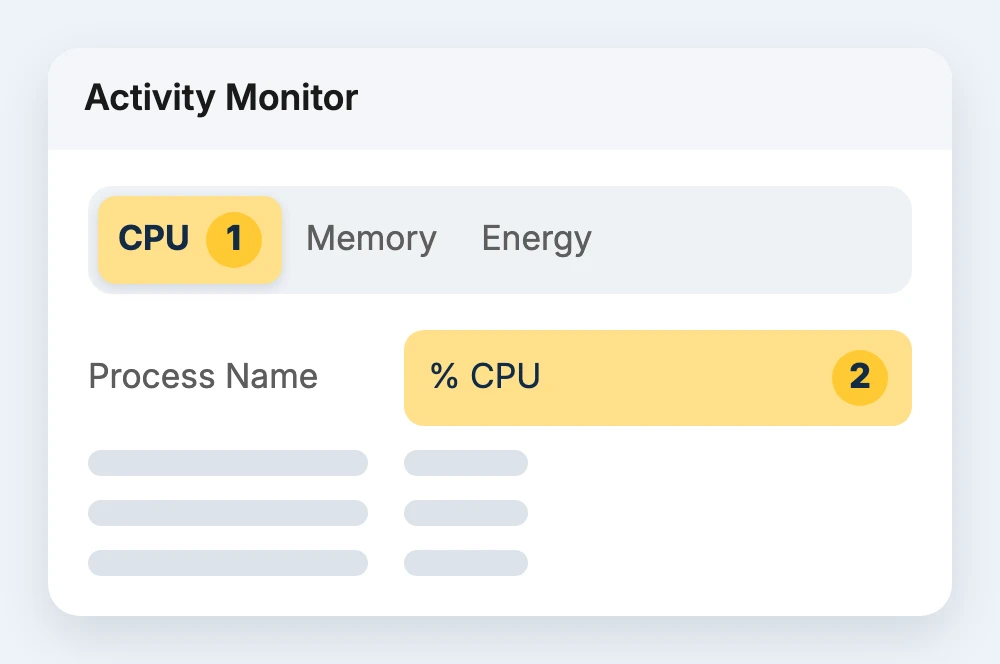
The CPU is the processor doing the computer's work. A process is an app or one of its working parts. Check whether the top entries belong to the task you're running. Don't remove a process just because its name is unfamiliar.
A browser can have several helper processes for tabs and extensions. Close an unneeded busy tab or quit the app normally, then watch whether its CPU use falls. Save work first if you're closing an editor with an unfinished document.
If an app is stuck, click its entry in Activity Monitor, then choose Stop. Choose Quit first. Force Quit stops the app at once and risks losing unsaved changes. Use that choice only when the app won't respond.
I'd close a known busy app before trying an SMC reset. If the fans settle after you close it, focus on that app or the work it was doing. If nothing is busy and the fan stays fast, move on to the restart route for your Mac.
3. Restart an Apple silicon MacBook
For a MacBook with Apple silicon, first close and reopen the lid, or choose Apple menu > Restart. Keep it connected to power when following the power-management restart instructions. Reopen only what you need after signing in.
An Apple silicon Mac doesn't use the Intel keyboard sequence for resetting the System Management Controller, or SMC. It resets power management automatically. Holding the Intel reset keys won't help it do that.
Check the fan with the same light workload after restarting. If it becomes noisy only when a particular app returns, go back to that app. If it runs fast while the Mac is doing very little, proceed to the hardware check.
Apple silicon MacBook Air models have no fan. A buzzing or clicking sound on one of those can't be a cooling fan. Check whether it comes from a connected accessory or the laptop before describing it to support.
4. Reset power management on an Intel MacBook
The SMC reset instructions depend on whether the Intel Mac has a T2 chip. The Intel Air and Pro notebooks released during 2018-2020 use T2. The M1 models from 2020 have Apple silicon, so use the earlier restart steps for those.
An SMC reset addresses power and thermal controls. It doesn't erase your files or replace a broken fan. Save open work and shut the Mac down before using the sequence for its model.
Intel MacBook with the T2 chip
With the Mac off, hold power or Touch ID down for 10 seconds. Release it, wait a few seconds, then turn the Mac on. If the fan problem continues, shut down again for the full reset.
On the built-in keyboard, hold left Control + left Option + right Shift for 7 seconds. Without releasing those three keys, also hold power for another 7 seconds. Release all four, wait a few seconds, then press power to start up.
The Mac might turn on while you're holding the first keys, then turn off when power is added. Follow the timings rather than starting again because the screen changes. Notice that this sequence uses right Shift.
Older Intel MacBook without T2
For an Intel laptop without T2, shut down and hold left Shift + left Control + left Option, then add the power button. Hold all four for 10 seconds, release them, then press power to turn it on.
This sequence uses left Shift, unlike the T2 sequence. Very old removable-battery models need their model's service instructions; don't remove a built-in battery to imitate an older reset method.
After startup, compare fan behavior before reopening a large workload. The Mac restart troubleshooting page is more relevant if the computer also shuts down or restarts unexpectedly.
5. Run Apple Diagnostics when fast fans persist
Disconnect external devices apart from power and any keyboard, mouse, display or Ethernet connection needed for the test. Set the MacBook on a stable, ventilated surface and shut it down. Keep the power adapter connected.
On Apple silicon, press and hold power until you see startup options, then release it. Hold Command-D until the Mac restarts. On Intel, hold D immediately after turning on the Mac. If that won't launch Diagnostics, use Option-D instead.
Follow the displayed instructions and record any reference code. Newer macOS versions can offer a choice of diagnostic tests. Choose the test relevant to the problem if prompted since a test of the display alone won't check the fan.
For help entering the startup screen, the MacBook Recovery startup methods explain which method your model uses. Diagnostics is a separate option, so follow the Command-D or D instruction for this test.
If the fan still races during light use, arrange service even if Diagnostics reports no issue. Ask for a fan and thermal-sensor check. Give the technician your model, diagnostic code and Activity Monitor result.
The Short Version
Clear the vents and check CPU use first. Apple silicon needs a restart. Intel needs the SMC sequence for its T2 or older model. Persistent fast fans during light use need Apple Diagnostics and a fan or thermal-sensor assessment.
Checked November 27, 2026.
 If you have any business, I can build it online