A MacBook folder with a question mark means its startup disk is unavailable or lacks a working macOS installation. If it stays onscreen, check the disk in Recovery. If it clears and the Mac starts, select the startup disk in settings first.
The symbol doesn't confirm a failed drive. A disconnected external startup drive, disk-selection problem, disk errors, or damaged macOS can cause it. Check whether Disk Utility can see and repair the disk to choose your next step.
In this guide
1. If the Mac starts, select its startup disk
If the question mark clears and your Mac reaches the desktop, sign in. On macOS Ventura or later, open Apple menu > System Settings > General > Startup Disk. Select the disk you normally start from, then click Restart.
On macOS Monterey or earlier, open Apple menu > System Preferences > Startup Disk. Unlock the settings with the padlock if requested, select the intended disk, and restart.
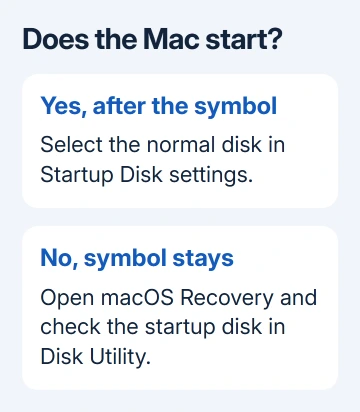
Apple says to select the startup disk when the question mark appears only briefly. Restart again after selecting it. If the symbol stays away, no disk erasure is needed.
If a brief question mark returns on an Intel Mac, shut down. At power-on, immediately press Option+Command+P+R together. Release after about 20 seconds. This resets NVRAM, the small memory storing startup-disk selection and other settings.
Check Startup Disk again afterward. Apple silicon needs neither that key combination nor the Intel NVRAM reset. If the Mac stops reaching the desktop, use Recovery instead.
2. Check an external startup drive before repairing it
If macOS normally runs from an external drive, check that drive's cable, connection, and power supply. Reconnect it securely and try starting again. The question mark can appear because the selected startup disk is unavailable.
Disconnect nonessential accessories for the next attempt, keeping the intended startup drive connected. A powered external enclosure needs its own working supply as well as a cable to the Mac.
If the Mac starts from its internal disk but the external drive stays missing, use the external-drive connection checks. A missing external device needs checking before a macOS reinstall can target it.
For an internal startup disk, leave the case closed and continue into Recovery. Replacing cables inside an older MacBook isn't a first step based only on the folder symbol.
3. Open Recovery using the right startup method
Turn the Mac off. If a normal shutdown isn't possible, hold the power button until shutdown, allowing up to 10 seconds. On a model with Touch ID, press that button firmly to use it as the power button.
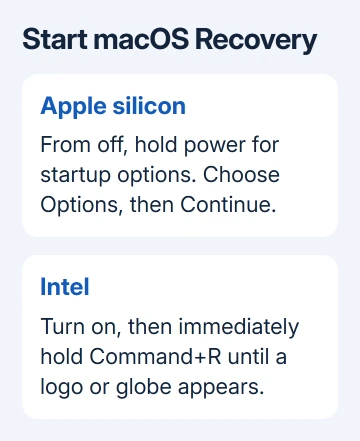
On Apple silicon, press and keep holding power until startup options appear. Select Options, then Continue. Choose a user when asked and enter their Mac login password.
On Intel, press and release power, then immediately hold Command+R. Release the keys when the screen shows an Apple logo or spinning globe. Connect to a network if asked, then enter the requested user's password.
When Recovery opens, you'll see tools including Disk Utility and Reinstall macOS. The globe is part of Internet Recovery on Intel; it isn't the same error as the question-mark folder.
If Intel Recovery won't open, try Option+Command+R on the built-in keyboard for Internet Recovery. An exclamation point on the globe means Internet Recovery failed. Check the connection, trying another network or Ethernet if available.
For more startup-key detail, use the processor-specific Recovery steps. If your Apple silicon Mac won't reach startup options, tell support rather than trying Intel-only key resets.
4. Check whether the disk appears and run First Aid
In Recovery, select Disk Utility > Continue. Choose View > Show All Devices if available. This shows the physical storage device and its volumes, the storage areas it contains, so you can check more than a single disk name.
If your files aren't backed up, don't choose Erase: it removes data. If the disk is still readable, use an available way to recover or back up your files before agreeing to have it erased.
Start at the lowest volume in the startup drive's sidebar list. Click First Aid, then Run or Repair Disk, as offered. If the volume is locked, enter the administrator login password.
Continue upward through the other volumes, volume groups, containers, and finally the physical device. Skip a selected item's First Aid button if it's dimmed. The Disk Utility repair procedure explains the sidebar order.
When repairs finish successfully, quit Disk Utility and choose Restart from the Apple menu. Check that you can reach the login window and open your files. If the question mark returns, continue with reinstalling macOS.
If the internal device stays missing with all devices shown, shut down, remove nonessential accessories, and retry once. If it still doesn't appear, the Mac may need service. The installer can't install macOS on a disk it can't see.
5. Reinstall macOS when the disk repair succeeds
Return to Recovery and select Reinstall macOS, then Continue. Connect to the internet and keep the MacBook on power. Your apps and personal data normally stay in place when macOS is reinstalled.
Choose the existing macOS volume when asked where to install. If the installer offers Macintosh HD and Macintosh HD - Data, select Macintosh HD. Enter the Mac login password if the disk needs unlocking.
Keep the lid open throughout installation. The Mac may restart, show a blank screen for several minutes, or display progress more than once. Those pauses and restarts are expected during installation, so don't force it off.
If installation fails, record the complete error and the disk names it offered. I'd note those details before trying again; a missing disk and a failed installer download need different fixes.
6. Decide about files before erasing or replacing storage
If Disk Utility can't repair the errors, the repair instructions call for erasing the disk and reinstalling macOS. First decide how to recover your files, or confirm your backup contains what you need.
Without a usable backup, ask Apple Support or a data-recovery specialist about preserving the files before authorizing erasure. A reinstall over the existing volume and an erase followed by reinstall are different decisions.
If the drive is missing, erasing fails, or the question mark returns after a reinstall, ask support to check the startup drive. Give the model, Recovery result, whether Disk Utility sees the drive, and exact repair or installer error.
The Short Version
For a brief symbol, select Startup Disk; reserve NVRAM resetting for Intel. For a persistent folder, open Recovery, repair the disk, and reinstall after successful repair. Protect files before erasure or storage service.
Checked November 12, 2026.
 If you have any business, I can build it online