

NotebookLM can turn sources into slides and download them as a PowerPoint file. Add the presentation material to a notebook, then choose Studio > Slide Deck. Once it finishes, use Download PowerPoint (.pptx) in the deck's menu.
The current service and help pages use the name Gemini Notebook. A PDF download is also available, but choose PPTX when you need a file to open in PowerPoint. Review the generated slides against the sources before presenting them.
In this guide
Prepare the material inside a notebook
Visit notebook.google.com in a browser. Use your notebook's account to sign in. Create or open a notebook. To generate slides, you need edit access, so a shared notebook you can only view isn't enough.
Add the source material the presentation should use. Supported inputs include Word documents, PDFs, text, Google Docs, Google Slides and PowerPoint files. Wait for the sources to finish importing before requesting a deck.
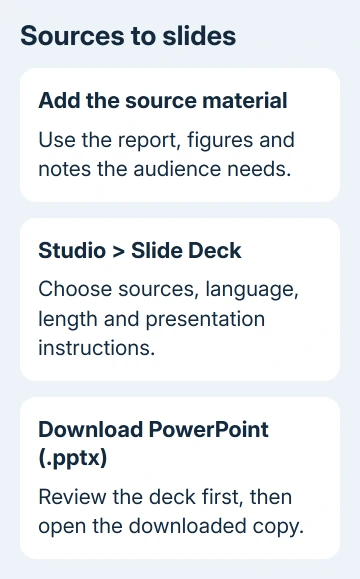
Choose relevant files rather than everything connected to the project. For a progress presentation, use the latest report, figures and meeting notes. An outdated forecast can produce slides you then have to correct.
Open the important imported sources and read their text, especially tables, dates and headings. Check that the information you need came through. The filename alone doesn't show whether the text imported correctly.
I'd write the audience and purpose in one sentence before generating anything. A presentation for customers needs different detail from a technical handover, even if both use the same report. That sentence becomes part of the request.
Choose Slide Deck and describe the presentation
In the notebook's Studio panel, select Slide Deck. Customize the available format, output language, length, and sources. These choices tell it what material to use and what kind of presentation you need.
In the description, state the audience, main question and required sections. For example, ask for a presentation for new staff that covers the problem, the proposed change and the next action, using only the selected project sources.
Keep exact requirements together. If dates, units or product names must stay unchanged, say so in the request. Still compare the finished slides with the originals; a clear instruction doesn't replace that review.
Start generation and let it finish. A deck can take several minutes, and you can continue working elsewhere in the notebook while it runs. Repeatedly starting the same job can leave you with extra versions to sort through.
The slide-deck controls also include a chat-based route. Ask for a deck in chat, customize its cards, and enable Review outline before final rendering when offered.
Review and refine that outline before selecting Proceed. Once generation starts, you can't edit that outline. Getting its order right before rendering is easier than correcting a finished presentation.
Read the finished slides before exporting
Open the completed Slide Deck from Studio. Read every slide, including smaller labels, chart values and captions. Compare names, dates and quantities with the imported material even when the slides look polished.
Watch for a statement that is stronger than the source. A report saying a change may help should not become a slide claiming it will help. Check that the conclusion still answers the question you gave the generator.
Look at the deck in its presentation view as well as the preview. Start slideshow opens the full-screen presentation. Move through the slides and check whether headings and explanatory text are readable at the size used for presenting.
Use Revise Image in the deck viewer when a slide needs changes. Enter instructions for the affected slides, review the grouped Pending Changes, then select Generate revised deck. Keep the instruction specific to the fault you're correcting.
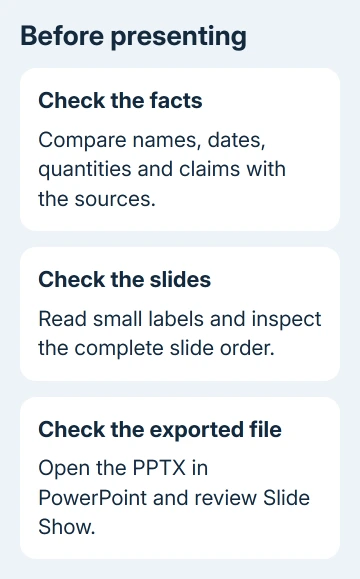
For example, ask to enlarge a small chart label or remove a claim that isn't in the source. Several unrelated requests in one sentence make the result harder to assess. Reopen the revised deck and check that the requested change happened.
Drag slide thumbnails in that view to reorder them. Put explanations before conclusions if the draft assumes knowledge your audience won't have. A deck can need a different sequence even when its individual slides are accurate.
Download the PowerPoint file, then open that copy
Open the three-dot menu for the generated deck and select Download PowerPoint (.pptx). Save the completed download, then open that file in PowerPoint. Downloading a PDF instead gives you a different format, even if it looks similar.
Inspect the first, middle and final slides in PowerPoint, then review Slide Show from start to finish. Check that the order, text and artwork match the intended version. Keep the downloaded original before making local changes.
Opening the PPTX in PowerPoint won't tell you which parts of each visual you can edit. Select an item before planning a detailed edit. Make your edits using the objects you can select in the exported file.
For a fixed copy to send after presenting, save the checked PowerPoint as a PDF. For a presentation you need to talk through later, record the PowerPoint presentation after the content review.
Missing Slide Deck or PowerPoint download?
Google says this feature is for users over 18. If Slide Deck is absent, check account and notebook permissions before rebuilding your sources. An organization's administrator can help with access for work or school users.
If the deck exists but won't download, check its sources. Publisher restrictions can prevent downloads when a notebook contains a Google Play Books ebook. A missing download option doesn't always mean the deck failed to generate.
Use the deck's menu to send feedback, or ask your Workspace administrator about an organization account. Include the account type, whether you can edit the notebook, and whether the missing control is Slide Deck or Download PowerPoint.
The Short Version
Add the sources, choose Studio's Slide Deck control, and describe the audience and purpose. Review and revise the finished slides, then download PowerPoint (.pptx). Open that copy in PowerPoint and check it before sharing or presenting.
Checked November 15, 2026.
 If you have any business, I can build it online






