

Start a new Clash Royale game from Play without Supercell ID, after saving your current game to its own Supercell ID. Log out through the game's settings, start fresh, then register the new game separately.
Deleting Clash Royale isn't the starting step. On iOS, reinstalling doesn't wipe remembered Supercell ID logins, and loading a saved login brings its existing progress back.
In this guide
Save the game you already have
Open Clash Royale on the iPhone and check the player name and progress. Make sure this is the game you want to keep before connecting an email address or starting another profile.
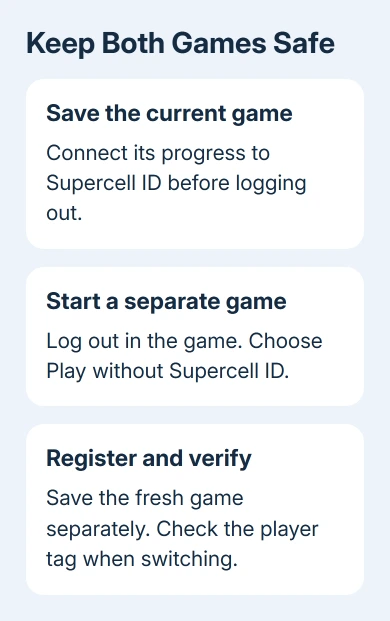
Open the in-game Settings, then choose Connect under Supercell ID if the account isn't connected yet. Follow the registration prompts. The email address used here will be the way back to this game.
Supercell's new-game instructions say to connect the existing game first. Don't skip that protection just because you're certain you want a fresh start today.
Check that you can open the email inbox and receive its verification code. Keep a note of which address belongs to the existing game, particularly if you already play more than one Supercell game.
I'd save the player tag as well. A screenshot of the current profile gives you an easy comparison when switching accounts, and the tag is useful if support later needs to identify the game you meant to keep.
Log out inside Clash Royale
Return to the in-game Settings and open the Supercell ID menu. Tap its cogwheel to open Supercell ID Settings, then choose Log out in the account options.
This signs you out of that game account. It isn't a request to delete that account, erase its progress or disconnect the iPhone from its Apple Account. The saved game remains attached to its Supercell ID.
After logging out, the game returns to its title screen. Choose Play without Supercell ID there. This is the supported new-game route, rather than reinstalling the app or changing an unrelated phone setting.
Check which game loads before continuing. A game linked to the device's Game Center account can load through this route, as the multiple-account instructions explain. An existing Game Center game isn't a new empty profile.
If the familiar game returns, stop and check which account loaded. Repeating registration on that same progress won't create a separate fresh game. Use the account checks in the next section before attaching another email address.
Keep Game Center and Supercell ID separate
Game Center is Apple's gaming account system, while Supercell ID connects the Clash Royale game to its own login. The two can both be present, which is why changing one login doesn't always produce the result you expected.
To check Game Center on an iPhone, open Settings > Game Center and inspect the account shown. Apple says Game Center settings show which account is being used for supported games.
To load a second existing game, use the Game Center account linked to that game. Confirm the Game Center account before choosing Play without Supercell ID.
Don't change your whole iCloud sign-in just to experiment with a game profile. If the fresh-game route repeatedly returns existing progress, give support the player tag and describe which Game Center and Supercell ID steps you've reached.
For an existing game you also want on a computer, the Clash Royale PC setup uses that saved Supercell ID. Moving the same game to another device and creating another game are separate tasks.
Register the fresh game separately
Once the new game is on screen, open its Settings and start Supercell ID registration for that game. Use a different email address from the Supercell ID that already holds your original Clash Royale progress.
Check the new game's player name and tag before confirming. Make sure you're attaching the fresh game to the new account, rather than reconnecting the game you just left.
Registration uses an email verification code rather than a Supercell ID password. Open the intended inbox, use the newest code received and finish the prompts. Older codes stop being useful after another code has been sent.
If the app rejects an email domain as unsupported, use another address you control. That message concerns the address accepted for registration; it doesn't mean you need to buy an account or use someone else's login.
On your own private iPhone, select Remember me on this device when offered. That saves the account for easier switching. Leave it unchecked on a device where another person shouldn't be able to open your game.
Switch back and verify both games
Open Supercell ID options and log out when you're ready to return to the original game. From the title screen, select Log in with Supercell ID, then choose the saved account that belongs to it.
If it isn't listed, choose Log in with another ID and enter its email address. Complete verification if requested. Check the player name, tag and progress before making changes in the loaded game.
Repeat the check with the new account. Keeping a simple note of each email address and player tag prevents the common mistake of thinking a game disappeared when a different account is open.
The remembered accounts remain on iOS after uninstalling the app. A reinstall therefore isn't an account reset. There is no reason to erase the iPhone to start over when the game already has account controls.
If the game itself closes before you can reach Settings, treat that as an iPhone app-launch problem. Switching game accounts can't fix an app that won't stay open.
Recover progress before starting again by accident
If the original game seems missing, log in with its saved Supercell ID email first. When that inbox is inaccessible or the game wasn't connected, open Settings > Help and Support in the game and use its contact control.
Provide the original player tag, account name, level and clan if applicable. Purchase transaction IDs can also help support verify ownership. Say which game you want recovered rather than asking them to reset the new one.
The Short Version
Connect the existing game to Supercell ID, log out and select Play without Supercell ID. Check the progress that loads, register the fresh game separately and verify that each account opens the right player profile.
Checked November 12, 2026.
 If you have any business, I can build it online






