
Clash Royale has an official Windows PC version through Google Play Games. Install Google's desktop app, find Clash Royale in its catalog, then use your existing Supercell ID inside the game to bring over your progress.
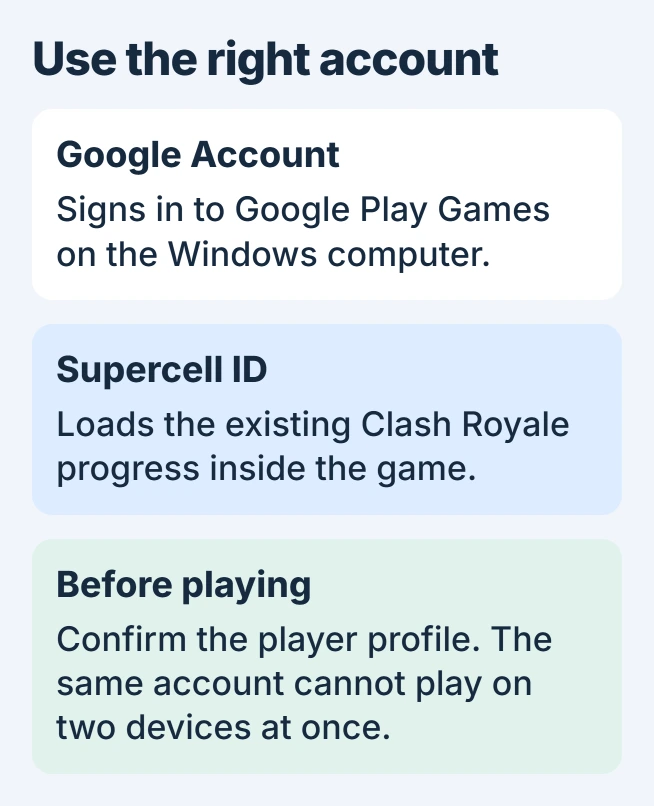
The Google Account used for Play Games and the Supercell ID holding your Clash Royale progress have different jobs. Check the correct Supercell ID on your phone before starting on the computer.
Check the PC before downloading the game
Google's Play Games requirements list Windows 10 version 2004 or later, an SSD with 10 GB available, 8 GB RAM and four physical CPU cores. The graphics minimum is Intel UHD Graphics 630, or a comparable GPU.
A Windows administrator account and enabled hardware virtualization are also required. These are requirements for Google's PC platform; an individual game can have additional compatibility information in its listing.
Status: Clash Royale's official PC route, Supercell ID syncing and Google Play Games requirements checked November 1, 2026. No game was installed or performance tested.
Use the PC specification lookup to collect the processor, RAM and graphics model. A computer running Windows 11 does not automatically meet the other requirements.
Google says availability also depends on the supported country and account. Check its current list if the installer or catalog says the service is unavailable. This official distribution route requires Windows.
Install Google's app, then select Clash Royale
Visit google.play/games on the PC and choose Download. Run the downloaded installer and complete its prompts. Sign in to Google Play Games with the intended Google Account.
Google states in its PC installation guide that setup may request Windows Hypervisor Platform. Save other work before completing that change and the requested restart.
For a firmware virtualization switch, follow the instructions for that exact PC model. Google adds that other emulators can stop working after Windows Hypervisor Platform is enabled.
Once the catalog opens, search for Clash Royale, open the game's listing and choose Install. Launch it from Play Games when installation finishes. Supercell's PC announcement identifies this official distribution route.
Do not substitute a separately downloaded APK or a site promising a special PC account. The game and its normal purchases are available through the supported app.
Load the same player profile with Supercell ID
On the phone where the correct progress is visible, open Clash Royale's settings and check its Supercell ID connection. Confirm access to the email address associated with that ID before switching devices.
In Clash Royale on the PC, use the Supercell ID sign-in option and complete its email verification. Check the player name, arena and collection before continuing; a fresh profile means the intended progress has not been loaded.
Supercell states in its PC FAQ that Supercell ID carries progress between mobile and PC. Signing in to Google's desktop app alone is not the same step as loading that Supercell ID.
Keep the working phone installation until the computer shows the correct account. If the ID is inaccessible, use Supercell's account-recovery support instead of deleting the phone installation.
Expect the same game, with computer controls
Supercell says PC and mobile share the same gameplay and support play across platforms. The PC version provides mouse and keyboard controls; it is not a separate progression system with a different set of opponents.
The same account cannot play on both devices simultaneously. Opening it on the other device logs the first one out, according to Supercell. Switch devices between sessions if that is the interruption being reported.
If the Google app itself fails to open, use the Play Games startup checks. If the catalog works but Clash Royale alone fails, give Supercell Support the game error and PC details.
For a rejected installer, keep its exact error code for Google Play support. That failure occurs before the Supercell ID step, so changing the game account will not repair it.
The Short Version
Install Google Play Games on an eligible Windows PC, install Clash Royale from its catalog and load the existing profile through Supercell ID. Verify the progress before playing; the account supports one active session.

Isaac Smith is the founder and editor of PC Glance, a website that covers computers, laptops, and technology. He is a tech enthusiast and a computer geek who loves to share his insights and help his readers make smart choices when buying tech gadgets or laptops. He is always curious and updated about the latest tech trends.