Missing NVIDIA Display settings can be normal when Intel or AMD graphics drives the laptop screen. NVIDIA can still run games. Use Windows display controls first, or a supported graphics switch when you need direct NVIDIA output.
In this guide
1. Check whether only the Display category is missing
Open NVIDIA Control Panel and check the list. If Manage 3D settings appears but resolution, color and other Display pages don't, the panel is running. A panel that won't open or an undetected graphics processor (GPU) needs other checks.
A hybrid laptop can use NVIDIA to draw a game while integrated graphics, built into the main processor, sends the image to the screen. Choosing NVIDIA for that game doesn't necessarily change which processor drives the panel.
NVIDIA says its Optimus display connections determine which screens get its display controls. A display connected to an NVIDIA-driven port gets NVIDIA Display category pages.
Don't disable Intel or AMD graphics in Device Manager to force those pages to appear. The integrated GPU may be driving the laptop's own panel. Check the actual display connection and the laptop's supported switching options instead.
2. Change ordinary display settings in Windows
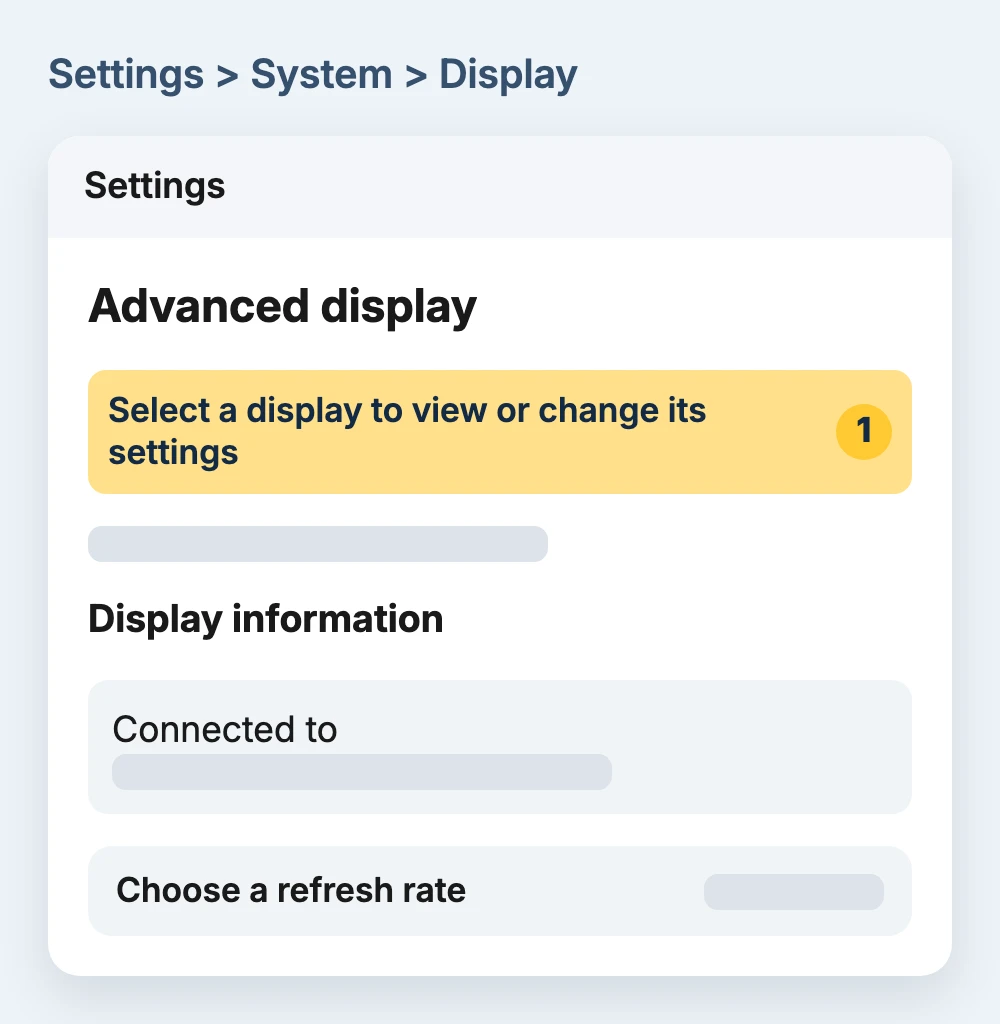
On Windows 11, open Settings > System > Display. Select your screen, then change its resolution and scaling there. Use Advanced display for supported refresh rates and more information about the selected screen.
With several screens connected, select the panel or monitor at the top of Advanced display. Check which graphics adapter it's connected to. Each screen can be attached to a different adapter.
On Windows 10, open Settings > System > Display > Advanced display settings. Select the correct display and check its information. The wording differs from Windows 11, but the important detail is still the adapter attached to that screen.
The Windows 11 display settings guide covers resolution, scale and refresh controls. Those settings can be available even when NVIDIA Control Panel has no Display heading.
If Windows offers the resolution or refresh rate you need, use it. Restoring a missing category isn't necessary just to make text readable or choose a supported refresh rate. You can still choose NVIDIA graphics for a game separately.
3. Check whether the laptop supports a display switch
Some notebooks include a display multiplexer, often called a MUX switch. It changes which graphics processor drives a screen. Other laptops have a fixed connection, so a setting or driver reinstall can't create that hardware feature.
Check the model's graphics-mode instructions before changing firmware settings. Manufacturers can use different names for hybrid, integrated or discrete modes. Follow the laptop's own instructions for any restart it requests.
For supported notebooks, the display multiplexer procedure starts under 3D Settings > Manage Power and Display Settings in NVIDIA Control Panel.
When power management isn't supported, the page can be named Manage Display Settings instead. Open Display multiplexer if there are multiple tabs. Read Select internal display multiplexer type for the built-in panel.
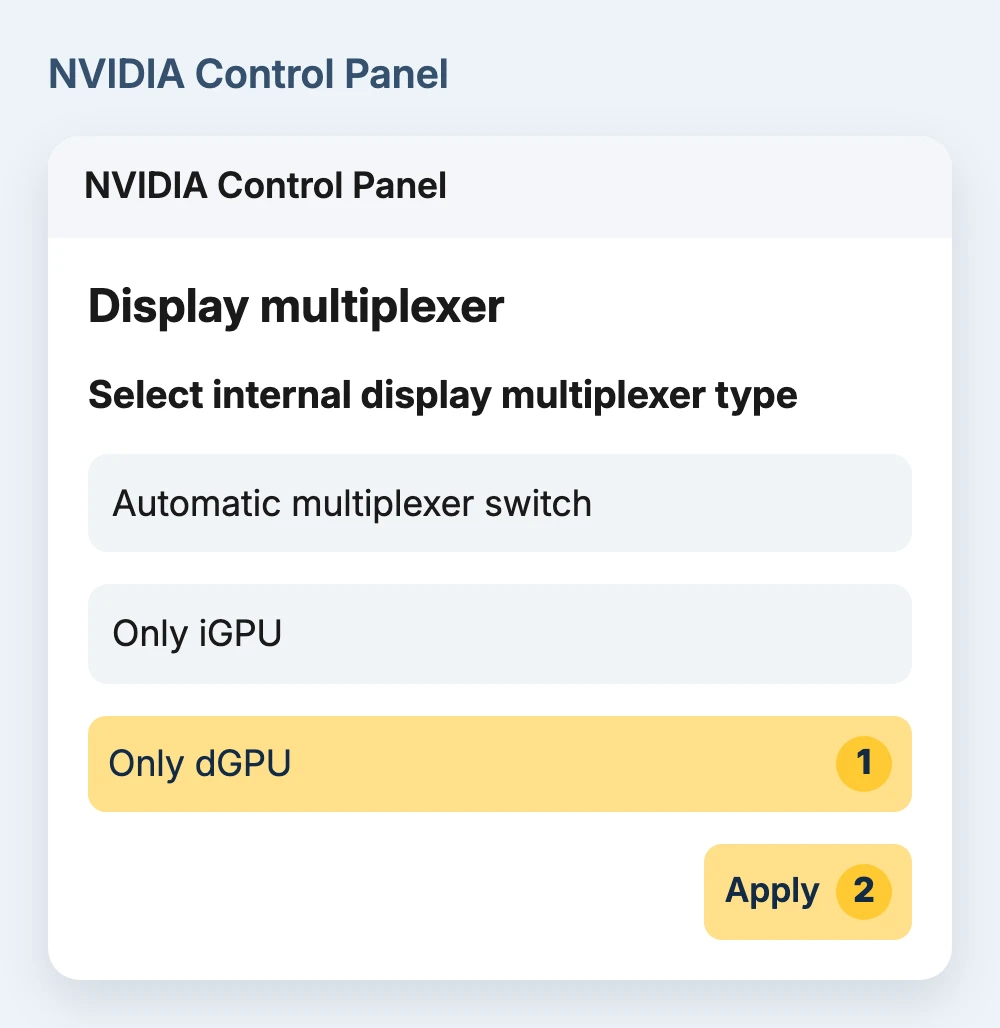
The choices include Automatic multiplexer switch, Only iGPU and Only dGPU. Only dGPU sends the supported display's image through the separate NVIDIA processor. Choose it and click Apply if direct NVIDIA output is the result you want.
The integrated choice saves power; selecting only NVIDIA graphics won't improve battery life. Note the current mode before changing it. Return to that mode if you want the previous automatic or integrated behavior.
If that page doesn't exist, stop looking for it in unrelated menus. Check the manufacturer's exact-model documentation for a supported switch. A laptop with no such option can continue using the integrated processor's display controls.
4. Treat an external monitor as a separate connection
A laptop's HDMI, USB-C and dock outputs don't all have to connect to the same graphics processor. A monitor attached to an NVIDIA-driven connector can expose NVIDIA Display pages even while the built-in panel remains on integrated graphics.
Check the model's port specifications for which output is wired to which GPU. USB-C by itself doesn't identify the graphics connection. A dock or adapter can also connect the screen differently from a cable plugged straight into the laptop.
If a suitable NVIDIA-driven port is available, save work and connect the monitor directly using a compatible cable. Reopen the panel and select that monitor. Its controls won't automatically apply to the built-in screen.
If no compatible port is available, use the controls offered by Windows and the monitor. Buying another cable without checking the port's GPU connection can leave exactly the same Display category missing.
5. Repair drivers when a previously working route disappears
If a previously working display mode disappeared after an update, check its drivers. Open Device Manager > Display adapters. Look for both expected graphics processors and any warning beside either entry.
Use the manufacturer's matching graphics packages for its hybrid setup. The integrated driver matters alongside NVIDIA's driver. Desktop graphics repair instructions may not suit a notebook's switching system.
Start with Settings > Windows Update > Check for updates on Windows 11. Windows 10 uses Settings > Update & Security > Windows Update. Restart after offered driver updates, then compare the same screen, cable and graphics mode.
When Windows doesn't list the GPU, use the missing-GPU checks to check whether Windows can use the device, rather than just looking for its Display page. Don't judge GPU detection from the NVIDIA menu alone.
When the manufacturer needs to check it
Give the laptop maker your complete model name, graphics drivers, current hybrid or discrete mode, and the adapter shown for each display. Ask whether the internal panel supports direct NVIDIA output and which external port provides it.
If direct output previously worked, include what changed and whether the GPU has a Device Manager warning. Support can then check the switch, both graphics drivers or the port, rather than treating normal hybrid operation as a broken panel.
The Short Version
Use Windows display controls when integrated graphics drives the panel. A supported discrete mode or NVIDIA-driven external port provides direct output. Repair drivers when a connection that previously worked loses those controls.
Checked November 27, 2026.
 If you have any business, I can build it online