

A phone that charges from a PC but doesn't show files often has a charging-only cable or hasn't allowed data access. Unlock it, connect directly with a data-capable USB cable, then choose File Transfer on Android or approve Trust on iPhone.
USB file access and wireless Phone Link pairing use different connections. Start with the USB steps if a cable is attached. If the cable works but a wireless app won't pair, use the Phone Link section instead of changing USB drivers.
In this guide
1. Connect with a cable that carries data
Unlock the phone before connecting it. Plug it directly into a USB port on the PC for this check, with no dock or hub between the devices. Keep the phone's screen on so you can respond when it asks for access.
A cable can supply power without carrying data. Use a cable you've already used to copy files, then try another PC USB port. Use the connector that matches your phone: USB-C and Lightning phones both need a working data connection.
Watch for a sound or vibration on the phone and a USB notification on Android. Charging confirms power reaches it, but file access still needs data wires and permission. The charging symbol doesn't tell you whether the cable carries data.
Inspect the connectors for visible damage or debris if the phone doesn't respond. Don't insert the plug if the connector is blocked or damaged. A loose connection that repeatedly drops needs attention before a file copy can finish safely.
If another cable and port restore access, continue using that working connection. If neither changes anything, choose the Android or iPhone section next. The software steps differ even when both phones use the same USB-C connector.
2. Choose File Transfer on Android
With the phone connected and unlocked, open its notifications and tap Charging this device via USB. Under Use USB for, choose File Transfer. The wording can vary by phone maker, but charging alone isn't the transfer option.
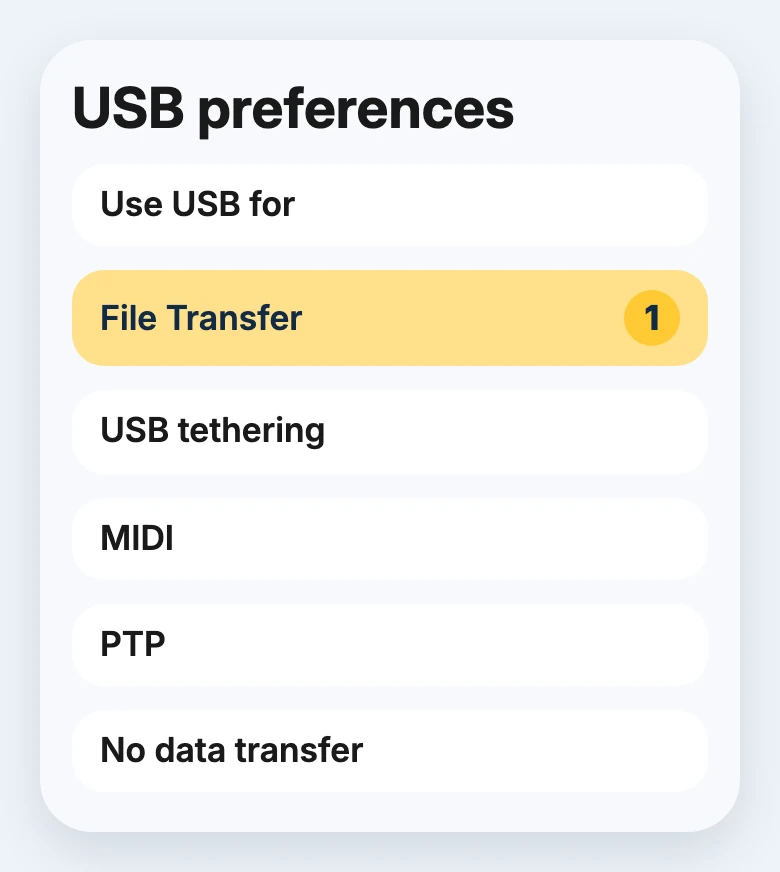
Google's USB transfer instructions put unlocking and choosing File Transfer before copying anything. After that, Windows should offer file access. Open File Explorer > This PC and look for your phone if no window opens automatically.
Open the phone and the storage location it makes available. For camera pictures, look for DCIM; other apps can save their files in other folders. Seeing the device but not the expected file is different from the PC failing to detect it.
Keep the phone unlocked if access stops when its screen locks. Copy one small file first and open the copied version on the PC. If the copy opens, the cable, access permission and selected storage location are all working for that transfer.
When finished, eject the device from Windows before unplugging it. If the USB notification never appears despite a known data cable, restart both devices and compare another computer.
Google recommends those checks before treating the phone as faulty.
USB debugging isn't required for ordinary file transfers. Leave developer settings alone while using the normal File Transfer route. Those settings allow another type of computer access; the correct USB mode is still needed.
3. Give the PC permission to read an iPhone
Open Apple Devices on the Windows PC, then connect the unlocked iPhone. Respond to Trust This Computer? on the phone by tapping Trust and entering the passcode when asked. Approve the device in the PC app too if it asks you to confirm.
When Apple Devices recognizes your iPhone, it appears in the sidebar. Older Windows setups may use iTunes; there, choose Continue if prompted to allow access. Keep Windows, iOS and the app you're using updated when recognition fails.
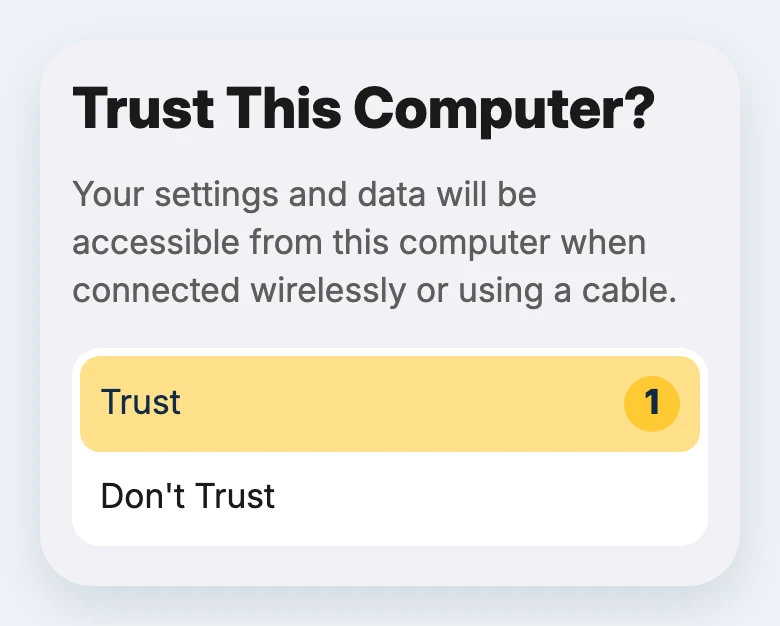
Trust gives that computer access to information on the phone. Approve your own trusted PC, rather than treating the prompt as a message to accept on every computer you use.
If you tapped Don't Trust, reconnect and watch for the prompt. For an alert that won't return, the iPhone Trust prompt guide explains the location-and-privacy reset used to request permission again.
Even after the PC recognizes your iPhone, you can't browse it like an Android phone in File Transfer mode. Use the app for the content you're moving. Our computer backup guide covers backups rather than browsing arbitrary app folders.
I'd check whether the phone appears in Apple Devices before reinstalling anything. If it appears there, USB recognition is already working; you just need the right way to move those photos or documents.
4. Import photos through the correct app
On the PC, open Photos and choose Import, then select the connected device. Keep the phone unlocked and respond to its access prompt. Let Photos load the available pictures before selecting the ones to import.
The Windows photo import instructions cover both Android and iPhone. If pictures aren't visible, first check whether they're stored on the phone rather than only in a cloud library.
With iCloud Photos, full-resolution originals may need to download to the iPhone before a USB import can include them. Alternatively, use iCloud for Windows for those photos.
A picture can appear on your phone as a preview while the full file is still in the cloud and unavailable for USB copying.
On Android, check the camera folder and the folder used by the app that saved the image. A download or messaging app can put pictures somewhere other than DCIM. Missing one app's pictures doesn't mean the entire USB connection failed.
After importing, open a few pictures on the PC and check that the copies are complete before removing originals from the phone. Stop a transfer that keeps disconnecting and return to the cable comparison rather than trusting a partial copy.
5. Separate Phone Link pairing from USB detection
Phone Link is a wireless Windows app, so a phone charging over USB doesn't complete its pairing process. Open Phone Link on the PC and follow its setup for the correct phone type, including the phone's requested permissions.
For Android, check the connection used by Link to Windows and the PC. For iPhone, check Bluetooth and the permissions requested during pairing.
Features and connection requirements differ between Android and iPhone, so don't follow the other platform's prompts.
If your phone transfers files by USB but won't pair wirelessly, you already know the cable works. The Phone Link connection guide handles that separate problem, including the network comparison for Android.
If USB still fails, compare the phone on another computer with the working data cable. When neither PC detects the phone, the phone or connector needs attention. When just one PC fails, check its USB ports, software or device restrictions.
Ask the phone maker for USB data-connection help when both computers fail. For a managed PC, give IT the phone model, cable comparison and any device-blocking message.
If Apple Devices still can't recognize an iPhone, use the recognition support route and request a service assessment if advised.
The Short Version
Unlock the phone and use a data-capable cable. Android needs File Transfer; iPhone needs Trust and the right Windows app. Check cloud-only photos when imports look empty. A wireless Phone Link failure needs its own pairing checks.
Checked November 27, 2026.
 If you have any business, I can build it online





