Older programs sometimes need an app update, compatibility settings or a device driver after a Windows 11 upgrade. Check for a supported release from the program's maker first, then try the installed app's compatibility options.
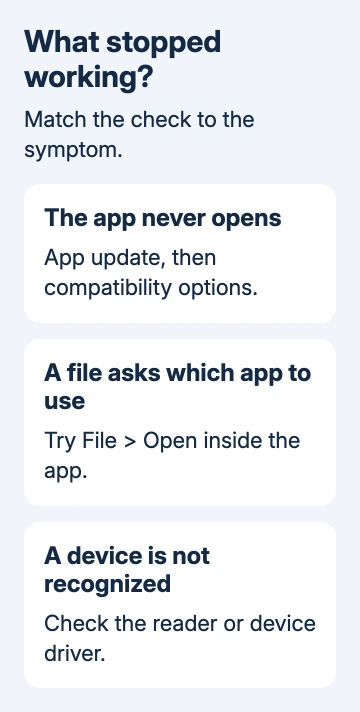
Check whether the app refuses to launch or starts but rejects a camera card or document. What to check next depends on which happens. Compatibility settings won't automatically choose an app for each file or restore a missing device driver.
In this guide
1. Get the supported app version before changing Windows
Note the program's full name and version from its About screen, original disc or installed-app entry. Keep any error message too. A product name alone can cover several releases with very different Windows support.
Check the publisher's support page for a Windows 11 version, patch or replacement installer. Microsoft recommends checking for an app update first when older software stops working.
For a Microsoft Store app, open Microsoft Store > Library and check for updates. For software installed from a disc or downloaded installer, use the publisher's own update instructions instead.
Before uninstalling an old paid program, keep its installer, license information and saved work. A newer version may import old files, but removing the only working copy before checking this can leave your documents out of reach.
After installing a supported app update, repeat the task that failed. Success means the app opens and performs the feature you need, not just that its installer finishes. If it still fails, continue with the launch check.
2. Run the compatibility check for the installed program
Find the installed program's executable or its shortcut. On a desktop shortcut, right-click and choose Properties. If you're starting from a pinned icon, use its file-location option to reach the actual shortcut or executable first.
Where the Compatibility tab is available, open it and choose Run compatibility troubleshooter. Follow the tool's prompts and use its test option to try the program with the proposed settings.
Some Windows 11 builds also offer Settings > System > Troubleshoot > Other troubleshooters > Program Compatibility Troubleshooter > Run. If that entry isn't present, use the program's Properties route where available.
Test something small and familiar: open an existing document, run the camera viewer or start the part of the program that failed. Getting past the splash screen isn't enough if importing or saving still fails.
Keep the settings if the test succeeds. If it doesn't, record what changed and move on. If another run gives the same result, stop repeating the troubleshooter and check which versions the app supports.
The specific Paint Shop Pro double-click repair combines compatibility with a reinstall for one legacy editor. That repair worked for that editor; other older apps need their own checks.
3. Try a suitable compatibility mode when it's offered
In the executable's Properties > Compatibility, note any existing selections. Enable Run this program in compatibility mode for, choose a Windows version the app supported, then select Apply > OK.
Use the program's age and supported Windows versions to choose a mode. An older entry isn't automatically a better fit. Compatibility mode changes how the app runs; it doesn't install another operating system.
Close the program fully and launch it again after applying the setting. Try the same task again with the same file, then check whether anything works differently.
If it makes no difference or introduces a new fault, restore its earlier setting. Compatibility mode can help an app run as it did on older Windows versions. It can't supply every missing component or make every unsupported app work.
Very old 16-bit programs can't run in 64-bit Windows. The 16-bit support limits exclude x64 and Arm; compatibility mode doesn't add that support.
Ask the publisher for a current build, or export your data from a computer that still runs the app.
I'd try one relevant mode and a proper app update before reinstalling Windows. Both are ways to check the app itself, and the results give its publisher useful details to work with.
Avoid applying compatibility settings to antivirus software, drivers or system utilities without their maker's instructions. Those programs need versions that support the current operating system.
4. Compare the app's Open command with double-clicking
If the program starts, choose its File > Open command and select a known document or image. This checks whether the file opens inside the app without relying on Windows to choose a program when you double-click.
If internal opening works but double-clicking asks which app to use, open the file's right-click menu in File Explorer, then select Open with > Choose another app. Pick the installed program and use Always when offered for that file type.
Check the file extension before choosing its default app. Selecting an old viewer for one image format doesn't mean it supports every file on the camera card. Test the type you actually need.
If the app's own Open command also rejects the file, keep the error message. Changing the default app won't solve that; check whether the app supports that format and whether another known file opens.
The original Gamefinder discussion describes an app expecting to recognize a trail-camera SD card after an upgrade. The owner had already tried compatibility and troubleshooting without success. Its accepted answer didn't confirm a repair.
For that case, test the card in File Explorer and open a supported file from the program. If Windows can read the card, you can focus on the app. If it can't, the card or reader needs attention first.
5. Check the device only when the program depends on one
A camera tool, scanner program or specialist utility may need a separate device driver. If Windows doesn't see the device, changing the program's display or compatibility settings won't supply that driver.
Open Settings > Windows Update > Advanced options > Optional updates and check for a relevant driver update. If that list has no suitable driver, check your exact device model on its maker's Windows 11 downloads page.
Check Settings > System > About > System type if your laptop uses an Arm processor. Hardware-dependent apps need Arm64-compatible drivers; running an older x86 app doesn't make its x86 driver compatible.
In Device Manager, look for the device and note any warning or error code in Properties. Pass the warning and device model to its manufacturer. A driver meant for another model isn't a suitable substitute.
If Windows reads the camera card normally but the old app won't import it, ask the app maker which file types and camera models its current release supports. A new card reader won't fix a documented software limit.
An older game may instead need a particular runtime, the supporting software it uses to start and run. The Rocksmith launch checks cover that game's confirmed runtime repair; don't install every old runtime for an unrelated app.
When the publisher no longer supports the program
Ask the publisher for a Windows 11 release or a way to export your data into a current app. Include the old version, exact error and whether it launches, reads files internally or sees its required device.
If compatibility doesn't help an abandoned app, choose a supported replacement that imports its files. Keep your originals until you've checked the copies. No universal Windows setting makes every discontinued program work.
The Short Version
Update the app, test compatibility and separate launch failures from file-opening or device problems. Keep the results for its publisher. The Gamefinder thread remains unresolved; its accepted answer doesn't confirm a repair.
Checked November 26, 2026.
 If you have any business, I can build it online