

Old OneDrive settings can make Windows refuse a fresh installation. Remove Microsoft OneDrive through Programs and Features first; if setup still says a version is installed, use the registry cleanup in Microsoft's installation guidance.
A OneDrive folder left in File Explorer doesn't mean the sync app is still installed. Check the app entry and the exact installer message before deleting anything.
In this guide
1. Check the app entry rather than the folder icon
Press Windows + R, enter appwiz.cpl, and press Enter. Look for Microsoft OneDrive in Programs and Features. This is the installed-program list, separate from the OneDrive folder that holds or displays your files.
For Windows 11, an alternative is Settings > Apps > Installed apps. On Windows 10, use Settings > Apps > Apps & features. Check that list for OneDrive. The File Explorer icon can remain after the app has been removed.
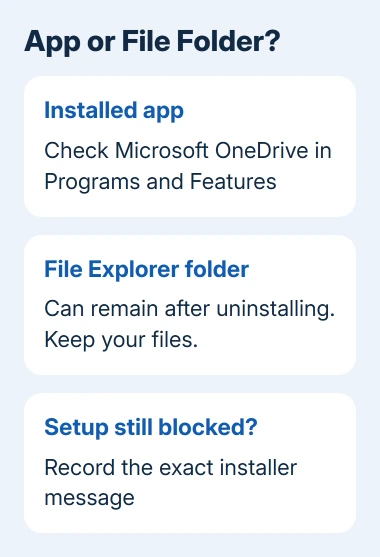
Write down the full installer message. A newer version of OneDrive is installed points to an existing or leftover version record. A message about permissions, your Windows version, or a company restriction needs a different fix.
If Start opens OneDrive and the cloud icon appears, check whether you actually need to reinstall. An app that runs but won't sign in has a different problem; OneDrive sign-in checks address that stage.
If Windows lists the app but it won't launch, continue with removal. If it isn't listed and setup still refuses to install, move to the installation-settings cleanup after checking your file copies.
2. Remove the desktop sync app through Windows
Copy your unsynced local work somewhere safe before changing the installation. A cloud placeholder shows a file without keeping its contents on your PC, so check that your important local copies open.
In Programs and Features, select Microsoft OneDrive, choose Uninstall, and finish the prompts. If Windows asks permission to make changes, approve it only for the OneDrive uninstaller you just opened.
Refresh Programs and Features and check that the OneDrive entry has disappeared. The OneDrive folder can remain afterward. Don't delete that folder to make the uninstallation look complete; it may still contain files you want to keep.
Microsoft says to start with removal in its newer-version installation fix for this installer error. Uninstalling the sync application leaves your online file collection intact.
If removal succeeds, install the current desktop sync app in step 4. If the entry stays, removal fails, or setup still reports an existing version, continue to step 3. It covers the leftover settings for your Windows user account.
For a work computer, let IT handle a blocked uninstall or an administrator-password prompt. A company-installed copy may need the same deployment tools that installed it.
3. Back up and remove the specific OneDrive settings key
This step changes the Windows registry, the database Windows and apps use for settings. Back up the named key before removing it, and leave other registry locations alone.
Press Windows + R, type regedit, and press Enter. In Registry Editor's address bar, paste this exact path:
Computer\HKEY_CURRENT_USER\Software\Microsoft\OneDriveConfirm that OneDrive is selected under HKEY_CURRENT_USER > Software > Microsoft. Choose File > Export, select Selected branch, and save the backup with a name you can recognize.
Right-click that OneDrive key and choose Delete. Confirm the deletion. This removes that Windows user's OneDrive settings key, leaving both the Explorer file folder and your cloud files intact.
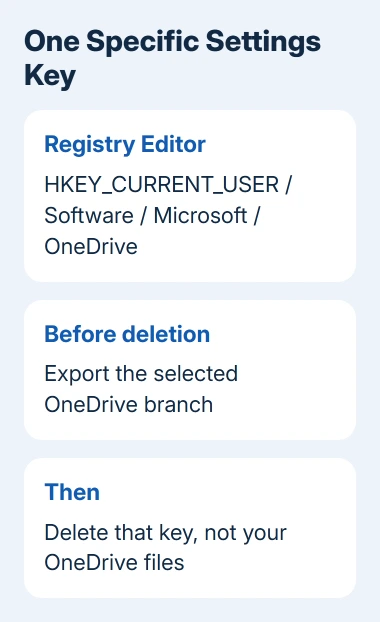
If the key isn't present, don't create it or start deleting similarly named entries elsewhere. Record that it was absent and move to the current installer. A different registry location isn't automatically a substitute.
The owner tried removing the app and deleting this key but still couldn't install OneDrive. Their later reply had no resolution either. Microsoft's instructions support this repair, but it didn't fix that owner's problem.
That's a reason to stop if the repair doesn't help. If you've already completed these exact steps and the same message returns, another round of broad registry deletion isn't the next step. Keep the error for support.
4. Install the current OneDrive sync client
Use the official OneDrive download page to get the Windows desktop sync app. Download and run a fresh installer from that page rather than reusing an old setup file from Downloads.
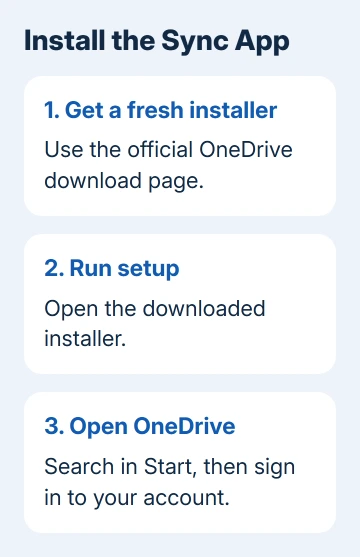
When installation finishes, open Start, search for OneDrive, and open the desktop app. Sign in to the personal or work account where you keep those files. The sign-in window or returning cloud icon shows the app is installed.
Check the account and folder location offered during setup. Review any Desktop, Documents, or Pictures backup choices before accepting them. Installing the app and deciding which folders it backs up are separate choices.
If your folders appear but changes don't transfer, use the OneDrive sync checks for that remaining fault. Don't repeat installation cleanup after the installer has completed successfully.
If setup still reports an existing version, note whether the app now appears in Programs and Features. Keep the installer filename and the full message. These help support tell an install failure apart from a sign-in or first-sync problem.
5. Get help with an installation that still refuses to change
In the original discussion, reset commands failed because Windows couldn't find onedrive.exe. A folder with that name existed, but the executable wasn't inside it. Repeating reset commands can't reset an app that isn't at the supplied path.
If OneDrive is missing and installation remains blocked, use Contact Microsoft Support on the newer-version help page, enter the install error, and select Get Help. For managed PCs, pass the install error to IT.
Provide your Windows version, whether OneDrive appears in Programs and Features, the uninstall result, and whether the exact per-user registry key existed. Include the latest installer's error and the time of the attempt.
Ask support to check for a leftover installation record or a copy installed through your organization's tools. Don't send your exported registry file publicly, since settings can contain account details.
I'd stop at that point rather than use an unofficial removal script. After the normal uninstall, the specific key cleanup, and a fresh installer, you'll have clear results to give support.
The Short Version
Remove a listed OneDrive copy through appwiz.cpl, then back up and remove its named per-user settings key if needed. Install the current desktop client. A file folder isn't an installed app; repeated failures need installation support.
Checked November 16, 2026.
 If you have any business, I can build it online






