

OneDrive's missing Share button in File Explorer can mean the sync app isn't running, or Windows is blocking its file commands. Start OneDrive from Start, then right-click a file inside its synced folder.
If Share opens but you can't select the recipients you need, check your account and your organization's sharing rules. Repairing File Explorer's menu won't change who can receive the file.
In this guide
1. Start OneDrive and check the file's location
Open Start, type OneDrive, and launch the desktop app. Look for its cloud icon in the taskbar notification area. Check the hidden-icon popup if the cloud isn't visible.
Open File Explorer and select OneDrive or OneDrive - your organization in the navigation pane. Right-click an actual file there. A file outside the synced folder won't gain OneDrive's commands just because the app is installed.
On Windows 11, select Show more options to inspect the expanded right-click menu. Windows 10 uses the older menu directly. Check for OneDrive sharing; Windows' own Share controls can open a different dialog.
If a OneDrive sign-in prompt appears, use the account that owns this synced folder. Finish setup and right-click the file again. Check that you can open its sharing dialog; opening the app alone doesn't tell you whether Share works.
If the app doesn't launch at all, the OneDrive startup checks cover that failure. Continue here when OneDrive runs but its file commands remain absent.
2. Read the Elevated column in Task Manager
Microsoft's missing context-menu instructions separate a missing process from a process running with elevated privileges. Elevated means Windows is running it with administrator-level access.
Open Task Manager with Ctrl+Shift+Esc. On Windows 10, expand a compact Task Manager using More details. Open Details; on Windows 11, that page is in Task Manager's navigation area.
Right-click a column heading, choose Select columns, select Elevated, and confirm. Find both OneDrive.exe and explorer.exe, then read their values in that column.
Note both results. A Yes means you should try the installation in section 3. If both show No, move to the policy review in section 4. If OneDrive.exe isn't listed, start or install the desktop sync app first.
I'd check these two values before repairing Office. The missing command belongs to OneDrive's integration with Explorer, so an Office reinstall won't necessarily restore those commands.
On a shared PC, make sure you're reading the processes for your Windows session. Give IT both process names and their Elevated values. A screenshot of those rows shows them exactly what you found.
3. Use the per-machine installation for elevated processes
If Elevated shows Yes, use OneDrive's per-machine installation. This installs the sync app for the whole computer instead of keeping a separate copy in each user's Windows profile.
Ask your administrator to follow the per-machine deployment instructions. They download OneDriveSetup.exe and run it from a command prompt with this parameter:
OneDriveSetup.exe /allusersThis is an administrator's installation task. The setup file needs to be in the command prompt's current folder, or the administrator needs to use its full path. It isn't a command to run inside Excel or OneDrive's web page.
After installation finishes, OneDrive starts and brings your existing accounts into the new installation automatically. Check that the correct account and synced folder are present, then right-click the same file again.
If the OneDrive Share dialog now opens, the desktop integration is working. If it doesn't, tell IT that the per-machine installation finished but the commands are still missing. Include the new Elevated values.
On a work PC, let IT handle the installation. They can check how the existing app is managed so you don't end up troubleshooting the wrong copy.
4. Have an administrator review the UAC policies
If both Elevated values show No, have an administrator check Windows' User Account Control policies. These settings control when Windows grants administrator access and asks for permission.
Press Windows+R, enter secpol.msc, and open Local Policies > Security Options. If Windows can't find that console, give the support procedure to IT rather than downloading an unofficial policy editor.
The relevant entries begin User Account Control. The vendor's table includes Run all administrators in Admin Approval Mode set to Enabled, plus separate settings for elevation prompts, UIAccess apps and the built-in Administrator account.
Have the administrator compare the complete table in the linked instructions with the policies in use on your PC. Note the current values before an approved change, then restart as the instructions require.
An owner confirmed that Never notify restored Share in 2019, but it changes security prompts. Don't turn off UAC as a general sharing fix. Use the current installation and policy procedure instead.
If a policy changes back after restarting, ask IT which organization setting is restoring it. Changing it again on your PC won't stop the organization from applying it.
5. Separate missing commands from blocked sharing
If Share now opens but an audience choice is unavailable, the menu repair has worked. Your organization can restrict sharing choices, including links for people outside the organization.
Have the file's owner check your access and who the organization allows them to share with. The OneDrive folder-sharing guide explains recipient access and viewing versus editing.
For an urgent file, sign in to OneDrive in your browser, select it, and use Share there. This can get an invitation sent while the desktop integration is repaired. It won't bypass an organization restriction.
If web sharing works and Explorer sharing doesn't, send IT that comparison, your Windows version, OneDrive version, account type, and both Elevated results.
Ask them to check the OneDrive right-click menu policies and whether the app is installed for one user or the whole PC.
For a personal PC, open OneDrive Help and Support to report the missing Share and View online commands. Include whether they fail for every synced file or just one folder.
The Short Version
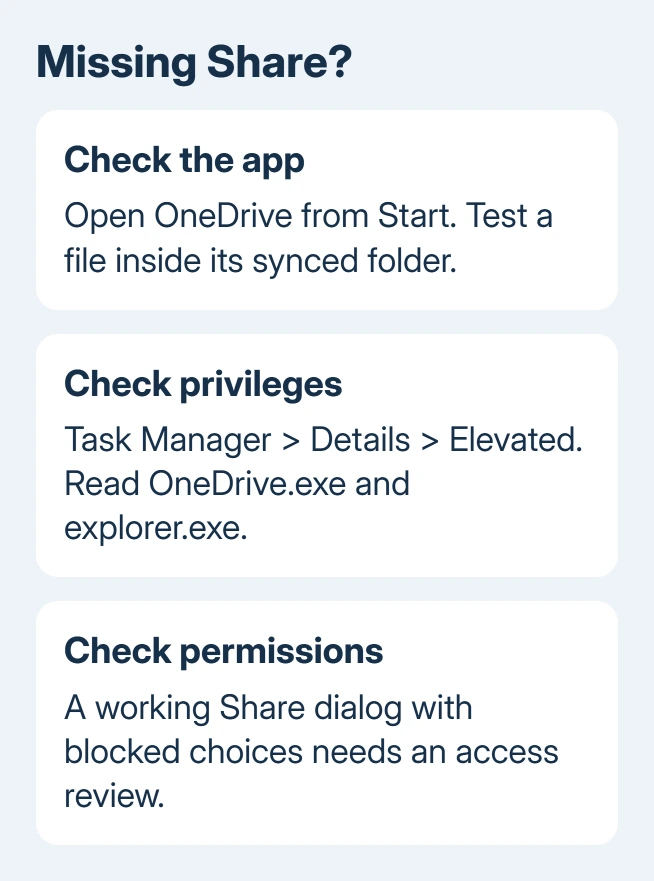
Start OneDrive and test a synced file. Read Elevated for OneDrive.exe and explorer.exe. Follow the per-machine installation or policy route. If the dialog opens, check its sharing permissions separately.
Checked November 17, 2026.
 If you have any business, I can build it online






