

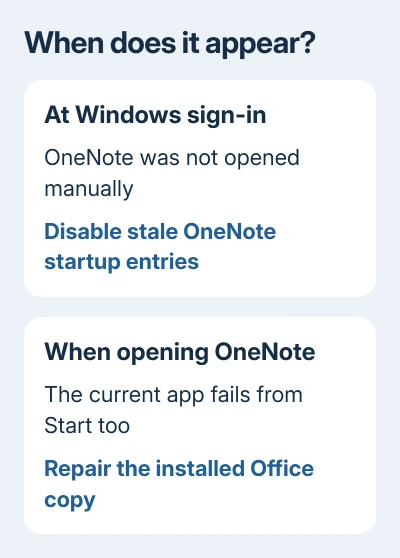
An ONENOTE.EXE Entry Point Not Found error at Windows sign-in can come from an outdated OneNote startup entry. Disable that entry first, then open OneNote from Start to check whether the installed app itself still works.
This fixed the ONMain.DLL error for an owner after both Quick Repair and Online Repair failed. If the error also appears when you launch OneNote yourself, go to the Office repair steps, since the problem also affects the app itself.
In this guide
1. Disable the OneNote entry that runs at sign-in
The confirmed case named ONMain.DLL and a procedure beginning with GetLocalCacheRoot. It appeared at boot, and the owner found three old OneNote startup entries. Turning those entries off stopped the message after a restart.
Notice when the error appears. A dialog that appears before you click anything is different from a failure each time you open a notebook. Take a screenshot of the dialog so you have a record of its program and DLL names.
On Windows 11, right-click Start and choose Task Manager. Select Startup apps, find the OneNote entry, then select Disable. On Windows 10, open Task Manager, choose More details if needed, and use the Startup tab.
On both versions, you can also open Start > Settings > Apps > Startup and turn OneNote off there. Microsoft's startup app instructions cover both routes.
Check the name and publisher before disabling anything. Disable the old OneNote entry and leave other Microsoft items and Windows services alone. If several entries clearly belong to that old copy, disable them together.
Restart Windows and wait until sign-in finishes. If the dialog is gone, open OneNote from Start and check a notebook. If the app works and the sign-in error is gone, you can leave the old startup entry disabled.
2. Check the Startup folder if the list is empty
Some automatic launches come from shortcuts in a Startup folder rather than the app switch you expected. Check this when no matching OneNote entry appears in Task Manager, or when the message survives disabling the visible entry.
Press Windows+R, type shell:startup, and press Enter. This opens the Startup folder for your current Windows account. Look for a OneNote or Send to OneNote shortcut, then open its Properties to check what it launches.
Move a shortcut that points to the obsolete OneNote installation into a temporary folder outside Startup. Keeping the shortcut lets you put it back if it belongs to a different launcher; the app and notebook files stay in place.
Repeat the check with shell:common startup if the error affects several people who sign in to the same PC. That folder applies to all users, so an administrator may need to move its shortcut.
Restart and test again. If the error continues, don't start deleting DLL files. Record whether it now appears at sign-in, when using the shortcut, or when opening the current OneNote app. Those three results lead to different repairs.
3. Use System Configuration only on the old Windows setup
The original owner used the Startup tab in System Configuration, opened with msconfig. That was the older Windows route. A later reply pointed Windows 8 through Windows 10 users to Task Manager instead.
On a Windows 7 machine kept for an old Office installation, press Windows+R, enter msconfig, and open Startup. Clear the check boxes for the obsolete OneNote startup entries, click Apply, then OK and restart when ready.
Leave the Boot and Services tabs alone for this repair. Changing those tabs can alter how Windows starts, and isn't part of the confirmed OneNote fix.
On newer Windows, msconfig's Startup tab sends you to Task Manager. Use that link rather than looking for a second list. The switch there controls the automatic OneNote launch.
If this machine runs an unsupported Windows or Office version, plan a supported replacement after recovering access. Stopping the startup dialog solves that launch problem; it doesn't bring the old software back into support.
4. Repair Office when manual launch fails too
Open OneNote from the Start menu, rather than reusing the shortcut that produced the error. If this also reports a missing entry point, the failure reaches the installed program and needs more than a startup switch.
Save open Office documents first. On Windows 11, right-click Start > Installed apps, find Office, then use its three-dot menu > Modify. On Windows 10, open Apps and Features, select Office and choose Modify.
For Click-to-Run installations, try Quick Repair, then choose Online Repair if necessary. An MSI installation instead shows Repair in its change window. This repairs the installed suite, even when OneNote triggered it.
Restart if requested, then launch OneNote from Start again. Both repair options had failed for the original owner, whose error came from startup entries. I'd check the launch timing before trying another repair.
A window that opens but keeps an old docked position has a separate settings problem. A notebook reporting a sync refresh error has also got past the startup DLL failure.
Give support the failing launch path
If the dialog survives repair, open Windows Get Help or use your organization's Office support team. Send the full entry-point text, DLL name, Office version and the results of launching from Start versus signing in to Windows.
Ask whether a previous Office installation left its launcher behind. Don't replace ONMain.DLL with a download from a DLL site: matching filenames can still belong to different Office builds.
The Short Version
For a sign-in-only ONENOTE.EXE error, disable stale OneNote startup items and restart. Check Startup folder shortcuts next. If launching OneNote from Start also fails, repair Office and send support the full procedure and DLL names.
Checked November 21, 2026.
 If you have any business, I can build it online






