

A missing Class Notebook toolbar online can mean the wrong notebook or school account is open. Open the class through its Teams class or course first.
If several teachers lose the tab across browsers at once, have IT review service health before repairing Office.
The missing tab has also been a service fault: a March 2020 incident ended after a server-side repair, and an owner confirmed the tab returned. That repair ended in 2020. Ask IT to check the cause of today's missing tab.
In this guide
1. Open the class through the place that created it
For a Teams class, open Microsoft Teams, select the class team and choose Class Notebook. Open its existing notebook, then use the option to open it in the browser if you need the web toolbar.
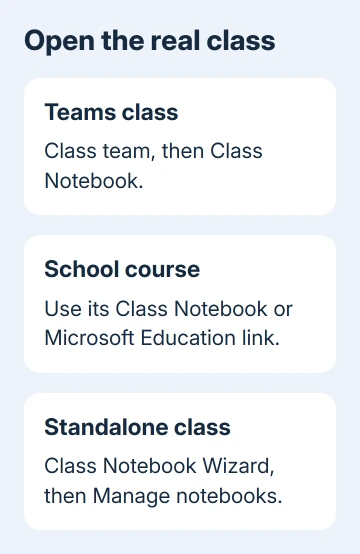
For a learning management system, open the course and its Microsoft Education, Microsoft 365 LTI or Class Notebook link. The school chooses where that link appears, so it may sit in course tools or a lesson module.
For a standalone Class Notebook, sign in at aka.ms/classnotebook, choose Manage notebooks, select the notebook name and choose Open Notebook. These are notebooks created through the Class Notebook Wizard.
Check the notebook's name and class material after it opens. An ordinary OneNote notebook can hold copied lesson pages without becoming a Class Notebook. Naming its folder after a class doesn't add distribution or student-review tools.
Microsoft's web toolbar instructions say the tab appears when a Class Notebook opens online with the school account.
If the class now shows Class Notebook in the ribbon, select it and check the command you needed. If the notebook opens without that tab, continue with the signed-in account before changing browser settings.
2. Check the teaching account in the browser
Open the account menu in the web app and read the school email address. A similarly named personal login won't have the same classroom access. Neither will an account from another school.
If the wrong account is selected, follow the class link in a new private window. Enter the teaching account used for this class. This gives you a separate session without removing your normal browser's saved accounts.
Compare the class name and a recent page again. If the correct account reaches the class and its toolbar, the problem was the browser session. Keep using that school account when opening the notebook.
If the class refuses access, ask its teacher or administrator to check membership and the account's role. A toolbar repair can't grant teaching access. The OneNote permission checks cover that separate error.
Tell IT whether Distribute Page or Review Student Work is missing. A student view doesn't offer the same management controls as an educator's view.
If the account and class are correct but the tab remains absent, check whether another educator can see the tab.
3. Compare another browser and another teacher
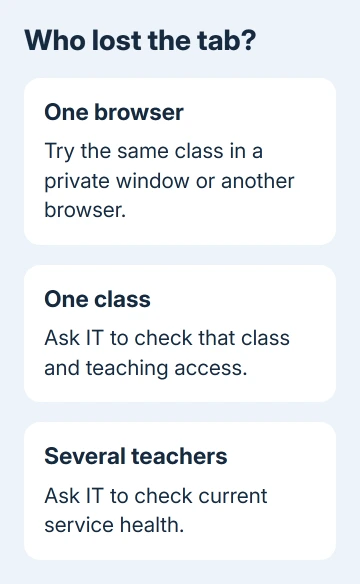
Reload the class once and let the notebook finish opening. Then open the same class link in another current browser, using the same school account. Compare the ribbon rather than opening a different personal notebook.
If the tab appears in the second browser, use that session for the lesson. Tell IT which browser fails and whether a private window works. That gives them a specific browser-session problem to check.
If both browsers lack the tab, ask another educator who already has access to open the same class. Also check a second existing Class Notebook if your account has one. Use existing classes for this comparison.
If only one notebook is affected, check its class setup or access. If several classes fail for one teacher, check that account. If several teachers lose the tab across browsers, have IT check whether the service is affected more widely.
In the original discussion, the owner had already tried Safari, Edge and Chrome, and said multiple users and every class were affected. Waiting longer and repairing the app hadn't restored the missing web tab.
I'd compare those sessions before removing any apps. The browser version runs separately from the desktop installation, and the original failure needed a service repair rather than another Office installation.
4. Ask IT to check the current service incident
Send the school administrator the time the tab disappeared, the affected class links and the browser comparison. Ask whether other teachers have reported the same missing web toolbar.
An administrator can open Microsoft 365 admin center > Health > Service health and read current incidents affecting the school's services. Ordinary teaching accounts may not have access to that dashboard.
The March 2020 support reply reported a regional content-delivery service problem and a repair completed on March 23. An owner replied on March 25 that the Class Notebook tab appeared again.
Later replies in April 2020 reported access and toolbar trouble too. A dated repair notice can't explain every later failure. IT needs current service details or a new support case to work out why the tab is missing now.
If a current incident is listed, follow its next update and workaround. If there isn't one, ask IT to report the missing web toolbar through the school's Microsoft 365 support route with the affected account and notebook details.
5. Keep the lesson moving without rebuilding the class
Try the existing class in the desktop app if the school already uses it and the needed teaching command is available. Confirm that it opens the same notebook before distributing anything.
For a Mac whose tab is missing only in the app, use the Mac Class Notebook settings. That app setting won't fix a missing tab in the browser.
If only reading and editing work online, use those available functions while IT checks the teaching toolbar. Keep a note of any pages that still need distributing so they aren't mistaken for work already delivered to students.
Don't replace the class with a personal notebook to recover a ribbon tab. Its student sections, membership and permissions belong to the existing class setup. Ask IT to repair that setup if the fault affects only one class.
Before considering the issue resolved, check the actual teacher command as well as the tab. Open Review Student Work, for example, and confirm it lists the expected class material without changing students' pages.
The Short Version
Use the teaching account to launch the real class from Teams, its course or Class Notebook Wizard. Compare browsers and teachers. A school-wide missing web tab needs a service check; a desktop reinstall won't repair that service.
Checked November 22, 2026.
 If you have any business, I can build it online






