

The repeating OneNote shortcuts can't be deleted message appeared when notebooks were mixed between a local SkyDrive folder and online storage. Back up the notes, then correct how the notebook is stored and synced.
Don't start by deleting every OneNote file. The report involved OneNote 2010 and SkyDrive, the old name for OneDrive. Its account screens differ from current OneNote.
A notebook should still sync through OneNote, rather than be moved into a sync folder as ordinary files.
In this guide
1. Save the notes before clearing anything
Open each affected notebook and check your newest pages. Keep any work that appears only on one device. Being signed in doesn't mean your newest notes have reached the online notebook.
In Windows desktop OneNote, open File > Options > Save & Backup. Choose Back Up All Notebooks Now and wait for the successful-backup message. Check the backup folder location shown in the same settings.
For a separate backup destination, select Backup Folder > Modify, choose a private folder or USB drive, and confirm. Don't use the folder you're about to reorganize as the only place holding your backup.
These backup controls belong to Windows desktop OneNote, rather than the mobile or browser app. If the newest work exists only on your phone, copy that material somewhere safe before changing its notebook connection.
The original discussion includes an owner who deleted their phone's OneNote files and lost the notes in them. The error stopped for them, but that isn't a recovery method to copy when the notes matter.
2. Identify whether this is a folder or a notebook
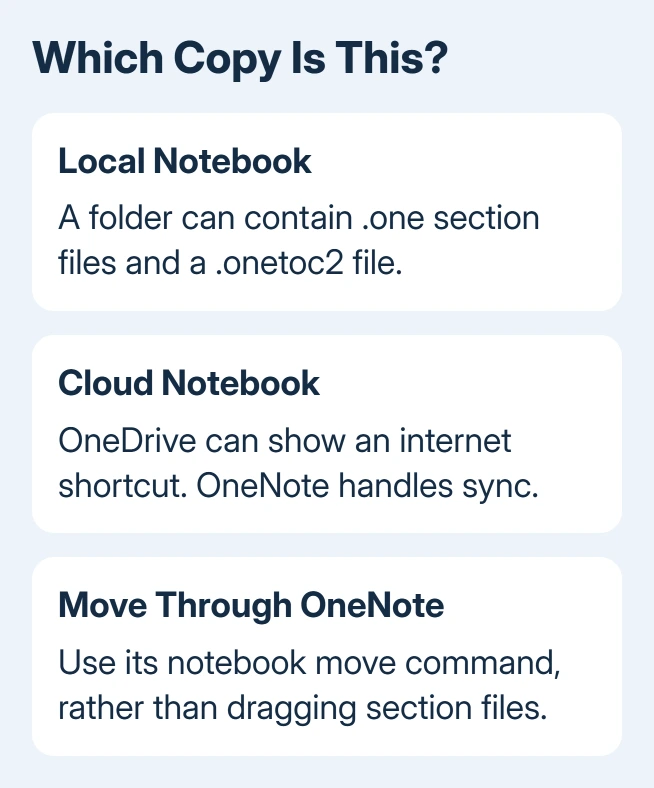
Check the notebook's location in File > Info in desktop OneNote. Also look at the relevant folder in File Explorer. A local notebook can contain section files ending in .one and a file listing its contents, ending in .onetoc2.
A cloud notebook can appear in the OneDrive folder as an internet shortcut instead of those section files. That shortcut opens the notebook stored online. Its presence doesn't mean the notebook's pages have vanished.
Microsoft's notebook sync explanation describes this behavior. OneNote manages the notebook sync directly; the OneDrive desktop client can leave an internet shortcut representing it.
Don't treat a purple OneNote icon as enough information to decide what to delete. Read the file type and confirm which notebook opens. Similar names can belong to separate local and online notebooks.
If the message appears when you delete an item in File Explorer, note that item's full location. If it appears inside OneNote during sync, note which notebook is affected and what the error says. That tells you which copy needs attention.
3. Move a local notebook through OneNote
Avoid dragging a folder containing .one files into OneDrive. Open the notebook in OneNote and use its cloud-sharing or notebook-move command. That sets up notebook sync rather than having two programs move its files independently.
In OneNote 2013 and desktop editions that offer this route, open File > Share, choose your OneDrive location, and select Move Notebook. Wait for the move and sync to complete before reorganizing the old folder.
OneNote 2010 called the service SkyDrive and used older sharing screens. It is now obsolete. If those screens can't connect, open the saved notebook on a supported Windows desktop OneNote installation and use its move command.
In newer Microsoft 365 OneNote, the move route can be File > Save a Copy. Choose the desired OneDrive location and save the notebook there. The route depends on your edition. Use that command rather than moving section files manually.
When OneNote reports another program syncing its files, use the message's option to reopen the notebook from the correct location. It can upload the notebook and replace the local section files with an internet shortcut.
Wait until the notebook finishes syncing and check a recent page on another connected device. If the move fails or pages are missing, keep the backup and stop removing the old files. Work through OneNote's sync recovery checks instead.
4. Remove only the stale duplicate after checking the copy
The asker fixed it by backing up local notebook files, signing out of SkyDrive, clearing misplaced items, and signing in to sync again. They recognized the difference between a local SkyDrive folder and an online notebook.
Use that cleanup only after you've found the unwanted duplicate and checked the notebook you want to keep. To compare both copies, first move the unwanted local copy to a separate folder that doesn't sync.
If you're permanently removing an online notebook, close it in OneNote too. Otherwise, the app can keep trying to sync with a notebook that no longer exists. Closing removes it from the open list; deleting stored notes is a separate action.
If only the browser list retains the old name, remove the stale OneNote Online entry without deleting the notebook you still use.
Don't clear the entire OneDrive folder or erase unrelated notebooks to silence one message. If you can't tell which item the shortcut belongs to, keep it and give support the notebook location and what action brings up the warning.
When the warning keeps returning
Reopen only the notebook you've checked and start a sync. Check whether the warning names the same location. A warning for another notebook needs its own location check, rather than another deletion of the repaired one.
For a current installation, ask Microsoft 365 support about a OneNote notebook shortcut deletion and sync-location conflict. Include the OneNote version, account type, exact folder path, and whether the notes are intact on another device.
For work and school accounts, involve the administrator before deleting shared storage. They can confirm the OneDrive or SharePoint location and permissions.
If new notebooks also fail with a name warning, check the intended OneNote account before deleting anything else.
The Short Version
Make a backup, distinguish local section files from an online notebook shortcut, and move notebooks with OneNote's own commands. Remove a misplaced duplicate only after checking the notebook you're keeping.
Save any notes that haven't synced before deleting anything.
Checked November 21, 2026.
 If you have any business, I can build it online






