

To open Chrome browser on Android, tap its multicolored circle icon on Home or in the app list. Enter a website address in the bar at the top. The Google app can show websites too, but it doesn't always launch Chrome.
For a missing icon, check the app list before installing anything. For links that keep opening another browser, change the default browser after Chrome is running.
In this guide
Find the installed Chrome app
Start on Home. For gestures, place your fingertip at the bottom, then swipe it upward. With three-button navigation, tap the Home button, usually the circle in the middle.
Look for Chrome, with a red, green, yellow, and blue circle. It might be inside a folder named Google. Open the folder and tap Chrome once. A new tab page or your previous website should appear.
If it isn't there, swipe up on the Home screen to open the app list. Some phones have an Apps button instead. Search that list for Chrome, then tap the result marked as an app.
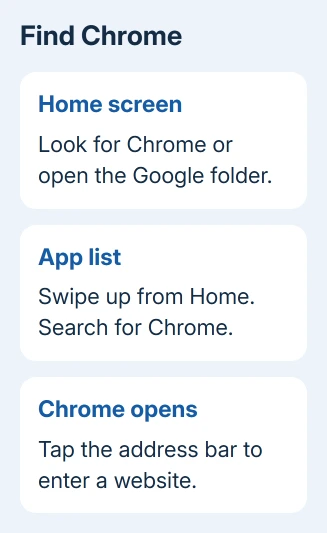
Google's Android installation instructions confirm that Chrome can open from Home or All Apps. A missing Home shortcut doesn't mean the browser has been deleted.
If swiping brings up recent app previews instead, return Home first and swipe up again. The Android app drawer guide explains that difference and the layouts that use an Apps button.
Once Chrome opens, keep going with the address bar. If the app list has no Chrome entry, use the Play Store check later in this guide.
Open a website or start a fresh tab
Tap Chrome's address field, which sits near the top. Type a full address, such as example.com, and tap the keyboard's Go or Enter key. Typing ordinary words there starts a web search instead.
The bar may already contain the address of a page you visited earlier. Tap it and replace that address. You can load the next address in the same tab without closing it first.
To keep the current page and open another, tap the three-dot menu and choose New tab. Enter the next address in that tab. The square tab counter lets you return to other open pages.
A new tab can show a search box, shortcuts, and suggested stories. That's Chrome's starting page, so the browser is already open. Tap the address field to leave it for a website.
If Chrome opens but a site fails, try a different address. If another site loads, Chrome is working. Check the first site's address or whether that site is down. When neither loads, check Wi-Fi or cellular data.
Don't type a website address into the phone's Settings search. That search finds device controls. Chrome's address bar is inside the browser, while the keyboard appears when you tap that bar.
Put Chrome back on the Home screen
Open the app list and touch and hold Chrome. Drag the icon onto an empty space on the Home screen, then release it. Some launchers offer Add to Home in the menu instead.
The added icon is a shortcut to the installed browser. Moving or removing that shortcut doesn't remove your browsing history or uninstall Chrome. It just changes where you launch it.
On a Samsung phone, the app list can span several pages. Use its search field rather than checking each page manually. A launcher with a Home-screen-only layout may keep apps directly on Home instead of in a separate drawer.
Try the new shortcut once. If it opens Chrome, your shortcut is ready. If the Home screen won't accept it, choose an empty space or another Home page rather than dropping it on a full row.
I'd keep the shortcut in a place you can recognize easily. It's simpler than searching for Chrome each time, especially when a phone has both Samsung Internet and Chrome installed.
Check the Play Store when Chrome is missing
Open Play Store, search for Google Chrome, and select the listing from Google LLC. Check whether the listing shows Open, Install, or Update.
Open means Chrome is installed and available. Tap it to launch the browser. Install means the store is offering to download it. Tap Install, let Play Store finish installing Chrome, then tap Open.
An Update button offers a newer version of the installed app. Update it, then open it. A disabled preinstalled copy needs enabling instead; the Chrome disabled guide covers that control.
Current Chrome requires Android 10 or later. An older phone can still have an old installed copy, but it can't run the current release. Check Settings > About phone > Android version if installation is refused.
Use the official store listing rather than a download offered by a search advertisement. An installation prompt from an unrelated site isn't needed to open a browser that's already on your phone.
Make website links choose Chrome
Opening Chrome yourself and making it the default browser are separate tasks. Your default browser opens ordinary website links from messages and other apps.
On many Android phones, open Settings > Apps > Default apps > Browser app, then select Chrome. Some devices call the middle option Choose default apps. Search Settings for Default apps if that label isn't visible.
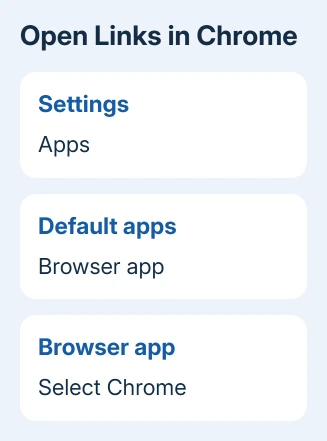
Test with a normal website link in a message. It should open in Chrome. An app that uses its own built-in viewer may still show the page inside that app; look in its menu for Open in Chrome or Open in browser.
Changing this setting doesn't move bookmarks from another browser or sign Chrome into an account. Those are separate choices. Browsing a public website doesn't require turning on Chrome sync.
If Chrome closes as soon as you tap Open in Play Store, install any update offered there, then restart your phone. Ask IT about restrictions on a managed phone. On a personal phone, use Chrome Help's installation troubleshooter.
The Short Version
Tap Chrome on Home or find it in the app list. Enter a website in its address bar. Use Play Store to check a missing installation, and choose Chrome under Default apps when links keep opening elsewhere.
Checked November 15, 2026.
 If you have any business, I can build it online






