

Outlook AutoText entries that vanish after a restart aren't staying saved in its message template. Start by saving a small entry from a separate email window, then reopen Outlook to check it. Reinstalling Office isn't the first move.
Classic Outlook keeps these entries separately from Word. If Word saves new AutoText but Outlook doesn't, copying Word's template worked for one owner. Back up your existing Outlook template before trying it.
In this guide
1. Save an entry from the message body
In the classic Windows app, choose New Email. For replies, Pop Out opens the draft separately. Click inside the body, type a short piece of test text, and select it.
Choose Insert > Quick Parts > AutoText > Save Selection to AutoText Gallery. Name the entry so you can spot it, then select OK. Look in the AutoText gallery and insert it into the draft.
Microsoft's Quick Parts instructions put this command inside the message body. An inactive control while the cursor is in the recipient box doesn't mean the saved entries have disappeared.
Close the draft and exit Outlook normally. Open it again, start another message and look for your entry. If it's still there, Outlook kept it when you closed the app.
If it disappears only after that restart, continue with the template checks. If it's missing immediately, save it again first. Check AutoText, rather than only the main Quick Parts gallery.
2. Make sure this is classic Outlook AutoText
Use this file workaround only with the classic Windows app. It doesn't restore the separate My Templates add-in, and it won't transfer local building blocks to the new app or webmail.
Check File > Office Account > About Outlook to record the classic app's version. The File tab and Office Account page help distinguish it from new Outlook, whose settings use a different layout.
For a missing add-in button or an empty snippets pane, use the missing Outlook templates checks. Replacing a local template won't repair an add-in service problem.
Word and classic Outlook also have separate galleries. A phrase saved in Word isn't necessarily saved in Outlook too. That explains why it can be available in documents but missing from new emails.
I'd try saving and reopening a small entry before touching the files. That helps you tell whether Outlook is losing new entries or an older one is just hidden in another gallery.
3. Keep a copy of the existing templates
Close Word and Outlook. Press Windows + R, enter %appdata%\Microsoft\Templates, and press Enter. The folder that opens holds templates for your current Windows login.
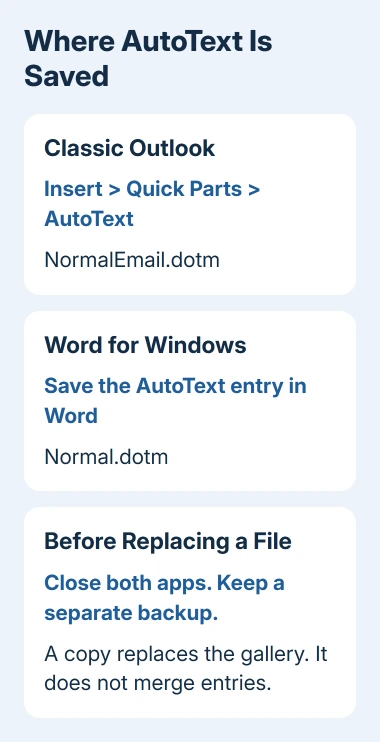
Look for NormalEmail.dotm, the Outlook message template, and Normal.dotm, Word's normal template. Windows may hide the extensions, showing the names as NormalEmail and Normal instead.
In Windows 11, choose View > Show > File name extensions in File Explorer. In Windows 10, select File name extensions on the View tab. Check the full filenames before renaming anything.
Copy the existing templates into a separate backup folder. That keeps their current contents safe, including any older entries that still work. Keep the backup until you've checked the replacement and your normal email formatting.
If neither file is in that folder, stop the replacement steps. A customized Office setup can use another template location. In Word, File > Options > Advanced > File Locations shows the User templates location.
Ask your work IT team to check that location if it's managed or unavailable. Don't create a new template in a guessed folder and assume Outlook will use it.
4. Build the replacement entries in Word
In Word, start with a blank document. Type or paste one of the phrases you want Outlook to retain, then select the content. Include any picture that belongs with that entry in the selection.
Choose Insert > Quick Parts > AutoText > Save Selection to AutoText Gallery. In the save dialog, check that Save in is Normal.dotm, name the entry, and save it.
Close Word normally and accept the prompt to save changes to its normal template if one appears. Reopen Word and insert that entry from its AutoText gallery. Continue only if the entry is still there after reopening.
If Word loses the entry too, don't use its template as the replacement. Tell support that both apps lose entries. The workaround worked for someone whose entries stayed saved in Word but disappeared from Outlook.
For a complete reusable email with recipients or a subject, the Outlook email template options may fit the job better than AutoText. Use AutoText for reusable content inside a message.
5. Try the owner-confirmed template copy
An owner confirmed the Word-template copy worked on Microsoft's forum. They saved their entries in Word, then copied that template under Outlook's filename. Their later reply confirmed the entries worked without an Online Repair.
Close both apps and return to the template folder. Rename NormalEmail.dotm to NormalEmail.saved.dotm. Copy Normal.dotm into a temporary folder. Rename that copy NormalEmail.dotm, then copy it into the template folder.
Leave the original Normal.dotm in place. You're copying Word's working template, so Word keeps its own file. The renamed Outlook file and the separate backup let you undo the change.
Start Outlook, create an email and check Insert > Quick Parts > AutoText. Insert a transferred entry, then exit Outlook and start it again. Check the text, pictures and usual message formatting before using it for real mail.
This replaces Outlook's template rather than merging two galleries. If you need older Outlook entries as well as the Word entries, preserve their text before replacement or ask IT to help combine the content.
When the copied template doesn't solve it
Close Outlook before restoring the saved file. Move the replacement into your backup folder, then rename NormalEmail.saved.dotm back to NormalEmail.dotm. This returns Outlook to the template you had before the change.
For a work PC, ask IT to check why Outlook can't retain template changes. Send the Office version, template location, whether Word saves entries, and whether Outlook loses just new entries or its whole gallery.
On your own PC, open Outlook's Help > Contact Support. Describe whether your entry stays saved after reopening Outlook. That tells support the app isn't keeping entries, rather than just missing a button.
The Short Version
Save from a separate classic Outlook message window and check the entry after reopening. If only Outlook loses entries, back up its template before trying the confirmed Word-template copy workaround.
Checked November 17, 2026.
 If you have any business, I can build it online






