

Outlook crashing at Choose beside Signing Certificate can come from an iCloud for Windows conflict. Removing iCloud and restarting restored certificate import for one owner. Check that connection before replacing certificates or profiles.
This applies to classic Outlook's signing setup, not an expired mail-server certificate warning. The confirmed fix comes from an older report. Check iCloud if it's on your PC, but don't assume it causes every current Outlook crash.
In this guide
1. Match the crash to the certificate picker
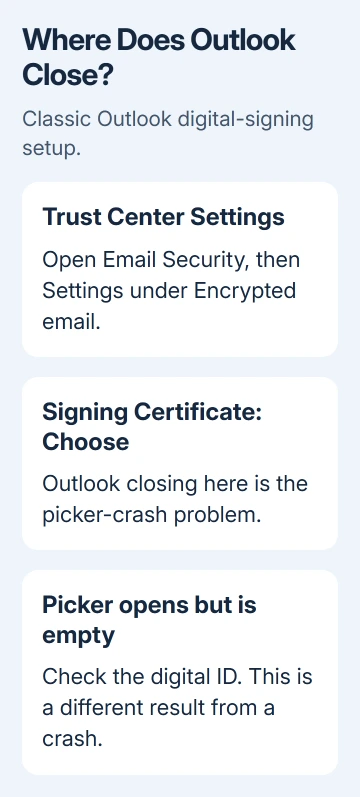
In classic Outlook, open File > Options > Trust Center > Trust Center Settings > Email Security. Under Encrypted email, choose Settings, then Choose beside Signing Certificate.
If Outlook closes at that last button, record the exact point. If the picker opens but lists no suitable certificate, that's a different problem: Outlook stayed running, and you need to check the digital ID rather than a crash.
An installed ID that cannot read an email needs the S/MIME decryption checks and a comparison of old and new encrypted messages.
A digital signing certificate proves the sender's identity and helps detect a changed message. It isn't the name-and-phone-number signature pasted at the bottom of an email, and it isn't the mail server's website-style certificate.
For a warning about the server's name, dates, or issuer, use the Outlook server certificate checks. Replacing a personal signing certificate won't repair that server's identity.
Microsoft's digital ID instructions describe the classic picker. In new Outlook, signing controls use Settings > Mail > S/MIME. Don't look for the classic Trust Center route there.
Save open drafts before reproducing the crash. One clear reproduction is enough to record which button causes it; repeatedly opening the same dialog doesn't add useful information and can interrupt other mail work.
2. Check for iCloud before removing your mail profile
Open Windows Settings > Apps > Installed apps on Windows 11, or Settings > Apps > Apps & features on Windows 10. Look for iCloud and note whether an iCloud Outlook component is also listed.
The saved certificate-crash discussion includes a report from an owner who uninstalled iCloud for Windows, restarted, and could then import certificates in Outlook.
Removing iCloud fixed that owner's installation; it may not fix yours. If iCloud isn't installed on yours, skip removal and continue with the add-in comparison.
Before signing out or uninstalling, keep a separate copy of iCloud data you need on the PC and let pending changes sync. Signing out removes iCloud information from the PC; it remains available on other devices and iCloud.com.
Open iCloud for Windows, choose Account Details > Sign Out, and follow its prompts. Close Outlook. On Windows 11, return to Installed apps, open iCloud's three-dot menu, and choose Uninstall.
On Windows 10, select iCloud in Apps & features, choose Uninstall, and follow the prompts. If iCloud Outlook is listed as well, its documented removal route is Modify > Remove.
The iCloud removal instructions explain both Windows routes. Restart the PC afterward, reopen classic Outlook, and try the same Choose button again.
If the dialog opens, choose the intended certificate and finish the signing setup. Leave other settings alone for this comparison. You'll know whether removing the integration changed the crash.
3. Keep a remaining crash separate from an add-in guess
If removal doesn't help, or iCloud wasn't installed, save work and close Outlook. Press Win + R, enter outlook.exe /safe, and press Enter. Use the same profile if Outlook asks you to choose one.
If safe mode opens and the certificate picker works there, compare Outlook's add-ins. In normal Outlook, go to File > Options > Add-ins, choose COM Add-ins beside Manage, and select Go.
Record the checked entries, clear the checkbox for the add-in you want to test, and restart Outlook normally. Try the picker again. Restore an entry that makes no difference before testing another, to keep each test's result clear.
Safe mode can fail too. In the original discussion, the asker reported a crash on safe-mode startup, while normal Outlook opened. A safe-mode failure doesn't mean your personal mail profile has definitely become corrupt.
I'd avoid deleting that profile at this stage. The same asker also reported the error under another Windows user account, and the later successful iCloud removal points to why rebuilding the profile isn't always the right repair.
If Outlook won't launch at all after the comparison, restore the recorded add-in settings when possible and use the Outlook startup checks for that separate failure.
4. Read the crash event before choosing a repair
Press Win + R, enter eventvwr.msc, and open Windows Logs > Application. Find the Application Error event recorded when Outlook closed unexpectedly. Read the application name, faulting module, and exception code.
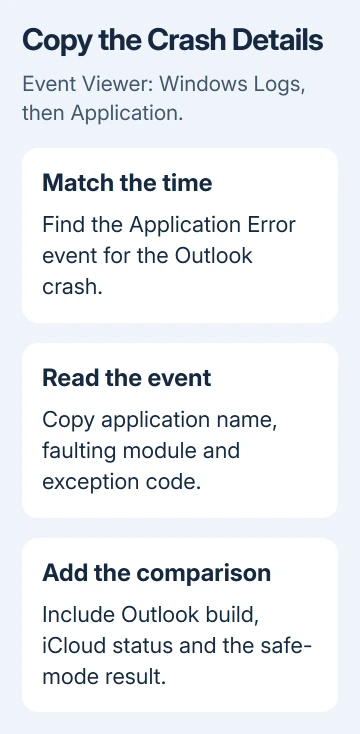
Copy those details into your support request along with the Outlook build from File > Office Account > About Outlook. A screenshot of the whole mailbox isn't needed to show which Windows component was named.
The historical thread named Windows.UI.Xaml.dll as the faulting module. That was part of its crash report, not a direction to delete or replace that DLL. Your event may name a different module and need a different repair.
For an event on build 15330.20298 during recipient editing, compare the August 2022 Outlook fault.
If Windows component damage is suspected, use the system-file repair procedure: run an administrator Command Prompt, complete DISM first, then run SFC.
DISM.exe /Online /Cleanup-Image /RestoreHealth
sfc /scannow
Restart after the repair and try the same Choose button. Keep the completion messages for support if it still crashes. A technician can use the component name to choose a repair instead of reinstalling certificates without knowing why.
5. Finish the signing setup or escalate the exact failure
When the picker stays open, select the email-signing certificate. Use View Certificate to inspect its purpose and validity. If your digital ID is missing or unsuitable, ask its issuer or your certificate administrator for help.
Once configured, send a signed test message to a recipient who can check the signature. An open dialog tells you the crash has stopped. A received message with a valid signature confirms that signing works too.
If the crash persists, ask Microsoft 365 support or workplace IT to examine the certificate-picker crash. Include the build, module, exception, whether iCloud was installed, and the results after its removal and in safe mode.
The Short Version
Confirm that Choose causes the crash. If iCloud is installed, compare after careful removal and a restart. For a remaining crash, collect event details and compare add-ins before replacing certificates or profiles.
Checked November 16, 2026.
 If you have any business, I can build it online






