

S/MIME email needs the private key matching the certificate used to encrypt it. If Outlook can't decrypt the message, open it in a separate window first, then check that its digital ID is installed and accessible on this PC.
A Reading Pane warning, a missing digital ID, and a browser message asking for an S/MIME control are different failures. Installing a browser extension won't replace a missing decryption key in the desktop app.
In this guide
1. Open the encrypted message in its own window
Double-click the email in desktop Outlook to open it separately. On the web, choose the message option that opens a separate window. The encrypted conversation preview can be unavailable even when the message can be read separately.
The encrypted-message instructions confirm this limitation. Microsoft says conversation view doesn't support reading encrypted messages.
If the content appears in its own window, you don't need to replace the certificate just because the Reading Pane didn't display it.
For readable, unencrypted mail, a missing Reply All list command calls for checking the selected message and conversation layout instead.
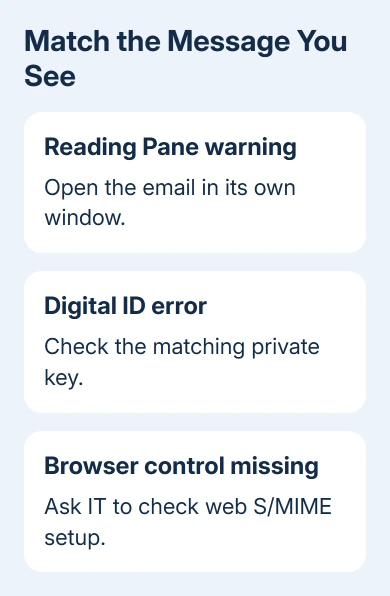
If another error appears, record its exact text. A message referring to a digital ID points toward certificate access. If the browser says the S/MIME control isn't installed, follow the browser setup section.
Also confirm the protection type with the sender or IT. S/MIME uses certificates. Microsoft Purview Message Encryption can use account permissions or a message portal instead.
A one-time passcode route for a protected message isn't a replacement S/MIME key.
If ordinary messages open but every S/MIME message fails, continue with the digital ID on this device. If only one sender's encrypted mail fails, keep that distinction for the sender comparison after setup is checked.
2. Locate the digital ID and its matching private key
A digital ID is a certificate used for email security. Its public part can be shared; its private key is what lets the intended recipient decrypt mail.
Having a certificate listed on the PC doesn't by itself tell you the required private key is available.
Ask your organization's certificate administrator or certificate issuer for the approved installation file or smart-card instructions. Explain that receiving encrypted mail fails, even if signing messages works.
They need to check decryption access, not only a certificate's displayed validity.
For a certificate held on a smart card, insert the card when Outlook requests it and complete its PIN prompt. If Windows asks permission to use the key store, follow your organization's instructions for that prompt.
If the certificate was renewed, tell IT whether older mail fails while new encrypted messages open. Old mail needs the key that matches the certificate used for that message.
A newly issued certificate doesn't automatically supply that older private key.
Don't delete existing digital IDs while looking for the correct one. Preserve them until the administrator has checked which messages and keys they belong to.
A working copy on another device can be important when locating the original certificate backup.
The Outlook encryption guide explains how S/MIME differs from account-based protection. For this error, you need access to the matching key, rather than changing the sender's Encrypt button.
3. Import the ID into Windows Outlook
Get the certificate file and its export password through your approved process. The file password protects that certificate package; it isn't necessarily your Microsoft account password.
Keep the file and password private while installing it.
For new Outlook, go to Settings > Mail > S/MIME. Under Digital IDs (Certificates), select Import, then Browse. Select the file, enter its export password, and finish the import.
In classic Outlook, open File > Options > Trust Center > Trust Center Settings > Email Security. Choose Import/Export under Digital IDs (Certificates), select the import option and browse to the certificate file.
Enter the password used when the certificate was exported.
Microsoft's digital ID instructions show how to import a digital ID in new and classic Outlook. New Outlook doesn't automatically import certificates just because an account has been added.
For classic Outlook's certificate selection, return to Email Security > Settings. Under Certificates and Algorithms, use Choose to select the appropriate S/MIME certificate.
Have IT verify the choice when several digital IDs are listed.
Close and reopen the affected message after setup. If you can read it, check that another encrypted message opens before removing temporary files as your organization requires.
If it doesn't, save the new error text and have IT confirm which key was imported.
If selecting a certificate actually closes Outlook, use the certificate-picker crash checks. A failing picker needs crash troubleshooting before you can finish installing the ID.
4. Treat the browser's S/MIME warning separately
Outlook on the web can need its S/MIME control and organization-managed browser configuration. Open Settings > Mail > S/MIME and follow the installation option offered by your organization's mailbox, with IT's approval and instructions.
Chrome requires the managed domain and policy setup described in the S/MIME configuration guide. Have IT check whether your computer and browser meet those requirements instead of installing an unrelated extension from a search result.
If the web app asks permission for its domain to use the installed control, use the organization's approved mailbox domain. Then reopen the encrypted email in a separate window. The control and the digital ID are both parts of the setup.
Mail opening in the browser doesn't mean desktop Outlook has the right certificate installed. The same is true the other way around. Tell IT which app works so they can compare its certificate storage and settings with the app that fails.
I'd check desktop certificate access before changing browsers when only classic Outlook reports the digital ID error.
The browser's missing-control message sends you into a different setup process and can distract from the key the desktop app needs.
Can new encrypted mail open when old mail cannot?
Request a harmless newly encrypted test email from the sender, addressed to the exact address covered by your current certificate.
Have the administrator confirm which recipient certificate the sender is using, especially after a renewal or address change.
If new mail opens but older mail doesn't, request recovery of the older matching private key from your approved backup or certificate-management system.
If that key can't be recovered, ask the original sender about securely resending the content using your current certificate.
If neither old nor new S/MIME mail opens after installation, give IT the Outlook version, certificate issuer and dates, exact error, and whether another approved app can decrypt the same message.
Send certificate details, not its private key or export password.
The owner in the old thread could use the certificate in iOS and Thunderbird, but not Outlook. Give IT that same comparison if an approved app already opens your message. It helps them compare certificate access across the apps.
The Short Version
Open S/MIME mail separately, then check the matching private key and digital ID import. Use the setup for your Outlook version.
Browser-control warnings need their own managed setup, and old encrypted mail may need an older key recovered by IT.
Checked November 16, 2026.
 If you have any business, I can build it online






